Delete a Volume
Permanently remove a storage volume from your account. Deletion is irreversible — all data on the volume is lost and cannot be recovered.
Prerequisites
- The Tenant Operator, Tenant Manager or Tenant Administrator role, acting in the chosen group. An organization-wide role acts in the Default group only; a Tenant Operator scoped to a group acts in that group. Tenant Viewer is read-only.
- The volume must be in Available or Error state. Detach it from any VM first — an attached volume can't be deleted, but a volume stuck in Error can.
Delete the Volume
- Go to Resources → Storage and Media → Volumes.
- Find the volume you want to delete.
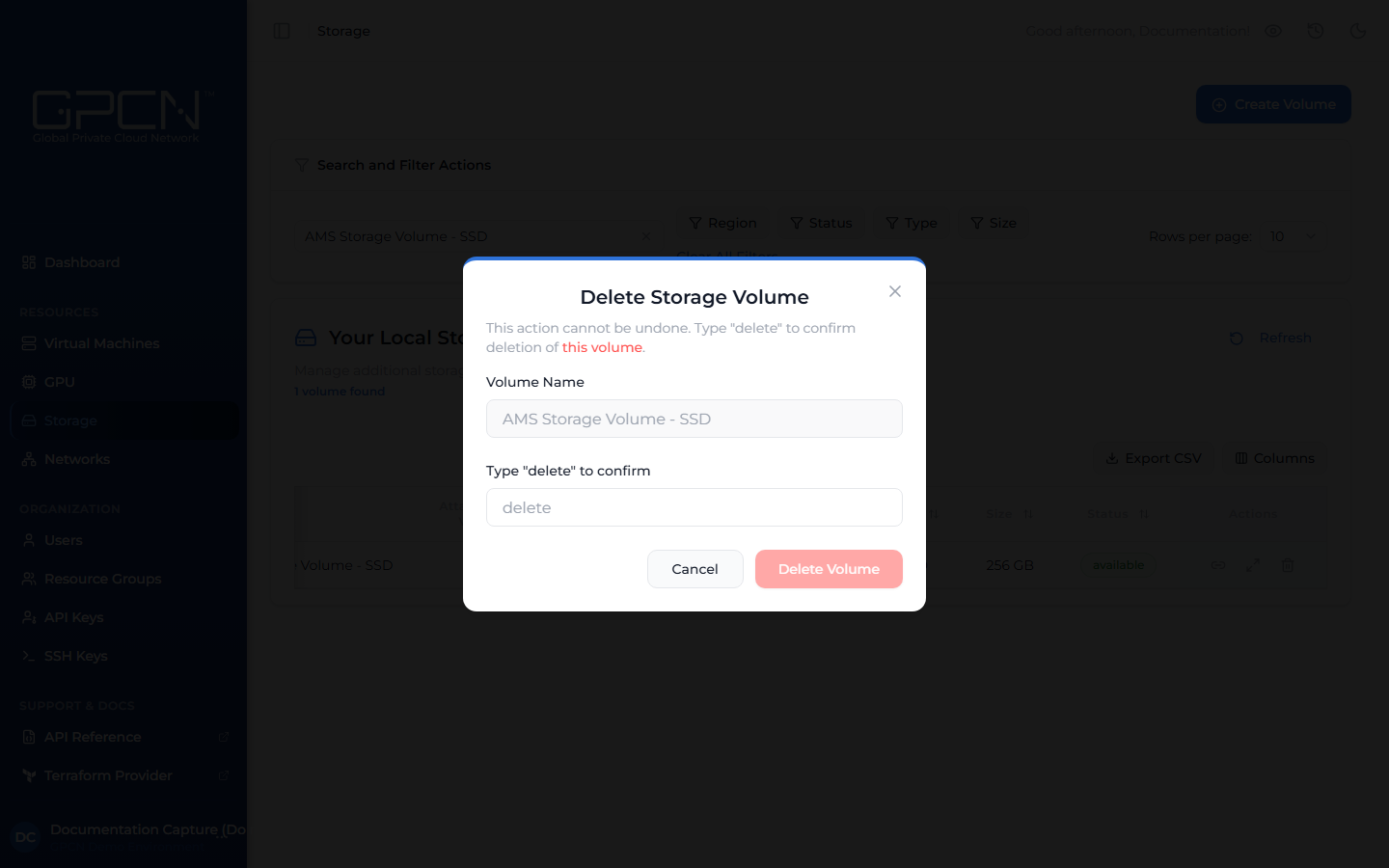
- Click the Delete icon on the volume row. A confirmation dialog opens.
- Type
DELETEin the confirmation field. - Click Delete Volume.
This action cannot be undone. All data on the volume is permanently deleted.
Delete Multiple Volumes
Select the checkboxes next to the volumes you want to remove, then click Delete in the bulk actions bar. Only volumes in Available state can be deleted — attached volumes must be detached first.
Next Steps
- Attach & Detach — detach a volume before deleting it
- Create a Volume — provision a new volume
- Resize a Volume — expand a volume's storage capacity
.png)