Network Interfaces
A network interface is how a machine attaches to a network. A machine is created with one, and you can add more afterwards — up to five in total.
Prerequisites
- Any role can view a machine's interfaces. Changing them needs the Tenant Operator, Tenant Manager or Tenant Administrator role, acting in the chosen group. An organization-wide role acts in the Default group only; a Tenant Operator scoped to a group acts in that group.
- Nothing extra is needed to pick a VPC subnet or an L2 segment: every role can see both.
View a machine's interfaces
Open the machine from Resources → Compute → Virtual Machines. Its detail page shows the interfaces read-only, each with a badge saying which kind of network it's on:
| Badge | Meaning |
|---|---|
| VPC | A subnet inside a VPC |
| Segment | An L2 segment |
One interface is marked Primary. A star control lets you make a different interface the primary one.
To change anything, click Edit VM. The card is read-only on the detail page and editable on the edit page — a common source of "where's the button?".
Add an interface
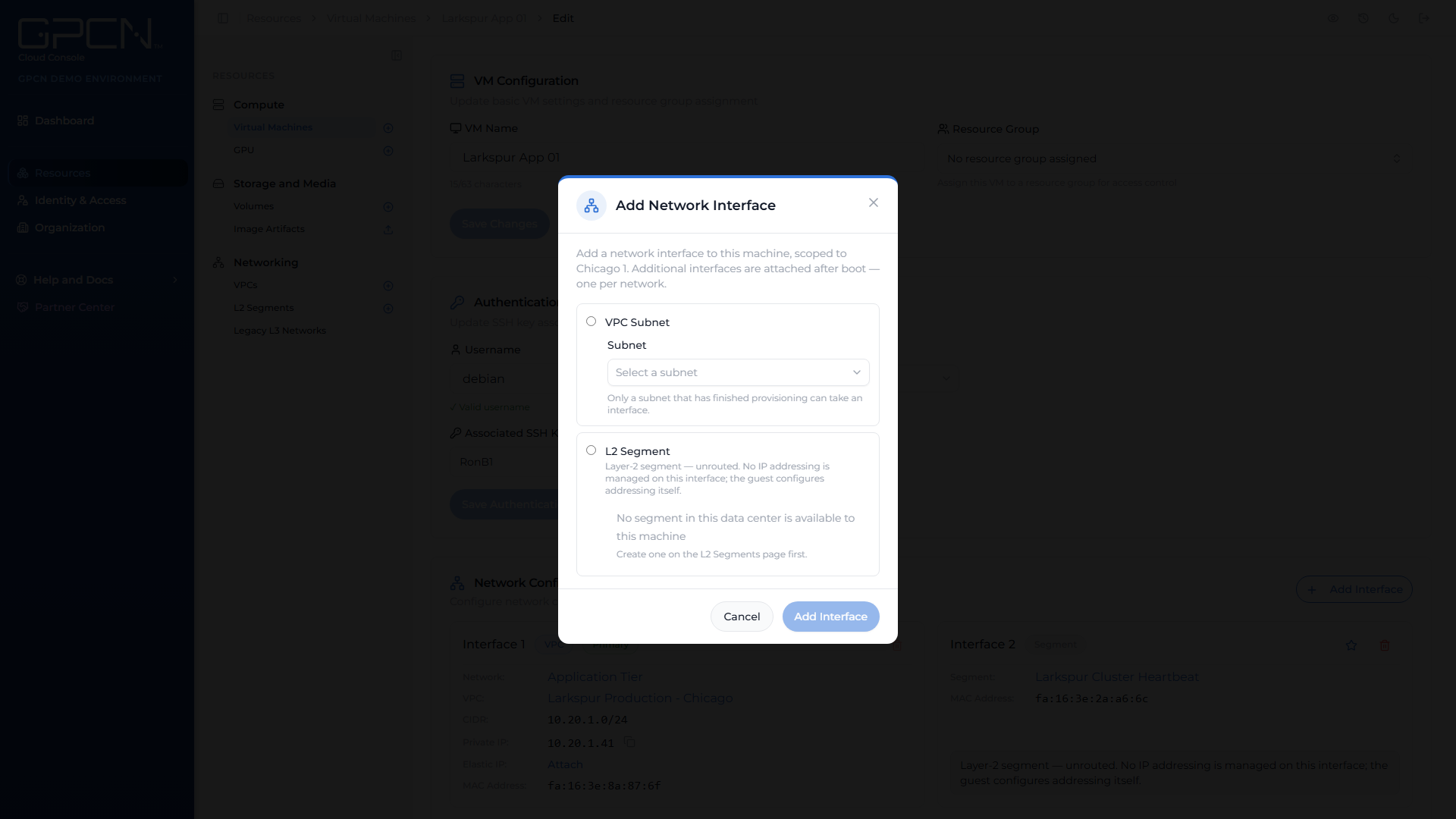
On the machine's Edit VM page, use Add Interface. The dialog offers two choices:
| Attach to | Notes |
|---|---|
| A VPC subnet | Only subnets in the machine's own VPC, and only those that are ready |
| An L2 segment | Any segment, whatever else the machine is attached to |
One interface per network. Each interface must name a different subnet or segment — you can't put two interfaces on the same one.
Whether the machine has to be stopped
Some images support changing interfaces while the machine runs, and some don't. That's a property of the image, and it works the same way for subnets and segments alike.
When the machine has to be stopped first, the dialog says so and offers a Stop VM button so you don't have to go elsewhere.
Remove an interface
Use the remove control on the interface row on the Edit VM page.
The primary interface can't be removed. Make another interface primary first, then remove the one you don't want.
If the interface carries an elastic IP, removing the interface detaches the address and it returns to the VPC's held addresses — still yours. The dialog also offers Also release the address, which gives it up instead.
Releasing an address is permanent. Releasing returns the address, and you can't reclaim it — acquire another later and you should expect a different one. Leave that box unticked to keep the address for something else. If anything outside GPCN™ points at it (DNS, a firewall allow-list, a partner's configuration), update that before you release it.
Public addresses
What you can do depends on the kind of network the interface is on.
One address per interface, one elastic IP per machine. An interface carries at most one public address, and a machine carries at most one elastic IP across all of its interfaces — so on a machine with several interfaces, the address lives on exactly one of them.
| Interface | How addresses work |
|---|---|
| VPC | Attach and detach an elastic IP your organization holds. One address per machine, across every VPC. |
| L2 segment | No address row at all — a segment is unrouted and can't carry one. |
For a VPC interface, use Attach and Detach. Detaching keeps the address in your organization's held addresses, so you can attach it somewhere else. Releasing gives it up permanently. See Elastic IPs.
Addressing on additional interfaces
The platform configures the guest's routing for its primary interface. On additional interfaces, routing inside the machine is yours to configure — the interface is attached, but your operating system decides what it does with it.
Next Steps
- Networking → — the kinds of network an interface can attach to
- Subnets → — VPC subnets and how machines attach to them
- L2 Segments → — unrouted segments
- Manage a VM → — the rest of the machine's lifecycle
.png)