Portal Quickstart — Getting Started
This quickstart introduces the GPCN™ (Global Private Cloud Network™) portal and walks you through your first steps: activating your account, signing in, finding your way around the dashboard, and deploying a virtual machine.
By the end you'll have a virtual machine running. You'll also know where each kind of resource lives and how to manage it. It assumes you haven't used GPCN™ before, so each step says what to expect before you take it.
Creating your account
GPCN™ accounts are created by your organization's administrator, so you'll normally start from an invitation email rather than a sign-up form.
- Your administrator creates your account and GPCN™ emails you an invitation.
- Click the activation link in the email. The link carries a token, so use the link itself rather than copying parts of it.
- Complete the three-step activation wizard:
- Welcome — confirm your first and last name. Both are required; if your administrator entered them on the invitation, they're pre-filled.
- Create your password — at least 12 characters with an uppercase letter, a lowercase letter, a number and a symbol. A live checklist shows what's still missing.
- Review & accept — accept the Acceptable Use Policy. You can't finish activation without it. There's also an optional opt-in for product updates.
- Activation doesn't sign you in — you'll be sent to the sign-in page to log in with your new password.
If your organization uses single sign-on, you may not get an invitation at all: your account can be created the first time you sign in through your identity provider.
First sign-in
Now you'll sign in. It takes three screens, and you'll finish on the dashboard.
Step 1 — Your email address
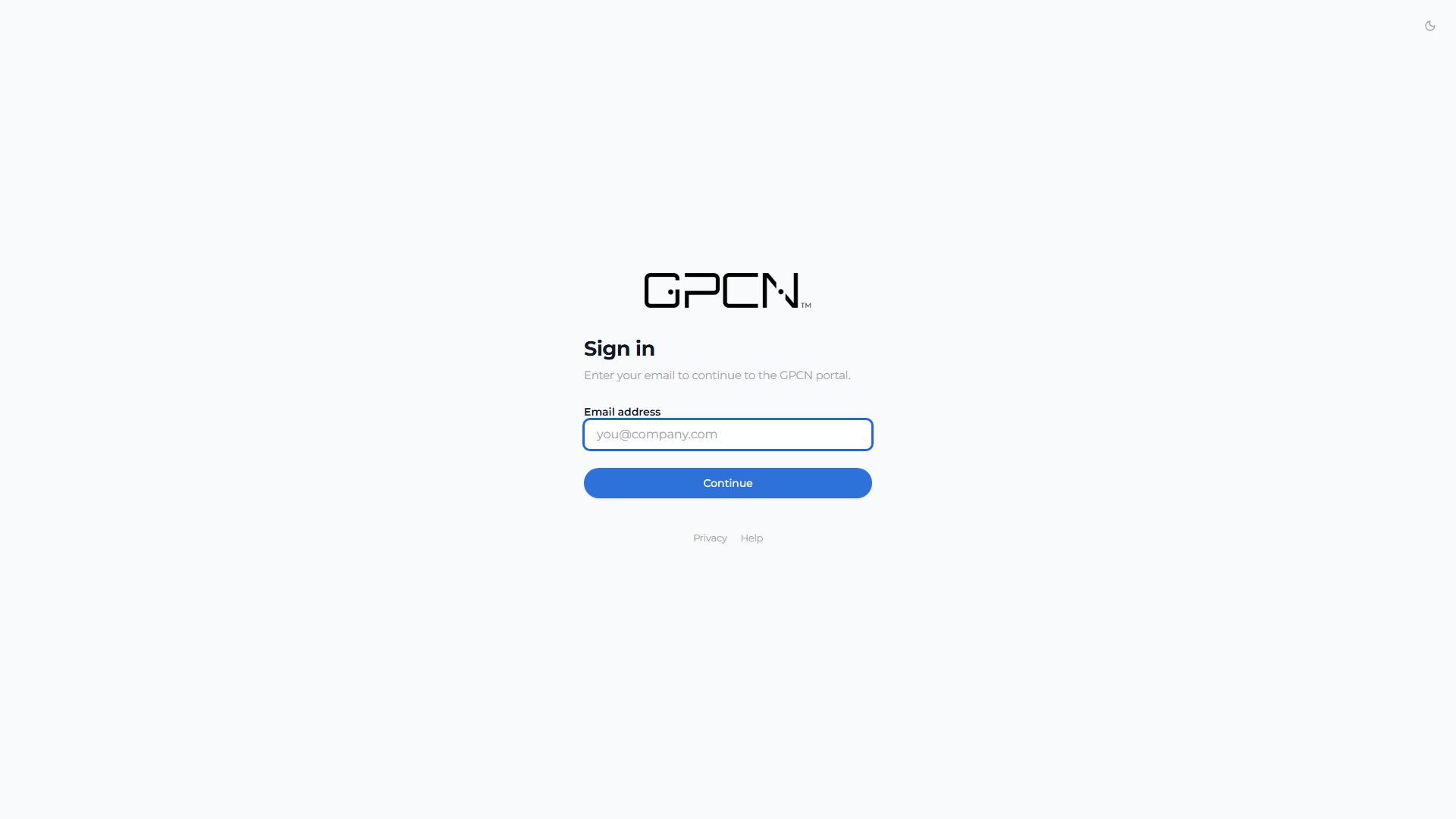
Enter your email address and click Continue. That's all this screen asks for.
Step 2 — Your password, or your identity provider
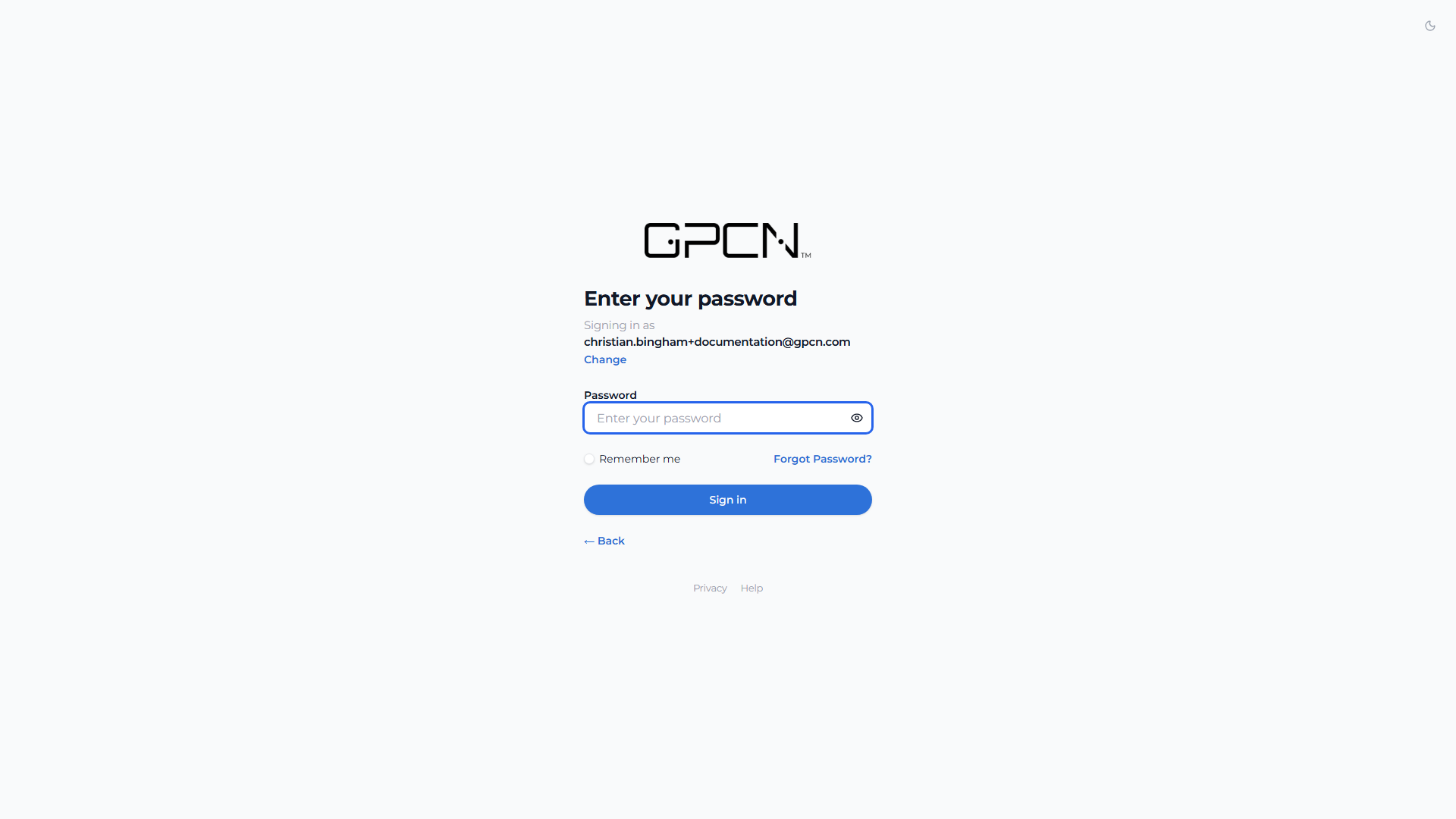
- If your organization uses single sign-on, you're redirected to your identity provider and log in there. You won't be asked for a GPCN™ password, and the screen above never appears.
- Otherwise, you land on the password screen above. It shows the email you entered, with a Change link if you mistyped it.
Forgot Password? appears on this step, not the first screen — so enter your email and continue before looking for it.
Step 3 — Two-factor verification
- The sidebar collapses from the button at the far left of the header. It becomes a strip of icons; hover one to see its name.
- The section panel collapses from the button in its own top-right corner. It becomes a narrow strip where each section is a single icon. Hover an icon and that section's pages appear beside it, so nothing is out of reach while it's collapsed.
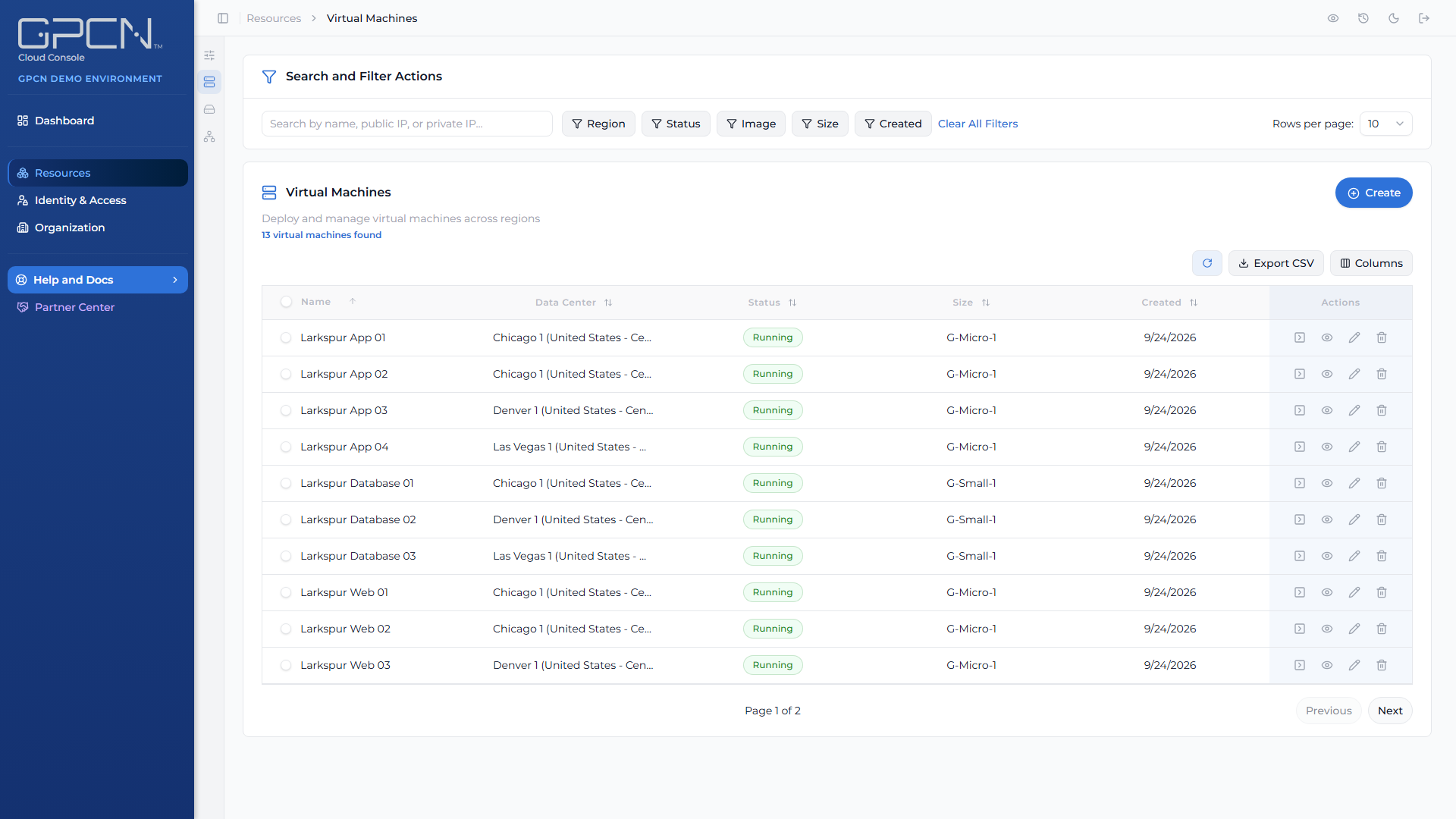
The two are independent, and each remembers your choice, so the layout you leave is the one you come back to.
The task drawer
Almost everything you do in the portal runs as a background job rather than finishing the instant you click. Deploying a machine, deleting a volume, building a VPC: each one is handed to the task drawer, and the page returns you to your list while it runs.
The clock icon in the top-right of the header opens it. A badge on the icon counts the work still in progress, so you can see at a glance whether anything is running.
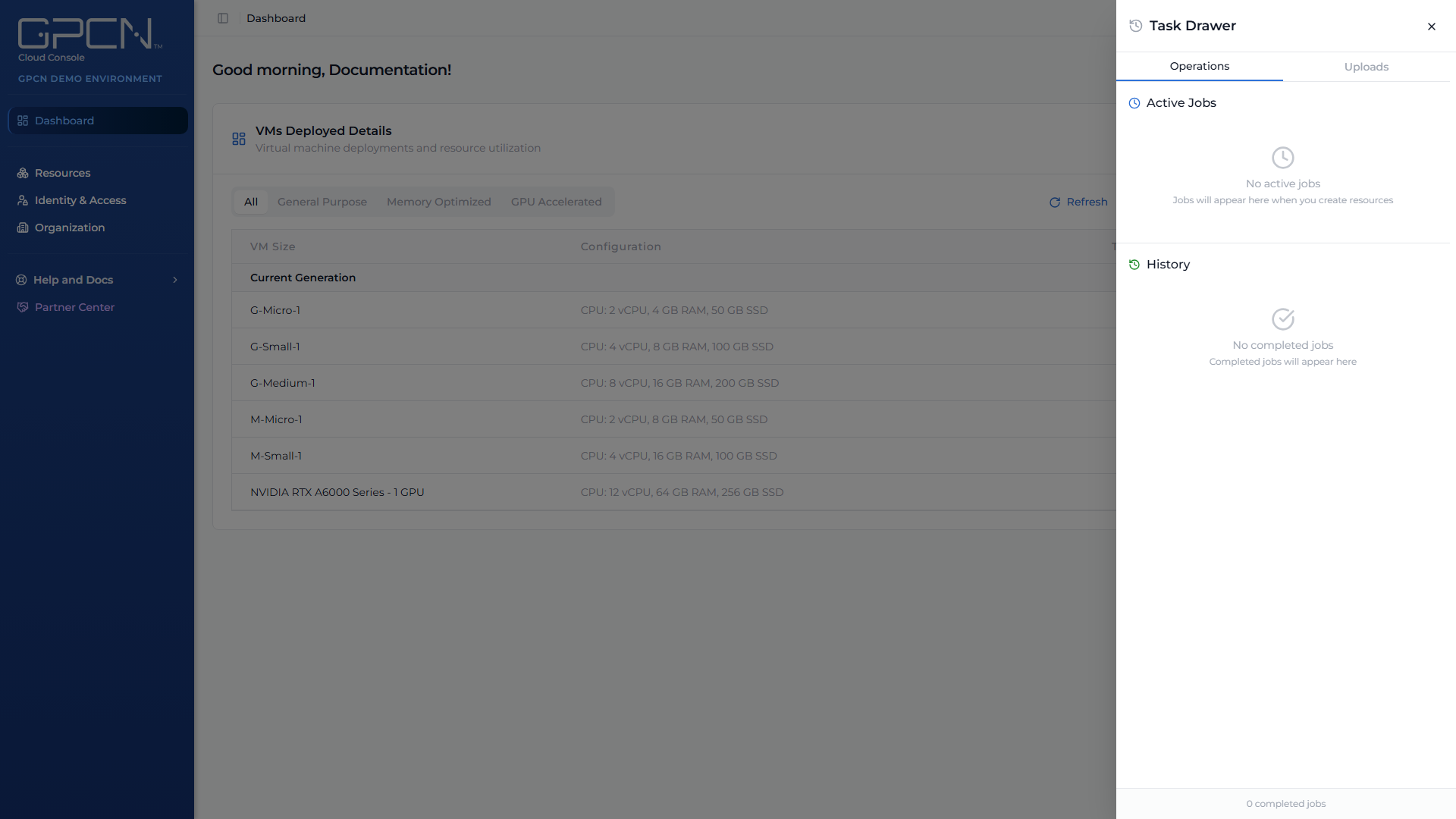
It has two tabs: Operations for jobs, and Uploads for image uploads in progress. The drawer opens by itself when you start something long-running, and it survives a page reload, so you can refresh mid-deployment without losing track. Finished jobs stay in the list until you clear them.
Press Escape or click outside the drawer to close it.
When something doesn't work, look here first. A failed job usually explains itself in the drawer rather than as an error on the page.
The dashboard
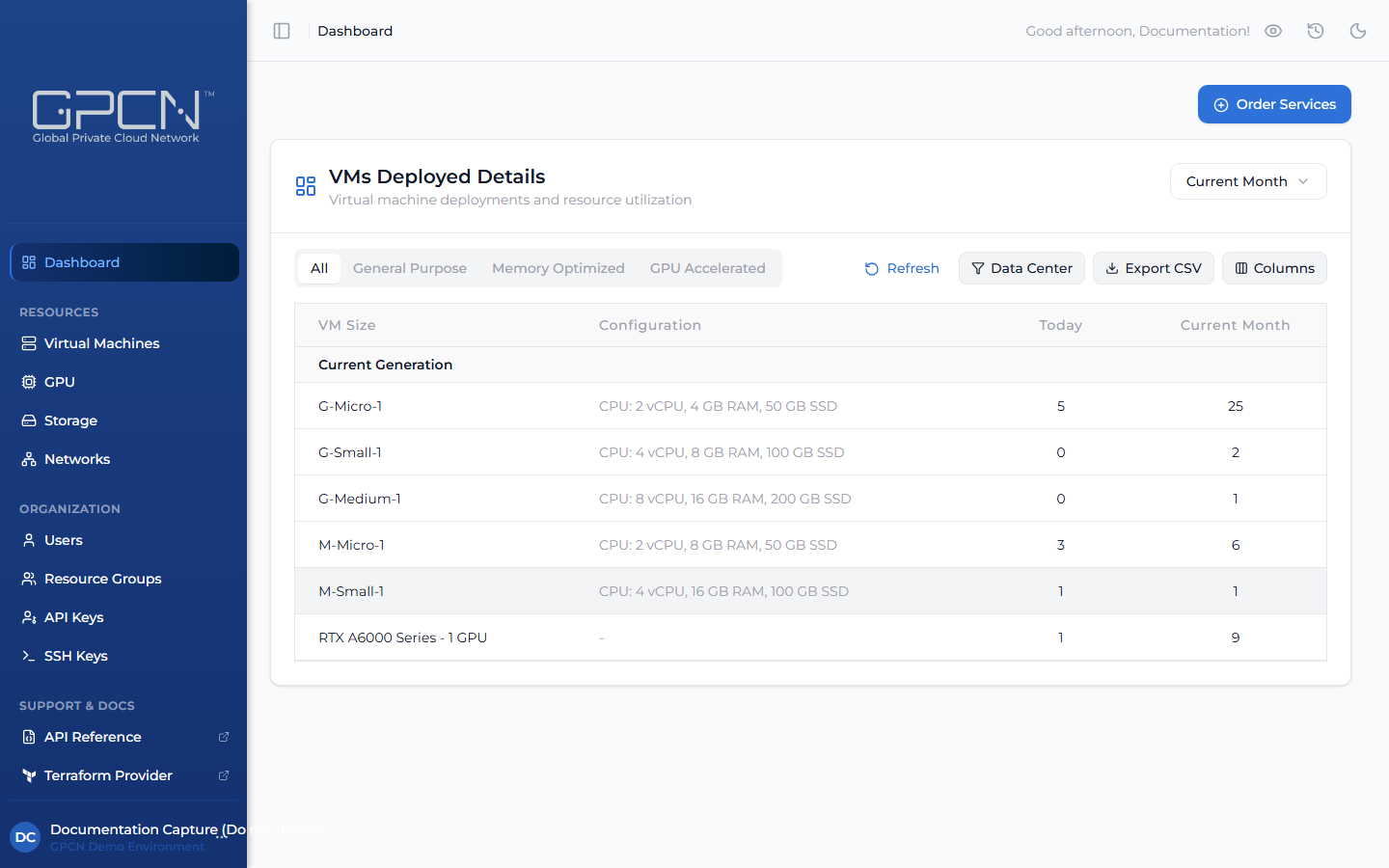
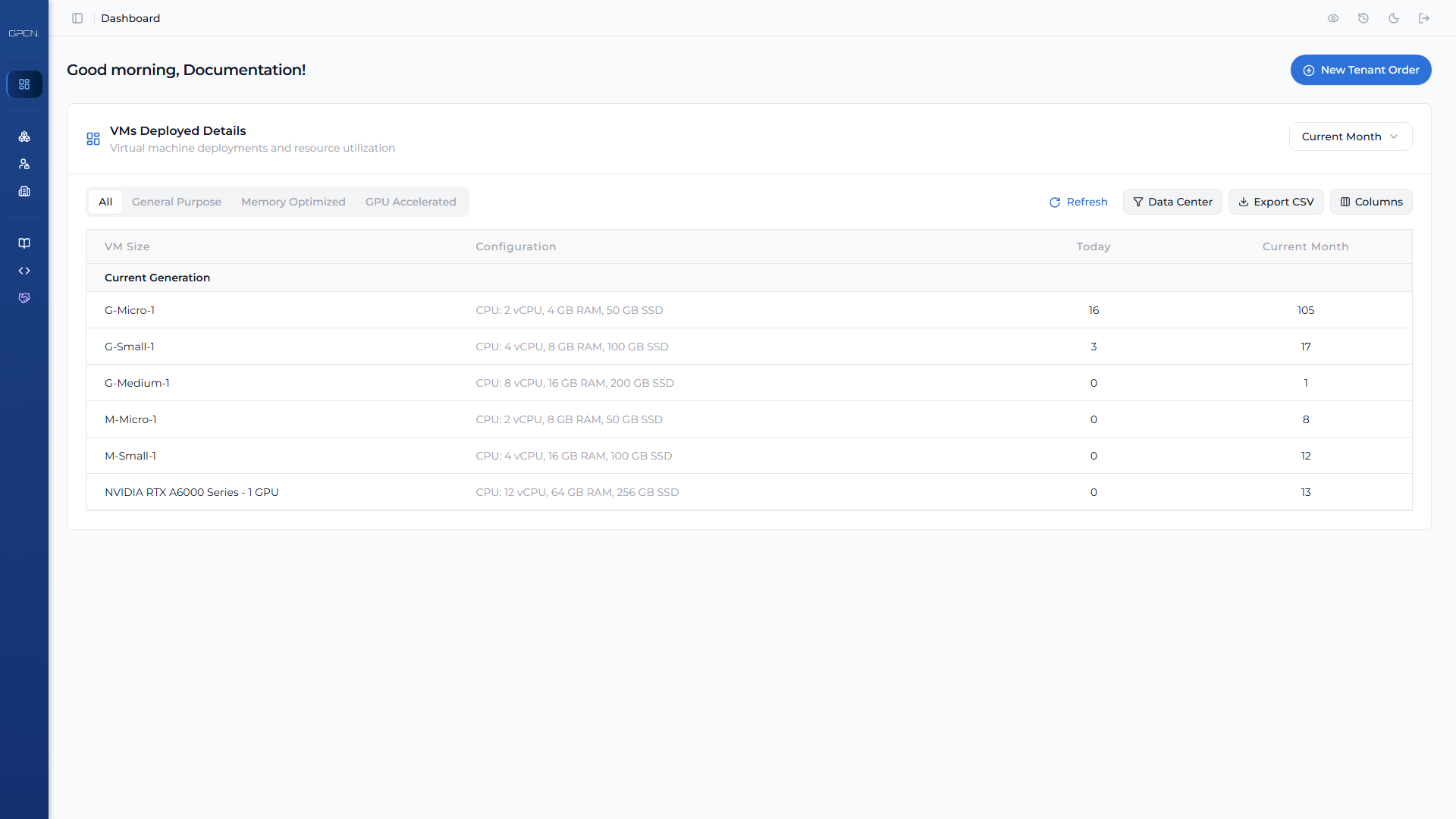
The dashboard greets you and shows a VMs Deployed Details card: a breakdown of the virtual machines you've deployed by size, which you can filter by data center and time period.
Dark mode
Use the toggle in the top-right of the header. Your preference is remembered.
Your first virtual machine
What you'll need
- An account allowed to create resources. Your organization's administrator grants this through your role. If you don't have it, the + beside Virtual Machines never appears, and opening the create page sends you back with a message saying so — see Roles & Permissions.
- An SSH key in your organization's library, if you'd rather use a key than a password — see SSH Keys
- A VPC with a subnet in the data center you're deploying to. You can create both from inside the wizard, so this is not something to arrange first.
The process
Go to Resources → Compute → Virtual Machines and click Create. The wizard has nine steps that unlock in order:
- Resource group — required; every machine belongs to one, and nothing is preselected. Pick an existing group or type a new name to create one on the spot.
- Location — country, region, data center
- Networking — required: your VPC and subnet, plus any public address
- Size — vCPU, memory and storage
- Operating system
- Authentication — SSH key or password, plus the login username
- Name — a display name and the guest hostname
- Additional options — how many machines to deploy
- Review & deploy
Deployment runs as a background job. The portal returns you to the machine list and opens the task drawer so you can watch progress, and your machine's first status is Provisioning.
Full detail is in Create a VM.
Once it's running
- Connect over SSH, or open the browser console — see Console Access
- Control power — start, stop and reset
- Add network interfaces — see Network Interfaces
- Upgrade the machine's CPU, memory or disk
- Review its history, if you have permission to read the audit log
GPU machines
If your organization has the GPU feature enabled and you have permission to see it, you'll find GPU alongside Virtual Machines under Compute. GPU machines are sized by GPU series and count rather than by vCPU and memory, and SSH is how you reach them.
Stopping a GPU machine doesn't stop its charges — billing continues until you delete it.
Managing your profile
Your own account lives at Identity & Access → People → Profile. From there you can change your password, set up two-factor authentication, and review your details.
The Profile row needs permission to read users. If you don't see it, ask your administrator.
API keys
API keys are at Identity & Access → Credentials → API Keys. Create one to use the GPCN™ API, choose how long it should last, and copy it when it's shown — it's only displayed once.
See API Keys and the API Quickstart.
Tips for new users
- Name things consistently. Names carry into hostnames, and you'll be reading them in lists later.
- Watch the task drawer. Almost everything you do runs as a job, and that's where progress and failures show up.
- Check your features. Organization → Account → Features tells you what's enabled for your organization, which explains why you might not see GPU, VPCs or SSO.
Next Steps
- Create a VM → — the wizard in full
- Networking → — VPCs, subnets and L2 segments
- Two-Factor Authentication → — set up an authenticator app
- Roles and Permissions → — what your role can do
- Getting Support → — reaching the GPCN™ team
- API Quickstart → — your first API request
.png)