Two-Factor Authentication
All GPCN™ accounts require two-factor authentication (2FA). Email OTP (one-time passcode) is enabled by default — a code is sent to your inbox each time you sign in. For a faster and more secure experience, you can optionally set up an authenticator app (TOTP — Time-based One-Time Password) and generate backup codes for emergency access.
2FA Methods
| Method | How it works | Best for |
|---|---|---|
| Email OTP (one-time passcode) | 6-digit code sent to your email | Default — no setup required |
| TOTP (authenticator app) | 6-digit code from an app, rotates every 30 seconds | Optional — faster and works offline |
| Backup codes | One-time 12-character recovery codes | Emergency access if you lose your device |
Check 2FA Status
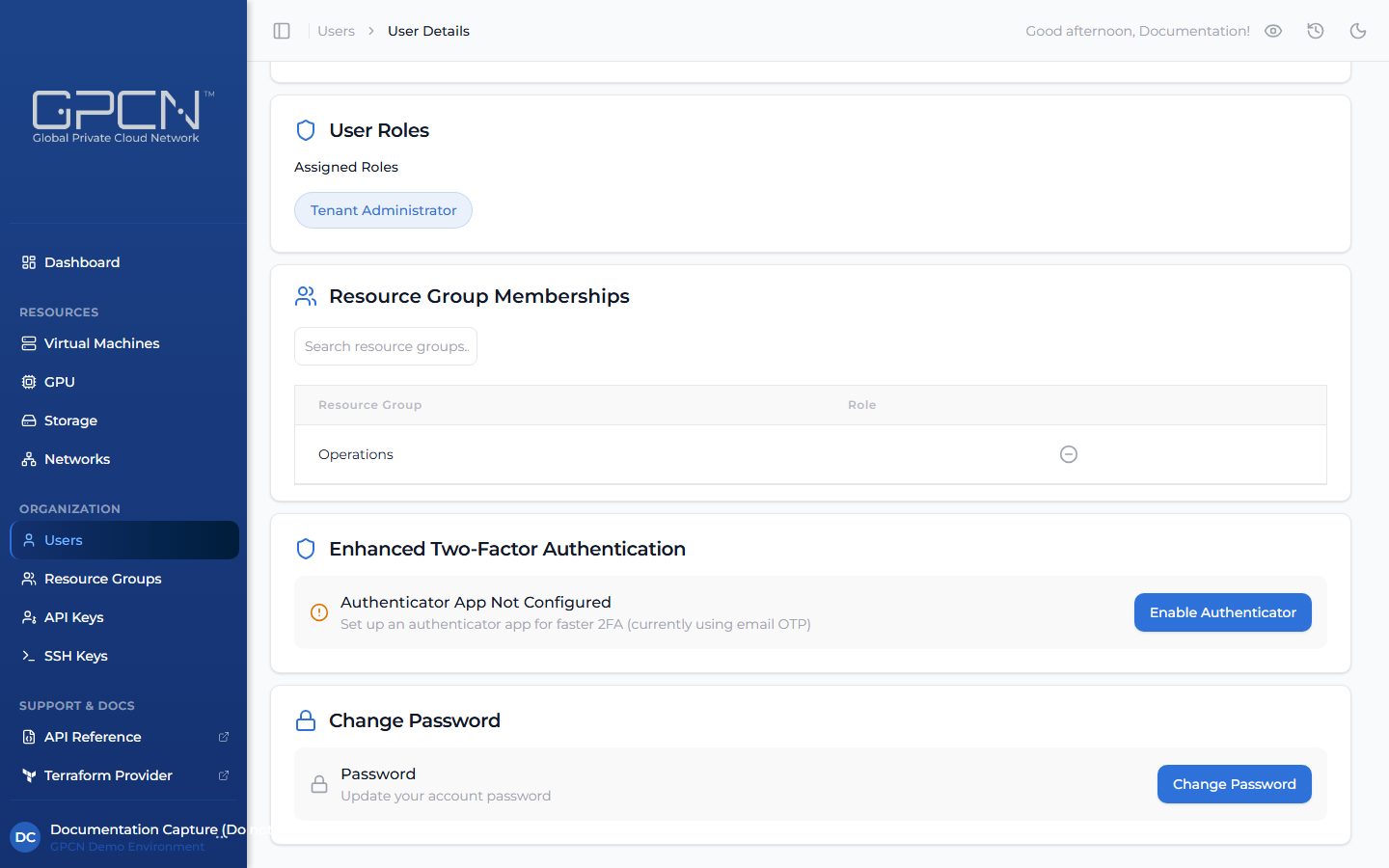
Navigate to your Profile page (click the ... menu next to your name at the bottom of the sidebar, then Profile). The Enhanced Two-Factor Authentication card shows your current status — either Authenticator App Not Configured or the TOTP-enabled state with options to disable or regenerate backup codes.
Set Up TOTP (Authenticator App)
- Install an authenticator app if you don't have one: Google Authenticator, Authy, Microsoft Authenticator, or 1Password.
- On your Profile page, find the Enhanced Two-Factor Authentication card and click Enable Authenticator.
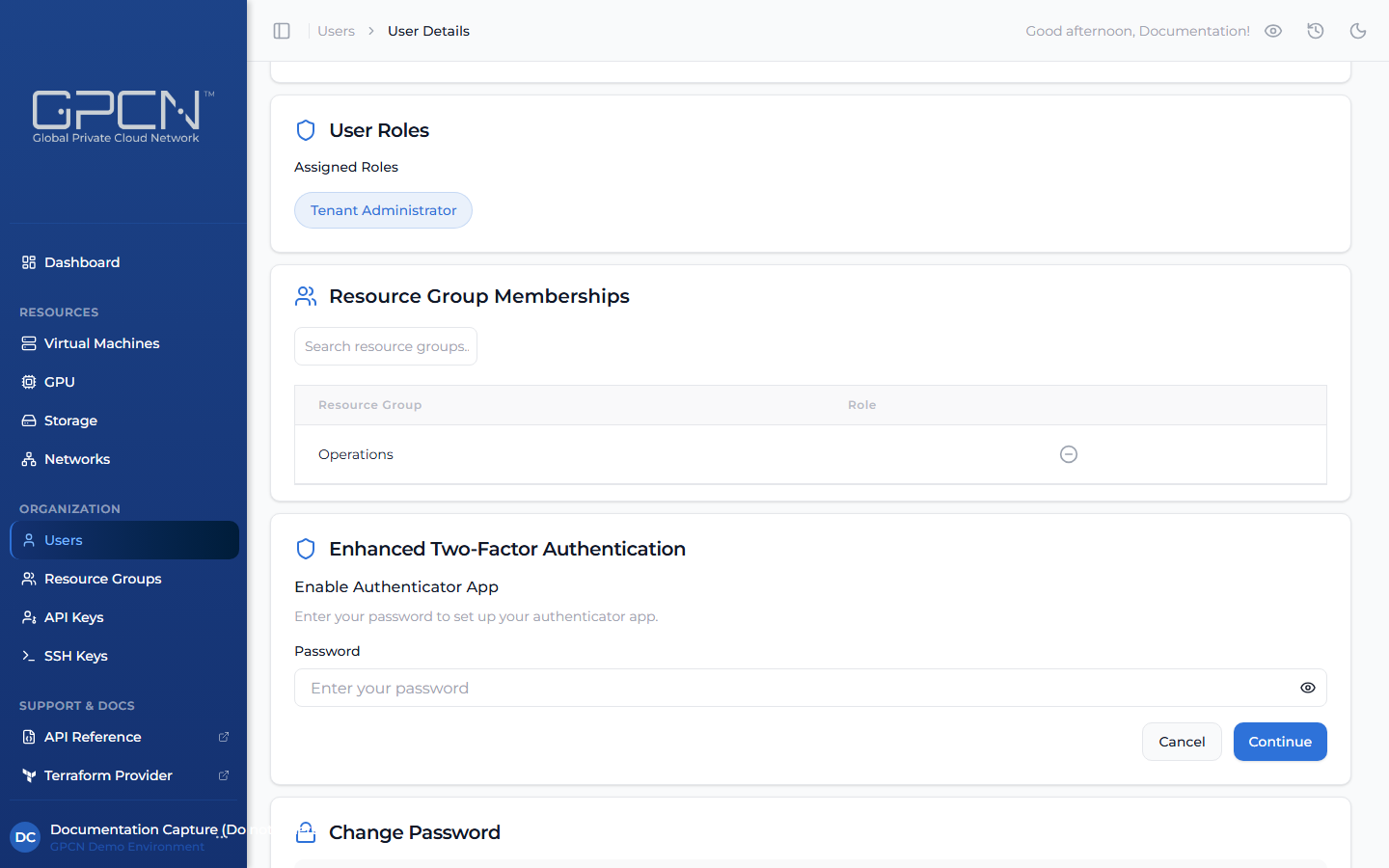
- Enter your password to confirm your identity and click Continue.
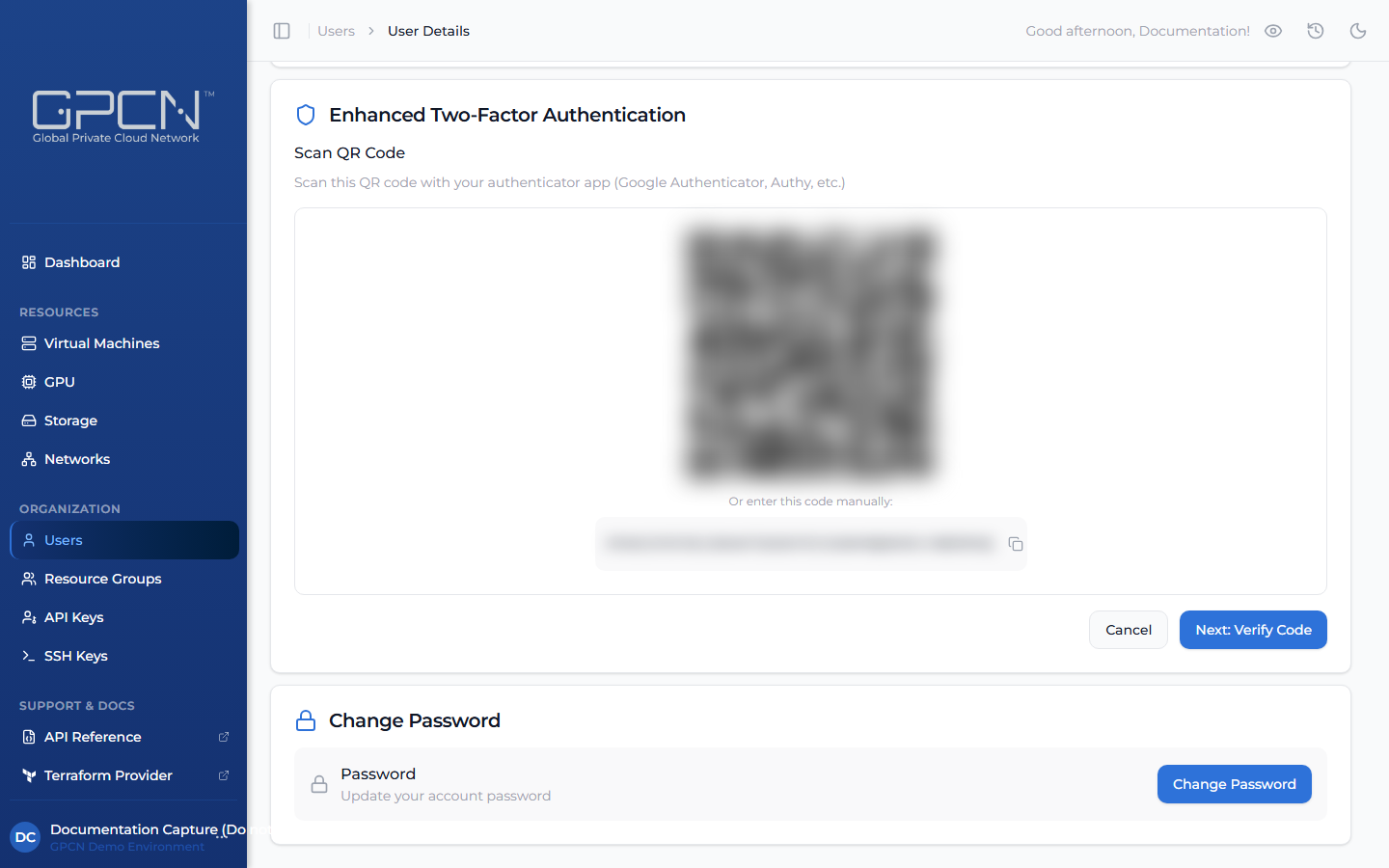
- Scan the QR code with your authenticator app. If you can't scan it, click the manual entry option to copy the secret key.
- Enter the 6-digit code from your app to verify the setup.
- Save your backup codes — they're displayed in a modal after verification. Click Copy All and store them securely.
Disable TOTP
Disabling falls back to email OTP. Use this when switching authenticator apps or devices.
- On your Profile page, find the Enhanced Two-Factor Authentication card and click Disable Authenticator.
- Confirm your password and click Continue.
Disabling TOTP invalidates all active sessions. You'll need to sign in again.
To use a new authenticator app, re-enable TOTP after disabling.
Regenerate Backup Codes
Generate a new set of backup codes at any time — for example, after using several codes or as a periodic security refresh. This immediately invalidates all previously issued codes.
- On your Profile page, find the Enhanced Two-Factor Authentication card and click Regenerate Backup Codes.
- Confirm your password and click Continue.
- Copy and store the new codes securely — in a password manager or encrypted file — before closing the page.
Troubleshooting
| Issue | Solution |
|---|---|
| "Invalid TOTP code" | Check your device's clock sync (enable automatic time). Make sure you're reading the GPCN™ entry. |
| "Lost authenticator app" | Sign in with a backup code, then disable and re-enable TOTP with your new app. |
| "All backup codes used" | Sign in with email OTP, then regenerate backup codes from your profile. |
| "Lost both app and codes" | Contact your administrator for account recovery. |
Best Practices
- Set up TOTP for a faster sign-in experience — authenticator app codes work offline and rotate automatically, so you're not waiting on an email each time you log in
- Store backup codes in a password manager or print them and keep them somewhere safe
- Regenerate backup codes if you've used several or suspect they've been exposed — old codes are invalidated immediately when you regenerate
- Don't screenshot your QR code — if exposed, an attacker can generate valid codes
Next Steps
- Sign In — the full authentication flow
- API Keys — authenticate without sessions or 2FA
- Sessions — understand session lifecycle
- 2FA API Reference → — manage 2FA programmatically
.png)