API Keys
API keys let you authenticate with the GPCN™ API without signing in through the portal. They're designed for scripts, automation pipelines, CI/CD workflows, and any server-side integration where interactive login isn't practical. Each key authenticates as you and uses the role you assign it at creation — choose your full inherited permissions or a narrower role for least-privilege access.
All GPCN™ API keys start with the gpcn_ prefix.
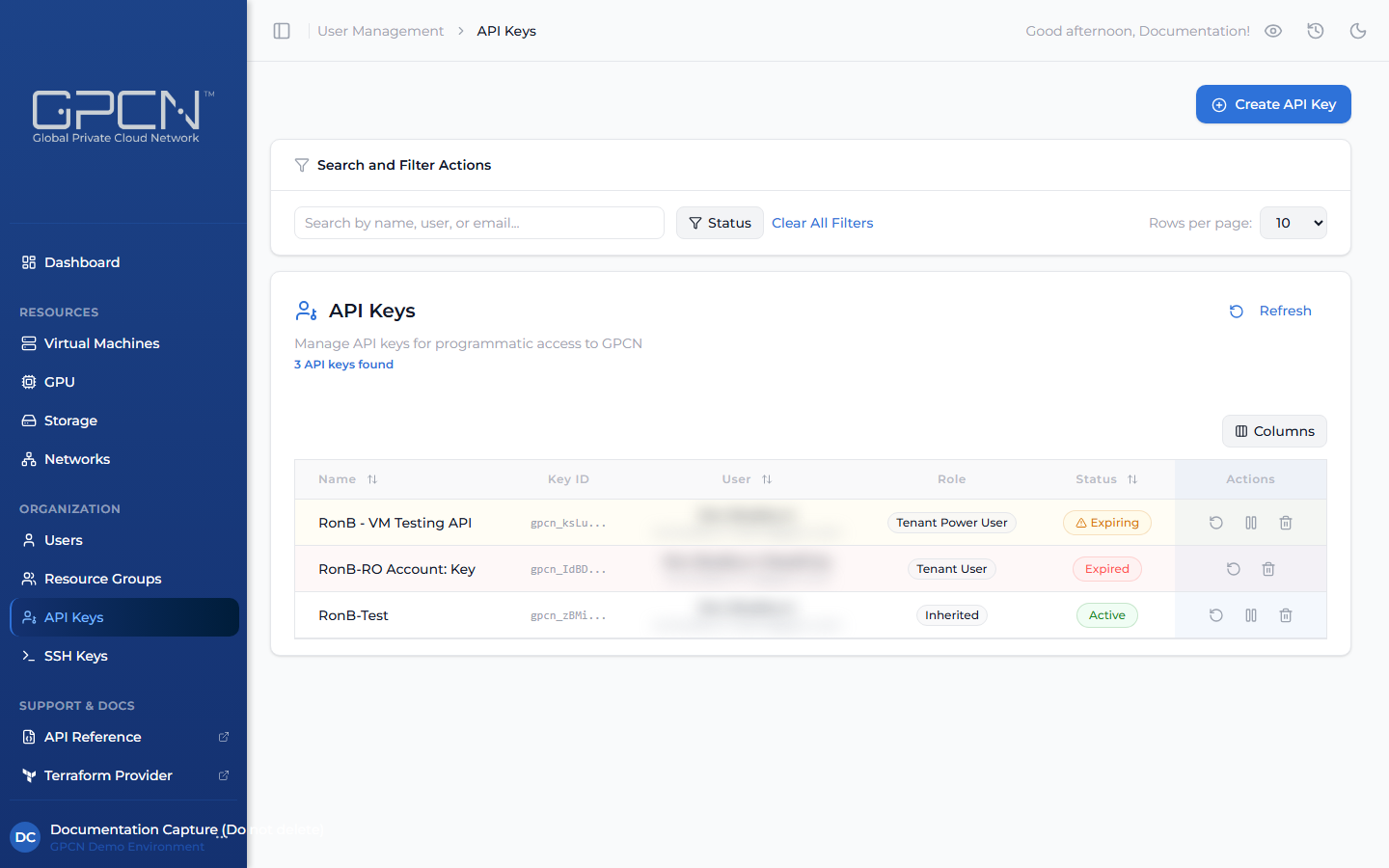
Create an API Key
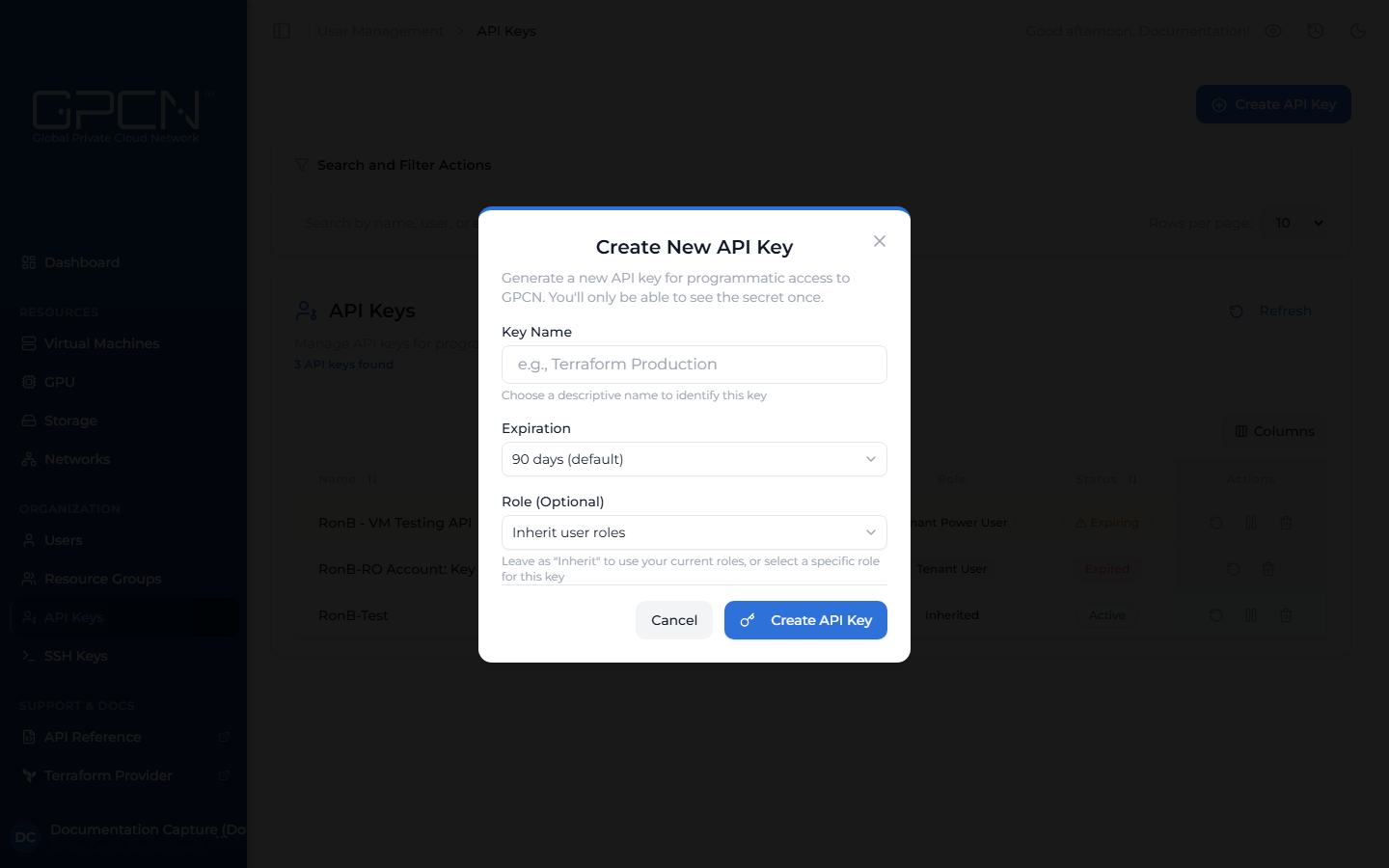
- Navigate to API Keys in the sidebar and click Create API Key.
- Enter a name (e.g., "Terraform Production" or "CI Pipeline").
- Choose an expiration — Never, 30, 60, 90, 180, or 365 days. Select an expiration that aligns with your organization's key rotation and governance policies.
- (Optional) Select a role to limit the key's permissions. Leave as "Inherit user roles" for full access.
- Click Create API Key.
- Copy the key immediately — it's only shown once.
Role Scoping
When creating a key, you choose the role it will use. Select "Inherit user roles" for full access, or pick a specific role to limit what the key can do. A key can't have permissions beyond your own.
Manage Keys
List Keys
Navigate to API Keys to see all your keys with status, last-used timestamp, and expiration.
Rotate a Key
Use rotation when a key may have been exposed, or as part of a regular security schedule. Rotation issues a new key value while keeping the same name and role — the old value stops working immediately and the expiration timer resets to the full original period.
- Click the rotate icon (↺) on the key's row.
- Copy the new value immediately — it's only shown once.
- Update any services or scripts using the old key value.
Suspend / Reactivate
Use suspension to temporarily disable a key without losing it — for example, while debugging an integration, inspecting unexpected API usage, or taking a service offline for maintenance.
- Click the pause icon (⏸) on the key's row to suspend it. The key stops authenticating immediately.
- Click the same icon again to reactivate it when ready.
Revoke (Delete)
Use revocation when a key is no longer needed or has been compromised and should never be used again. This is permanent and cannot be undone.
- Click the delete icon (🗑) on the key's row.
- Confirm the deletion.
Key Statuses
| Status | Description |
|---|---|
| Active | Key is working normally |
| Suspended | Temporarily disabled — can be reactivated |
| Expiring | Within 30 days of expiration |
| Expired | Past expiration date — no longer authenticates |
Security Best Practices
- Use environment variables or a secret manager — storing keys outside your codebase keeps them out of version control and makes them easy to update across environments without touching code.
- Create separate keys for each environment — distinct keys for production, staging, and CI/CD give you precise control, so you can rotate or revoke a single environment's key without affecting anything else.
- Scope keys to the minimum required role — a CI pipeline that only reads resource state works best with a read-only role. Matching the role to the task keeps each key's purpose clear and its access predictable.
- Set expiration dates and rotate on a schedule — regularly refreshing keys is good hygiene and aligns with most governance policies. Shorter-lived keys also give you natural checkpoints to review whether a key is still needed.
- Review the API Keys page regularly — the last-used timestamp makes it easy to spot keys that have gone idle. Cleaning up unused keys keeps your key inventory tidy and your access model accurate.
For integration-specific guidance (GitHub Actions, Ansible, CI/CD), see API Key Security Best Practices →.
Next Steps
- Sign In — session-based authentication
- API Key Reference → — manage keys programmatically, integration examples, and 5-language code samples
- Authentication Reference → — full auth system overview
- API Conventions → — pagination, sorting, error format
.png)