Sign In
Sign in to the GPCN™ portal using your email and password. All accounts require two-factor authentication — after entering your credentials you'll verify your identity with an authenticator app, email code, or backup code.
Prerequisites
- A GPCN™ account with your email and password already set
- Access to your email inbox or authenticator app for two-factor verification — email OTP is enabled by default, so no additional setup is required
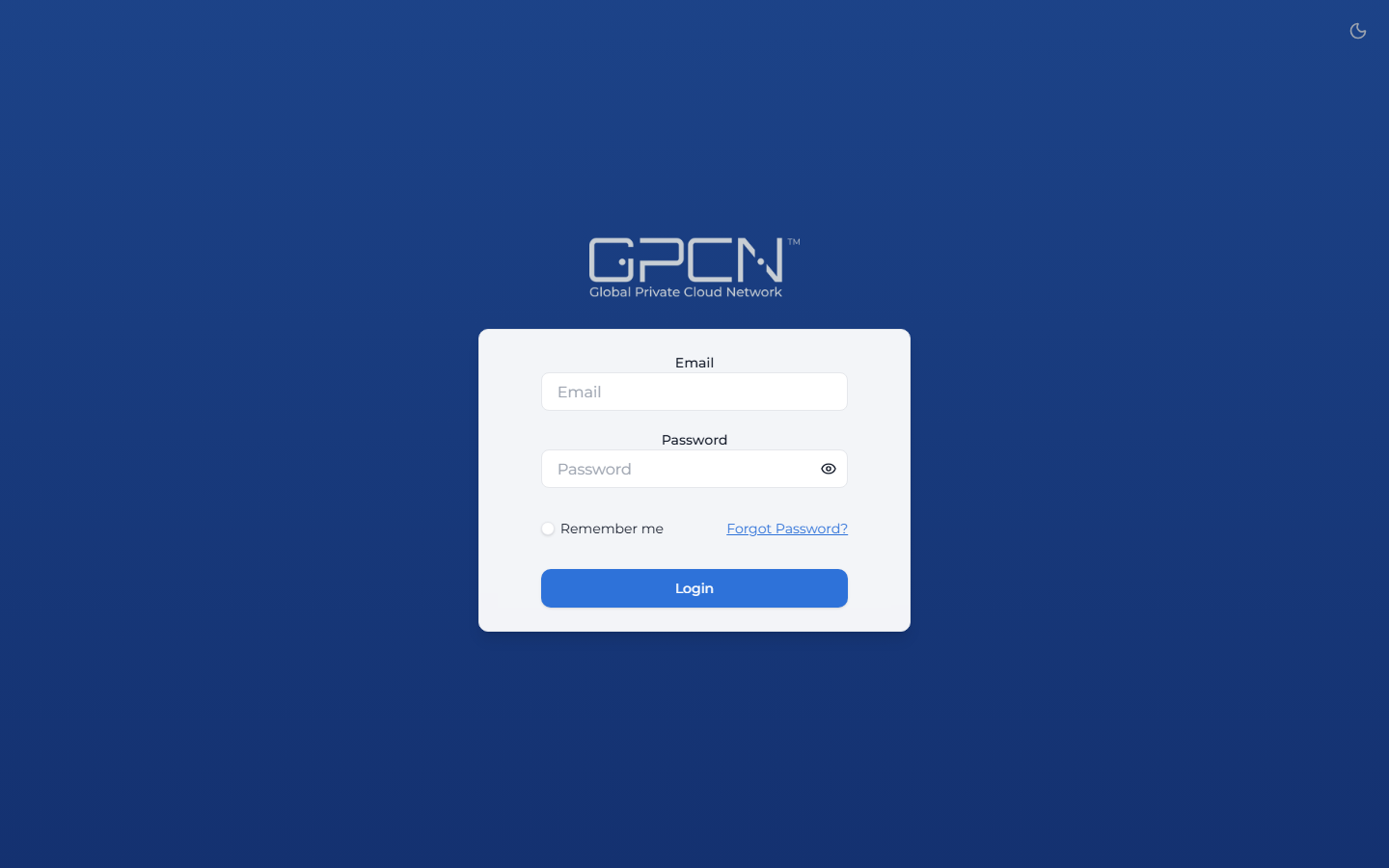
- Navigate to the GPCN™ portal login page.
- Enter your email and password.
- (Optional) Check Remember Me to pre-fill your email next time.
- Click Sign In.
If your credentials are valid, you'll be taken to the two-factor authentication screen.
Complete Two-Factor Verification
Once your email and password are accepted, you'll be prompted to verify your identity. Choose the method that applies to you:
Option A: Authenticator App (TOTP)
Enter the 6-digit code from your authenticator app. Codes rotate every 30 seconds — if yours is about to expire, wait for the next one.
Option B: Email OTP
If you don't have TOTP set up, a 6-digit code is sent to your email automatically.
Check your inbox for the code, enter it in the verification field, and click Resend Code if it doesn't arrive.
Option C: Backup Code
If you can't access your authenticator or email, use a one-time backup code from the verification screen. Backup codes are single-use — once used, that code is consumed.
Account Activation (New Users)
New users receive an invitation email with an activation link:
- Click the activation link in the email.
- Confirm your name (may be pre-filled).
- Create a password (12+ characters, mixed case, number, special character).
- Click Activate.
After activation, email OTP is enabled automatically — no additional setup is required. You can optionally configure an authenticator app from your profile for stronger security.
Sign Out
Click your profile icon in the sidebar and select Sign Out.
Troubleshooting
| Issue | Solution |
|---|---|
| "Invalid email or password" | Check for typos and caps lock. Use Forgot Password if needed. |
| "2FA code invalid" | Double-check the code you entered. If correct, verify your device's clock is synced and try the next code. |
| "Didn't receive email OTP" | Check spam folder. Click Resend Code. |
| "Account locked" | Wait 15 minutes for automatic unlock. |
| "Lost authenticator app" | Use a backup code, then reconfigure TOTP from your profile. |
Next Steps
- Two-Factor Auth — set up and manage 2FA
- API Keys — authenticate without sessions
- Sessions — session management
.png)