Passwords
Your GPCN™ account password is the first layer of your account security. This page covers how to change your password while signed in, recover access if you've forgotten it, and what to expect if your administrator requests a password update.
Password Requirements
| Requirement | Details |
|---|---|
| Length | 12–50 characters |
| Uppercase letter | At least one (A–Z) |
| Lowercase letter | At least one (a–z) |
| Number | At least one (0–9) |
| Special character | At least one (e.g., ! @ # $ % ^ & *) |
| No spaces | Whitespace is not allowed |
Change Your Password
Use this when you want to update your password and you're already signed in to the portal. You'll need your current password to complete the change — if you've forgotten it, use the Reset a Forgotten Password flow below instead.
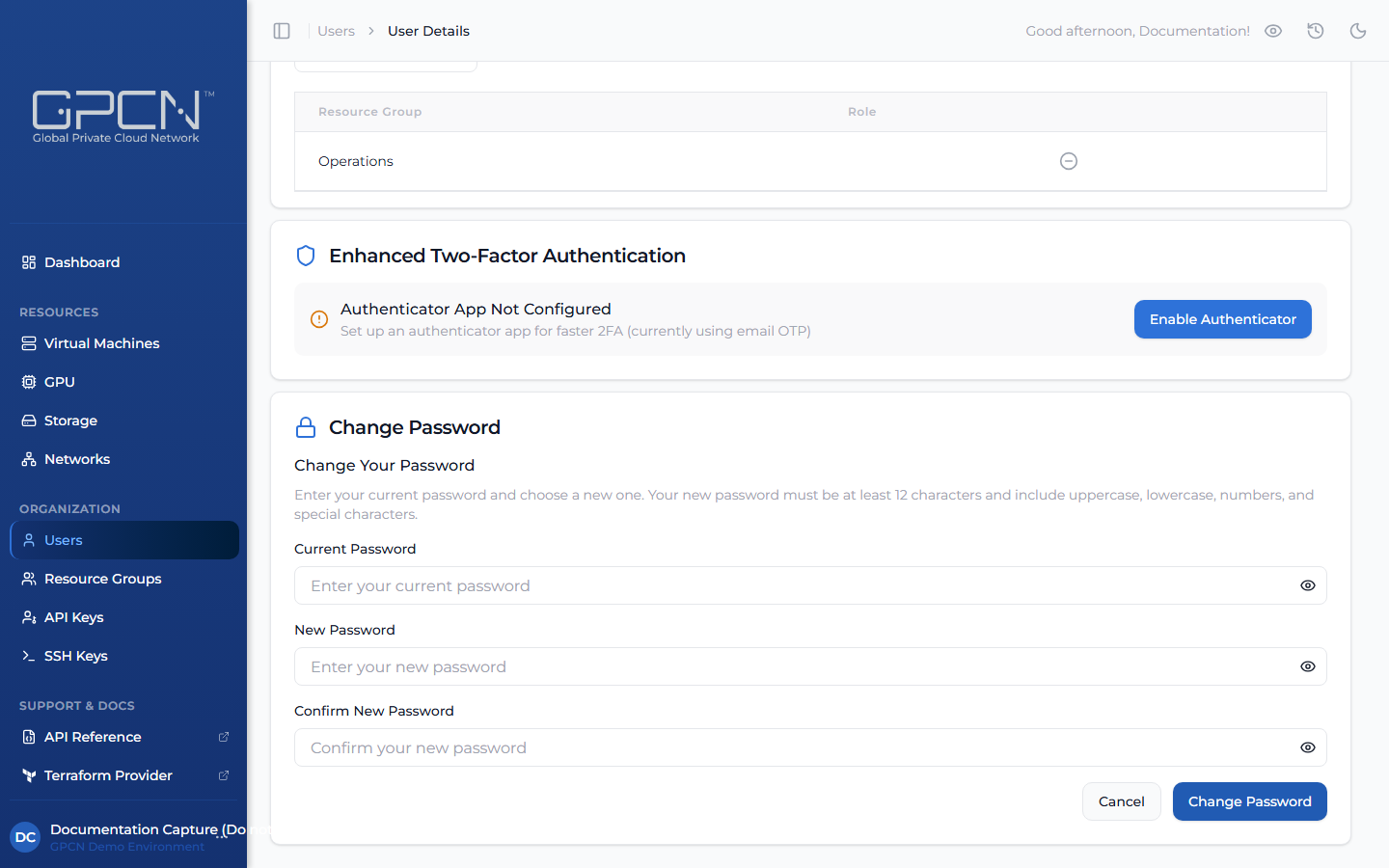
- Navigate to your Profile page.
- Find the Password section and click Change Password.
- Enter your current password.
- Enter your new password and confirm it. A live checklist shows which password requirements are satisfied.
- Click Save.
Once saved, you'll receive a confirmation email. For security, any other active sessions will be signed out — you'll only remain signed in on the device where you made the change.
Reset a Forgotten Password
If you've forgotten your password, you can request a reset link from the sign-in page — no access to your account is needed.
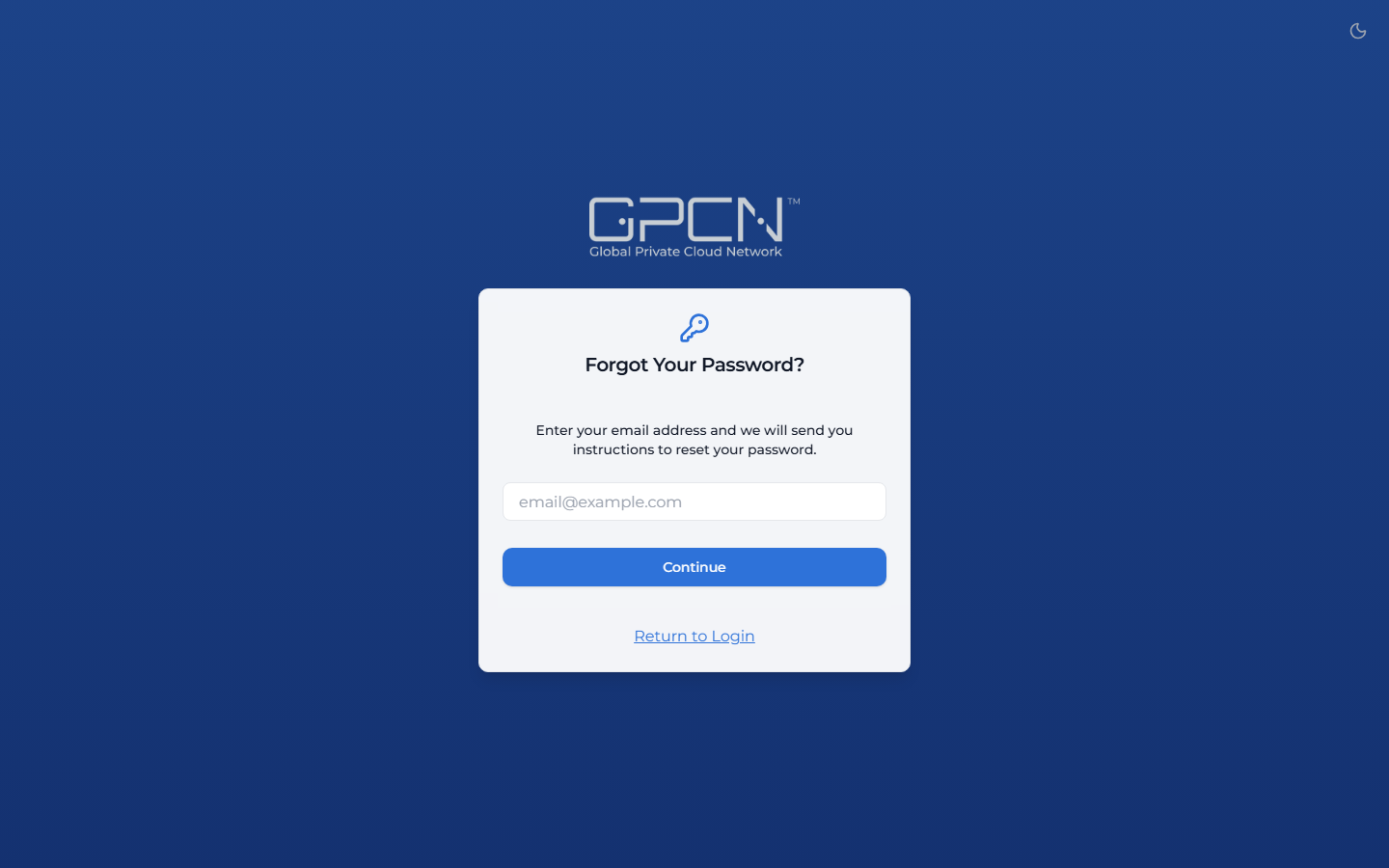
Step 1: Request a Reset
On the sign-in page, click Forgot Password. Enter your email address and click Submit.
If an account exists for that email address, you'll receive a reset link within a few minutes. Check your spam folder if it doesn't arrive.
Step 2: Set a New Password
Click the link in the email, enter your new password, and click Reset Password. After resetting, you can sign in with your new credentials.
Reset Link Details
- Valid for 24 hours from the time it was sent
- Single-use — the link is consumed once you complete the reset
- Requesting a new reset link will invalidate any previously sent links
Administrator-Initiated Password Resets
Administrators can require individual users or groups to set a new password as part of standard enterprise security practices — for example, during onboarding, after a policy change, periodic credential rotation, or when access needs to be reconfirmed. When a reset is required for your account, you'll be prompted the next time you sign in.
While the reset is active:
- The portal shows a password reset form instead of the normal dashboard
- Most features are paused until you set a new password
- After updating your password, full access is restored immediately
Troubleshooting
| Issue | Solution |
|---|---|
| "Password does not meet requirements" | Check all five requirements — the portal's live checklist shows what's missing |
| "Reset link invalid or expired" | Links expire after 24 hours. Request a new one. |
| "Email not received" | Check spam folder. Verify your email address is correct. Contact your administrator. |
| "Current password is incorrect" | Double-check for typos and caps lock |
Best Practices
- Use a password manager to generate and store strong, unique passwords — so you don't have to trade security for convenience.
- Use a unique password for each service — a distinct password for your GPCN™ account means activity on other platforms stays completely separate.
- Update your password periodically — regular updates are good hygiene and align with most organizational security policies.
- Avoid reusing previous passwords — choosing a fresh password each time ensures that old credentials can't be used to access your account.
- Follow your organization's rotation policy — if your organization requires password changes on a set schedule, treat your GPCN™ account the same way.
- Never share your password — GPCN™ support will never ask for it. If you need to grant access to a colleague, use resource groups and user management instead.
Next Steps
- Sign In — authentication flow
- Two-Factor Auth — add a second layer of security
- Sessions — understand session lifecycle
.png)