SSH Keys
SSH keys let you authenticate to your virtual machines without passwords. GPCN™ (Global Private Cloud Network™) stores your public keys in a central library so you can reuse them across VMs and manage everything from one place.
Prerequisites
- The Tenant Administrator or Tenant Power User role
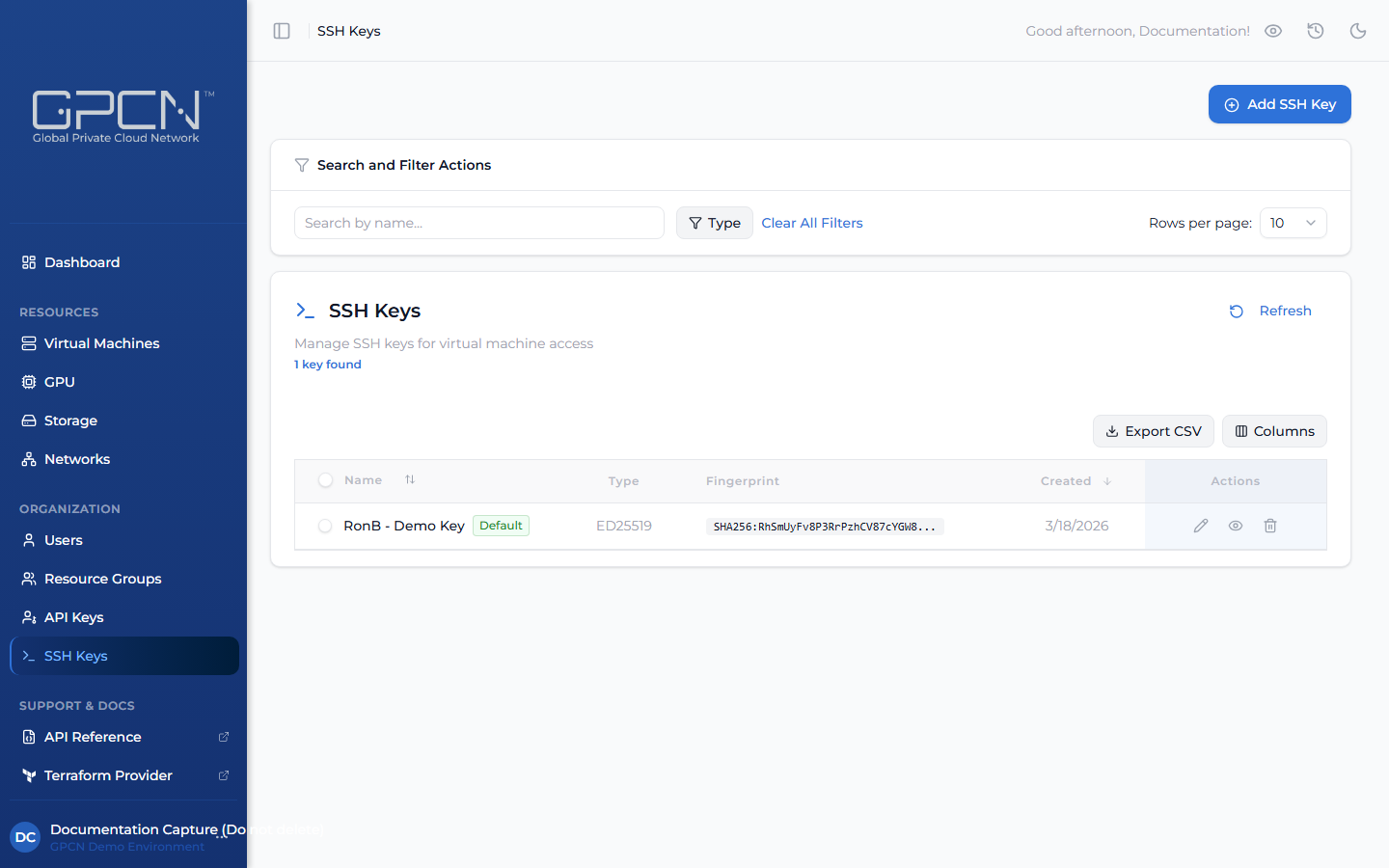
Navigate to SSH Keys in the sidebar to view your key library.
Users with the Tenant User role can view the SSH Keys library but cannot create, edit, or delete keys.
Add an SSH Key
Click Add SSH Key to open the modal. You can either generate a new key pair or upload a public key you already have.
Generate a New Key Pair
GPCN™ generates the key pair server-side and shows you the private key once in the confirmation screen. It's never stored — save it before closing the modal.
- Select Generate in the modal
- Enter a name for the key
- Choose an algorithm:
- ED25519 — recommended for most workloads. ED25519 is a modern elliptic curve algorithm that produces shorter keys than RSA while offering stronger security. It's faster to generate, faster to verify, and resistant to the timing attacks that can affect RSA implementations. Choose this unless you have a specific compatibility requirement.
- RSA 4096-bit — widely compatible, especially with older tools and systems
- RSA 2048-bit — legacy compatibility with older software that doesn't support larger key sizes
- ECDSA P-256 — elliptic curve, widely supported with a smaller key size than RSA
- (Optional) Enter a passphrase to encrypt the private key
- Click Generate Key
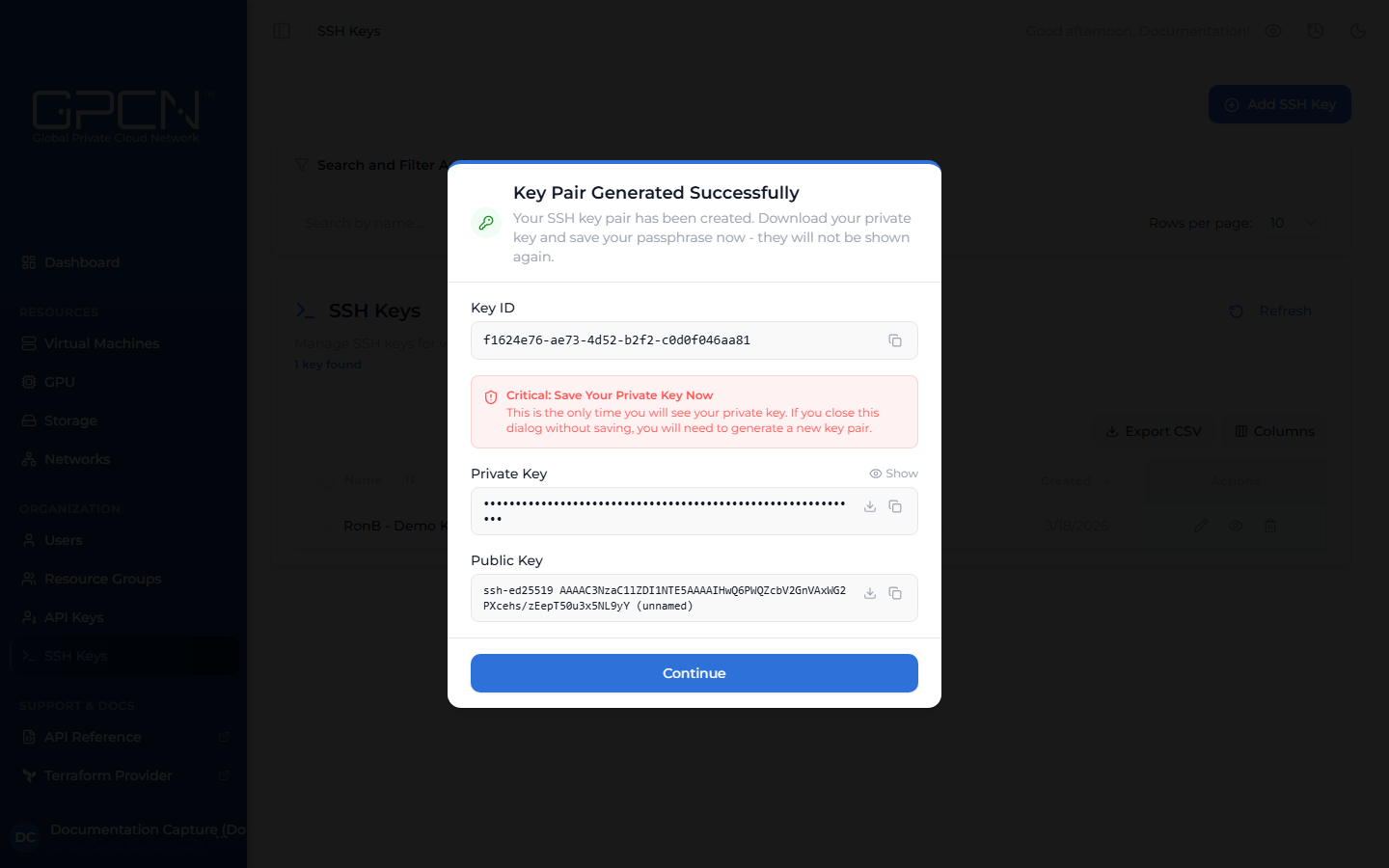
The private key is shown only once. Copy or download it immediately — GPCN™ doesn't store private keys and can't recover them later.
Upload an Existing Public Key
If you already have a key pair, upload the public key directly.
- Select Upload in the modal
- Enter a name for the key
- Paste the public key in OpenSSH format (e.g.,
ssh-ed25519 AAAA...) - Click Upload Key
The algorithm is detected automatically from the key content. Any valid OpenSSH public key format is accepted, regardless of how it was generated.
Manage Your Keys
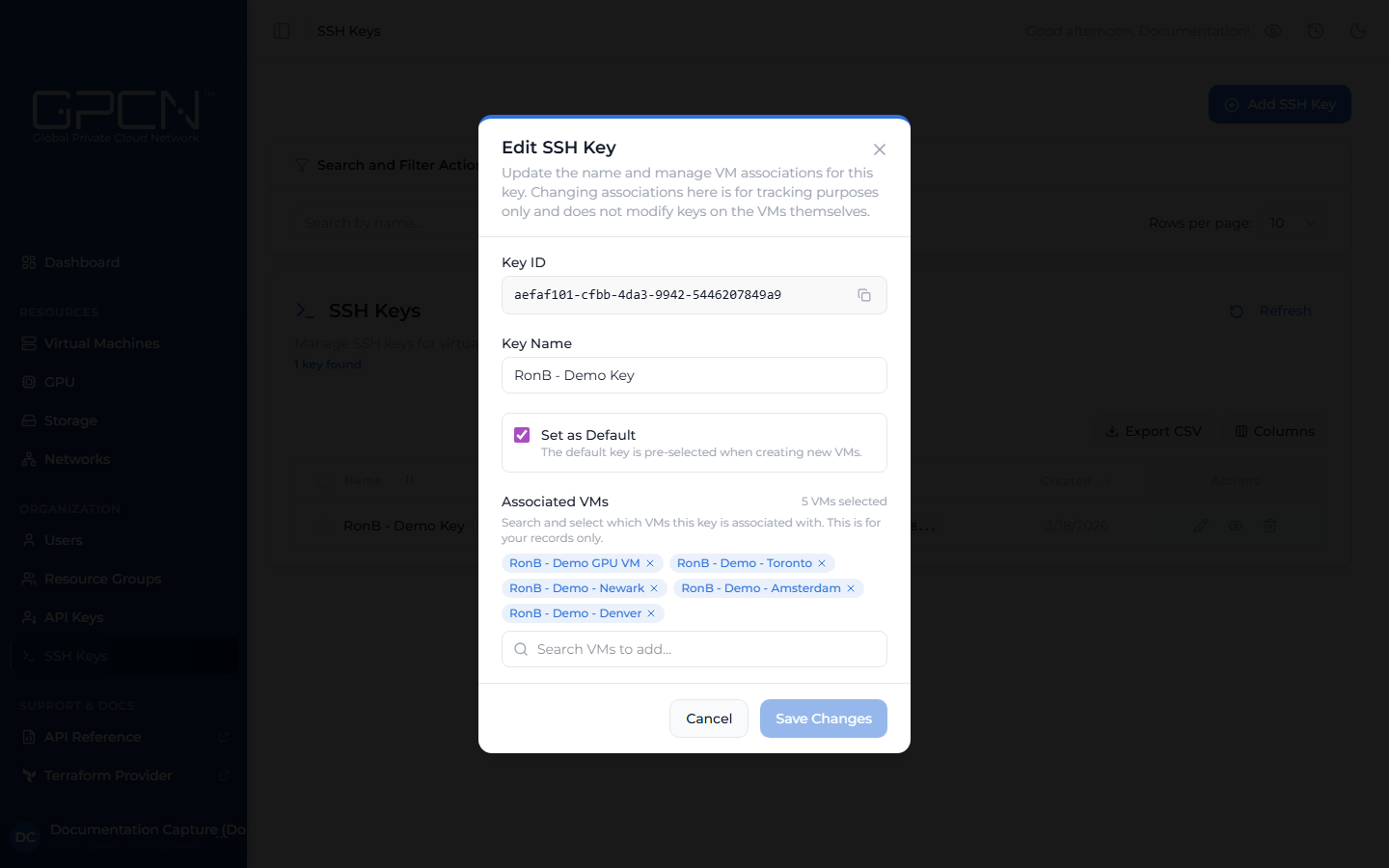
Click the pencil icon on any key in the list to open the edit modal.
View the Public Key
Open a key's edit modal to see the full public key in OpenSSH format — handy for copying it into an authorized_keys file or sharing with a team member.
Rename a Key
Open the edit modal, update the name, and save.
Set a Default Key
In the edit modal, toggle Set as default. The default key is automatically pre-selected when you create a new VM. You can still pick a different key during creation.
Only one key can be the default at a time — setting a new default clears the previous one.
Associate with VMs
In the edit modal you can link a key to one or more of your existing VMs. This records the association in GPCN™ so you can see at a glance which VMs use which key.
Delete a Key
Select Delete from a key's action menu, or select multiple keys and use the bulk delete action.
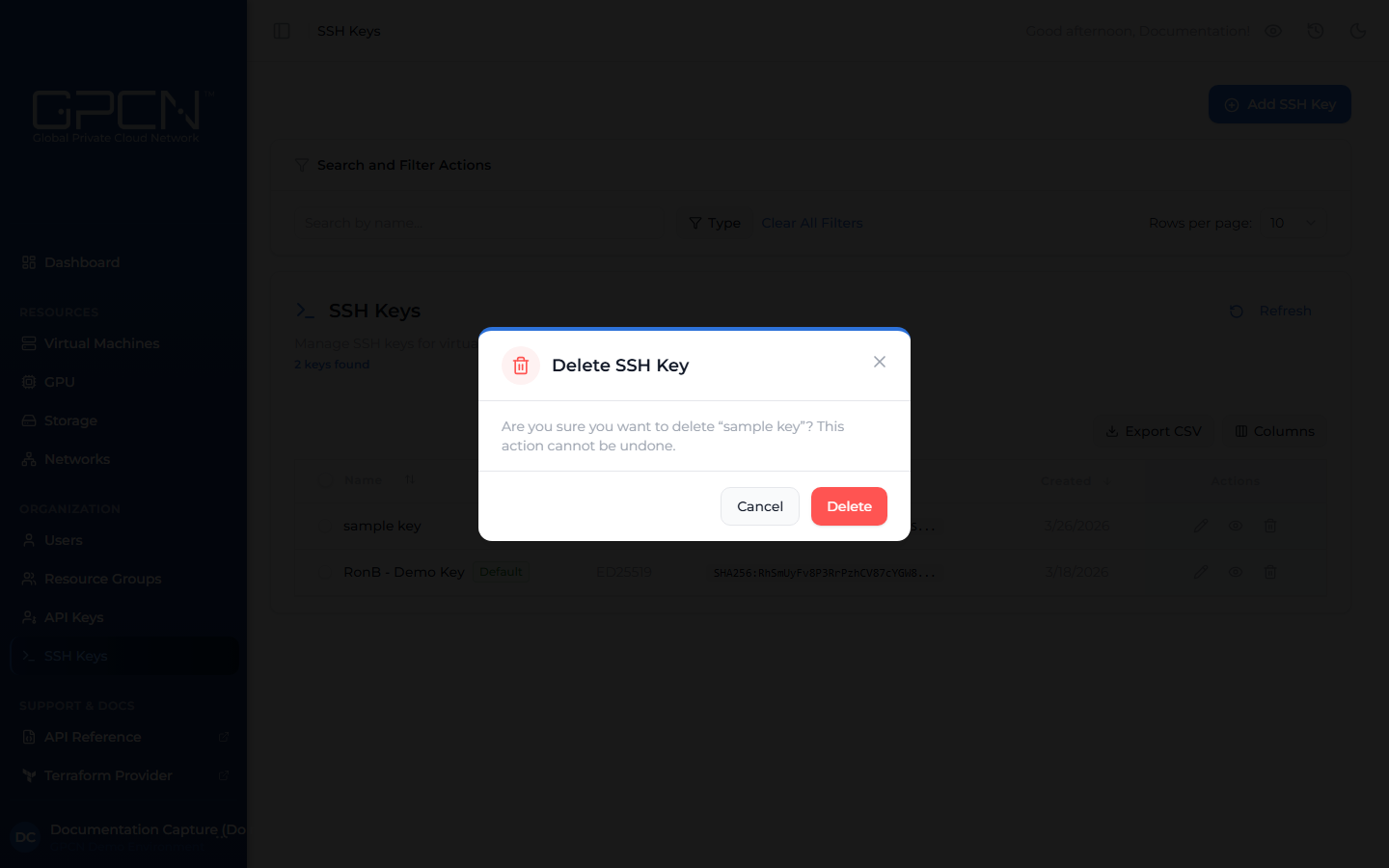
Deleting a key from the library removes it from your GPCN™ account but doesn't remove it from any VM's authorized_keys file. To fully revoke access, you'll need to remove the key directly from the VM.
Table Options
The SSH Keys table has a few built-in tools:
- Filter by type — use the filter bar to narrow the list to a specific algorithm
- Export CSV — download your key list as a CSV file. Only currently visible columns are included, so use the Columns selector first if you want to add or remove fields from the export
- Columns — show or hide columns such as key ID, fingerprint, algorithm, and associated VMs
Next Steps
- Create a VM — assign an SSH key during VM creation
- Manage VMs — update a VM's SSH key or username after deployment
- Create a GPU VM — GPU VMs require an SSH key at creation time
.png)