Manage Virtual Machines
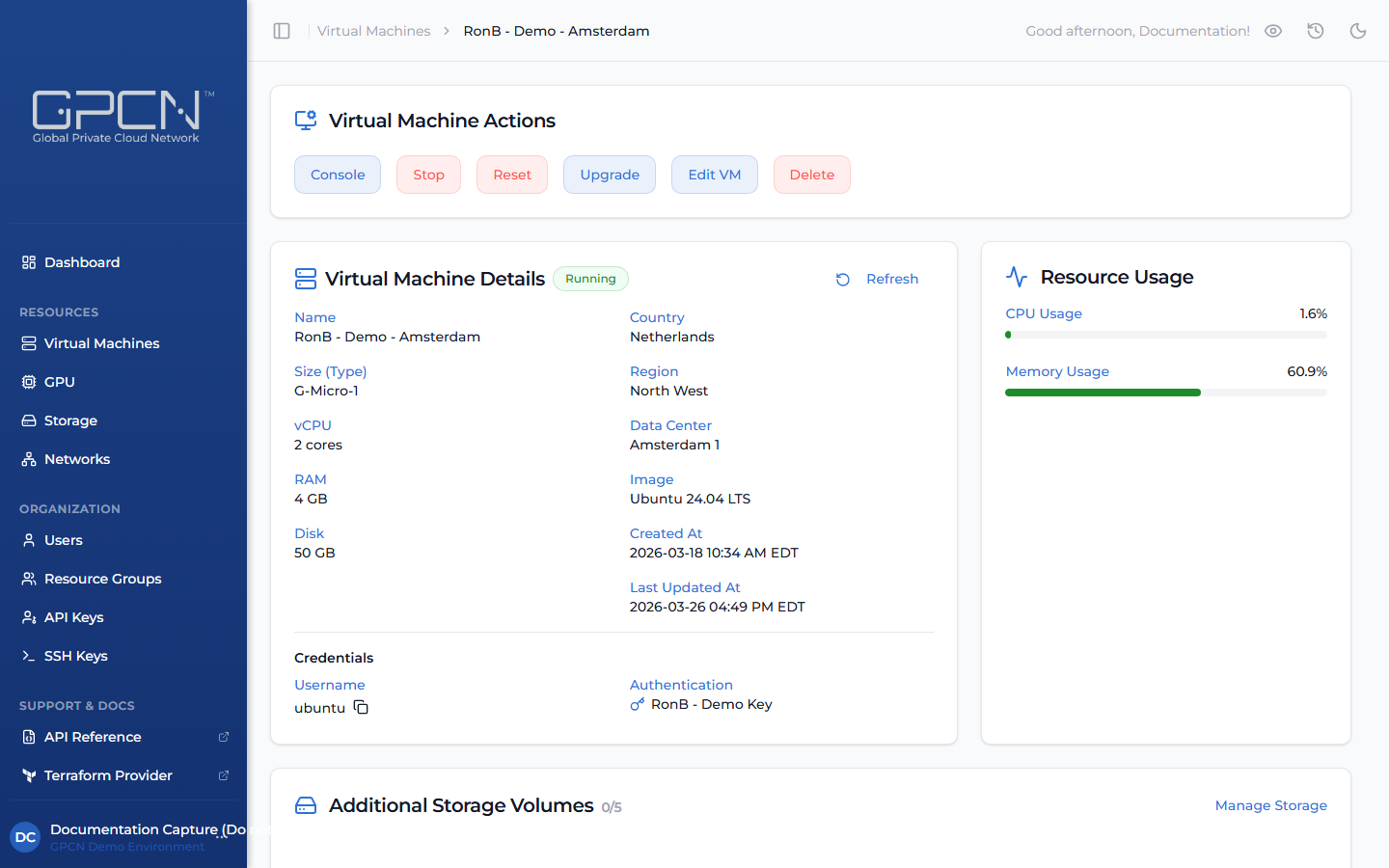
The GPCN™ portal gives you full lifecycle control over your virtual machines. From each VM's detail page you can monitor its current state, take power actions, upgrade its configuration, and manage its identity. Most actions are also available in bulk from the VM list — see Bulk Operations for details.
Prerequisites
- The Tenant Administrator or Tenant Power User role
- At least one existing VM
Console
Click Console to open the VM's console in a new browser tab. The console functions as out-of-band management and connects directly to the VM through the hypervisor rather than over the network. Because of this, it remains accessible even if the VM's network is misconfigured or unreachable.
This makes it especially useful for diagnosing connectivity problems or recovering from a misconfiguration.
See Console Access for full details.
Stop a VM
Stopping performs a graceful shutdown. The VM transitions through Stopping to Stopped. Disk data and configuration are preserved.
Open the VM's detail page and click Stop, or select the VM from the list and use the action menu.
Once the VM is stopped, the Stop button is replaced by Start. Click Start to boot the VM from its existing disk and return it to the Running state.
Reset a VM
Resetting is equivalent to a hard reboot — the VM is power-cycled without a graceful shutdown. Use this when a VM is unresponsive.
Open the VM's detail page and click Reset.
Rescue Mode
If a VM won't boot normally, you can start it from a rescue image to repair it. This boots the VM from a separate ISO while keeping your original disk available for recovery.
Open the VM's detail page and click Rescue to get started. See Rescue Mode for the full walkthrough.
Upgrade a VM
Upgrading moves a VM to a larger configuration without redeploying your application. Your data and configuration are preserved throughout.
The upgrade runs automatically: Graceful shutdown → Provision resources → Restart
You can only upgrade to a configuration with equal or greater CPU, RAM, and disk. Downgrading is not supported.
Open the VM's detail page, click Upgrade, and select a new configuration from the available options. Configurations smaller than the current one are filtered out.
If you add disk space, your operating system may not automatically recognize the additional capacity. You may need to extend the partition or resize the filesystem after the upgrade to make use of it.
Edit VM
The Edit VM panel lets you update three aspects of a VM without redeploying it:
- Name — updates the display name in the GPCN™ portal. This does not change the hostname inside the operating system; if you want the hostname to match, update it manually from within the VM.
- Resource Group — moves the VM into a different resource group, or removes it from its current one. See Resource Groups for details.
- Network Interfaces — attach additional private networks or remove existing ones. The primary interface cannot be removed. See Network Interfaces for details.
Open the VM's detail page, click Edit VM, make your changes, and save.
Authentication
The Authentication card on the VM's edit page lets you keep the portal's records in sync with changes you make directly on the VM.
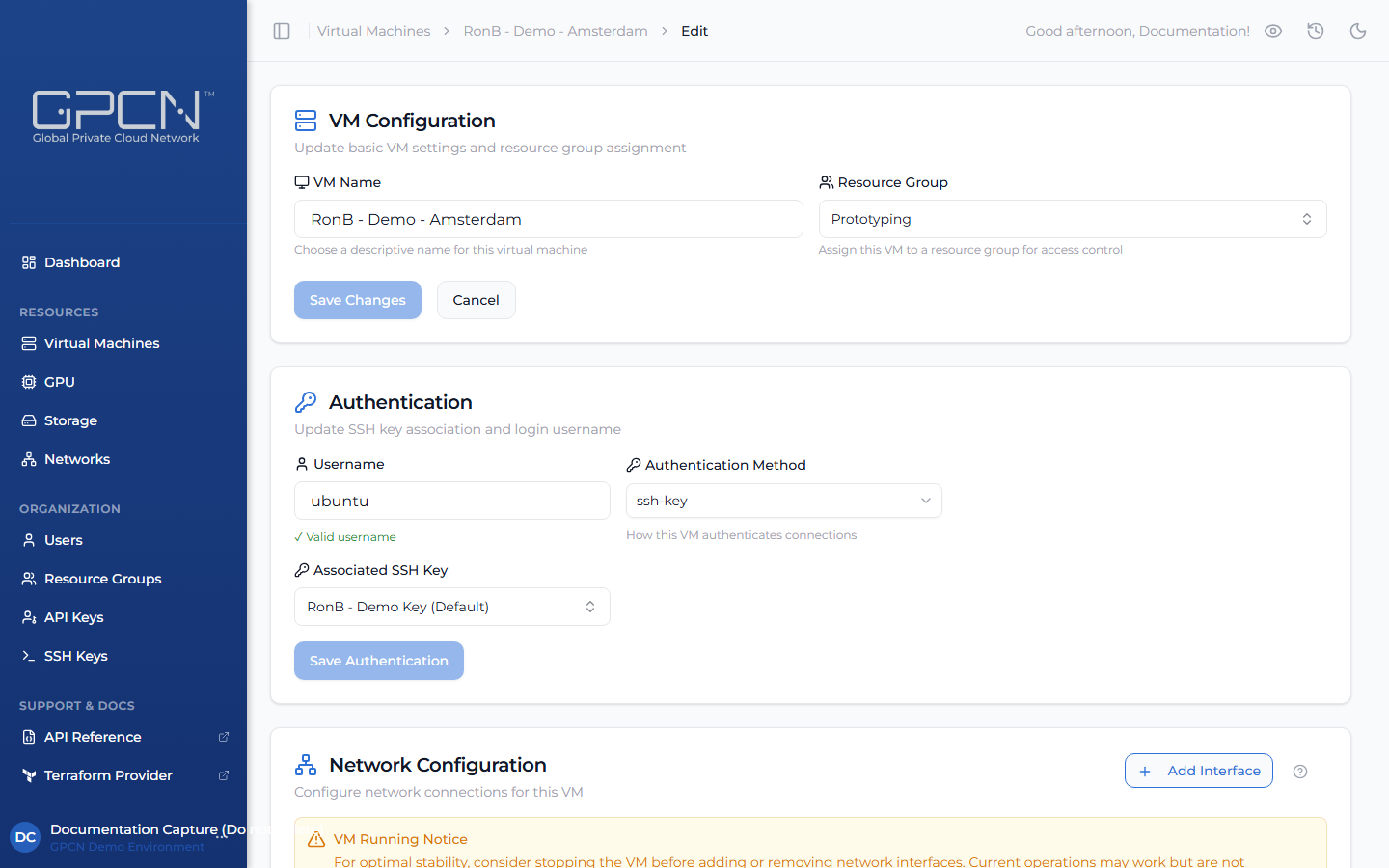
GPCN™ doesn't have access to your VM's operating system, so it can't make credential changes on your behalf. If you add a new SSH key, change the login username, or switch authentication methods directly on the VM, you can update the portal here to reflect those changes. This keeps your GPCN™ records accurate and ensures the right key and username are shown when you or your team members look up VM details.
You can update two things:
- Username — the login username the portal associates with this VM. Update this if you've renamed the user inside the OS so the portal stays in sync.
- Authentication Method — whether this VM uses an SSH Key or Password, and which SSH key from your library is associated with it. Update this if you've rotated keys or changed the auth method on the VM itself.
Changes here update the GPCN™ record only — they do not modify anything inside the VM. To change which keys can actually log in, update the VM's authorized_keys file directly.
If a VM shows Legacy (stored credentials) in the Authentication card, it was created before the SSH Keys library was available. Select SSH Key or Password to migrate it to the current model.
See SSH Keys for help managing your key library.
Delete a VM
Deleting a VM is permanent. The VM, its network interfaces, and any allocated public IPs are released.
Deletion cannot be undone. Make sure you've backed up any data on the VM before deleting.
Any additional storage volumes must be detached before the VM can be deleted. See Storage for details.
Open the VM's detail page and click Delete, then confirm the action.
Next Steps
- Console Access — connect to your VM via the GPCN™ console
- Rescue Mode — recover a VM that won't boot
- Network Interfaces — add or remove networks
- SSH Keys — manage your SSH key library
- Bulk Operations — manage multiple VMs at once
.png)