Network Interfaces
Each VM has one or more network interfaces (NICs), each connected to a private network. Adding multiple interfaces lets you extend private networks across VMs within the same data center — useful for isolating traffic by purpose, such as a dedicated management network, a database network, or any other internal network shared between multiple VMs. You can add or remove interfaces and allocate or release public IPs.
Prerequisites
- The Tenant Administrator or Tenant Power User role
- At least one existing VM
View Network Interfaces
Open the VM's detail page. Network interfaces are listed in the Network section, showing each interface's network name, private IP, public IP (if allocated), and primary status.
When a VM is created, it is automatically connected to the Default Network as its primary interface. One interface is always marked as primary — it determines the VM's default gateway and is used for all outbound traffic. The primary interface cannot be removed.
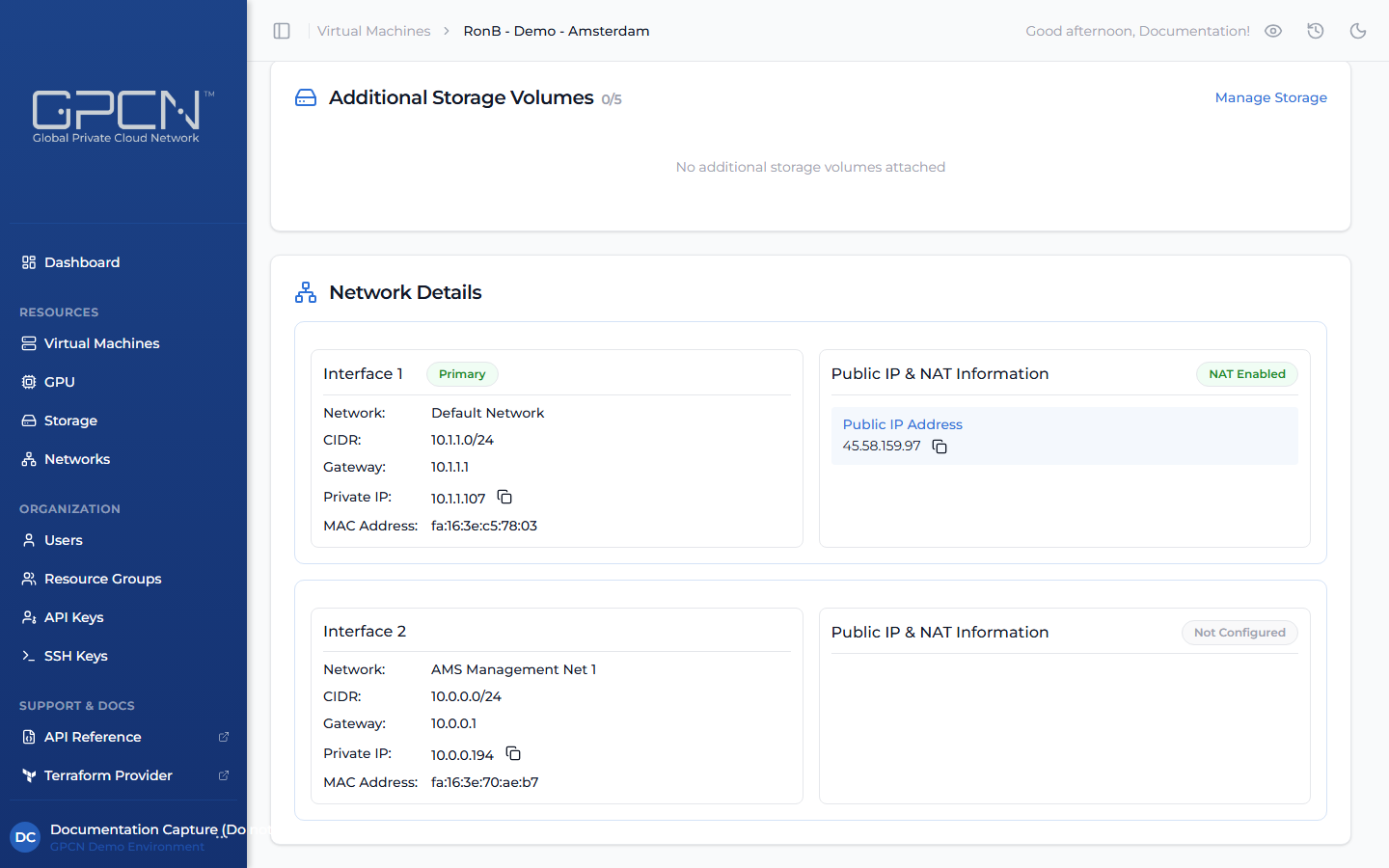
Add a Network Interface
The network must be in the same data center as the VM. A VM can have up to 5 network interfaces.
Linux VMs support adding interfaces while the VM is running. Windows VMs must be stopped first.
On the VM detail page, click Edit VM. In the Network Interfaces section, click Add Interface, select a network from the dropdown, and click Add Interface.
Remove a Network Interface
The primary interface cannot be removed.
Linux VMs support removing interfaces while the VM is running. Windows VMs must be stopped first.
On the VM detail page, click Edit VM. In the Network Interfaces section, click the delete icon next to the interface you want to remove, then confirm.
Allocate a Public IP
Public IPs can only be allocated on interfaces connected to standard networks (L3). Custom networks (L2) do not support public IP allocation. See Public IPs for more details.
On the VM detail page, click Edit VM. In the Network Interfaces section, click Allocate Public IP next to the target interface.
Release a Public IP
Releasing a public IP is permanent. The address is returned to the shared pool and cannot be reclaimed — if you allocate a new public IP afterward, you will receive a different address.
On the VM detail page, click Edit VM. In the Network Interfaces section, click Release Public IP next to the interface.
Next Steps
- Create a VM — configure networking during VM creation
- Networking Overview — understand L2/L3 networks and CIDR planning
- Public IPs — public IP management across all resources
.png)