Bulk Operations
Instead of managing resources one at a time, bulk operations let you act on multiple items simultaneously. This is especially useful when managing groups of VMs that share a lifecycle — such as spinning down a development environment at the end of the day or restarting a set of application servers after maintenance.
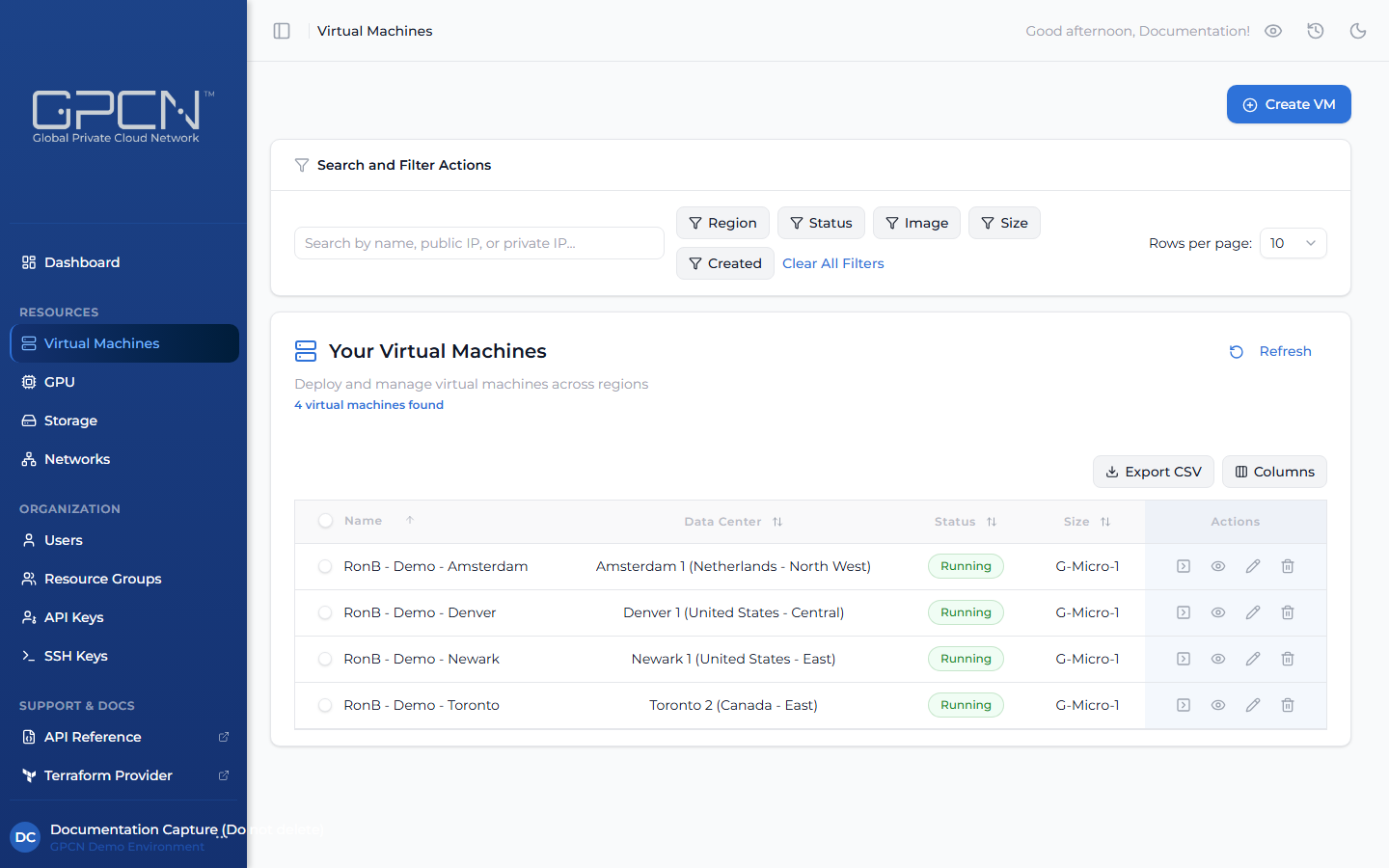
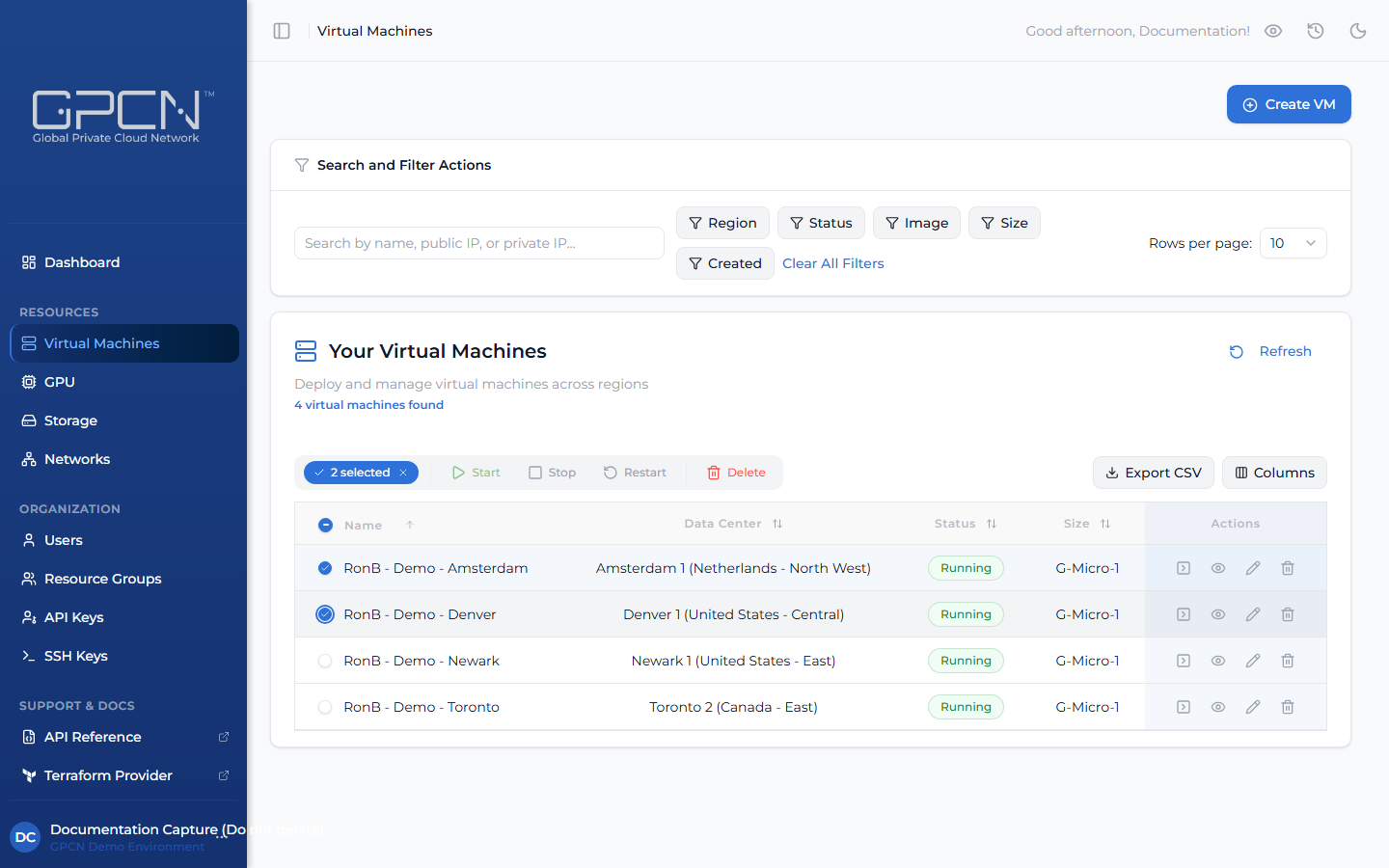
Bulk actions are available throughout the portal wherever resource lists appear. Select items using the checkboxes in the list, and an action bar will appear with the available actions for your selection.
Prerequisites
- The Tenant Administrator or Tenant Power User role
Performing Bulk Actions
- Navigate to the relevant section (e.g., Virtual Machines).
- Select one or more items using the checkboxes in the list.
- Use the action bar that appears to perform the available bulk actions.
Available Bulk Actions by Section
| Section | Available Actions |
|---|---|
| Virtual Machines | Start, Stop, Restart, Delete |
| GPU | Start, Stop, Restart, Delete |
| Storage | Attach, Detach, Delete |
| Networks | Delete |
| Resource Groups | Delete |
| Users | Assign Role, Assign Resource Group, Delete; Resend Invites (pending users) |
| SSH Keys | Delete |
Some actions are only enabled when the selected items are in a compatible state. For example, Start is only available if at least one selected VM is stopped, and Stop is only available if at least one is running. If some items fail, the others still proceed — check the list after the action to confirm the final state of each item.
Next Steps
- Manage VMs — individual VM operations
- Manage GPU VMs — GPU instance lifecycle
- Attach & Detach — storage volume operations
- Manage Networks — network operations
- Manage Resource Groups — resource group operations
- Manage Users — user management operations
- SSH Keys — manage your SSH key library
.png)