Attach & Detach Volumes
Block storage volumes can be created, attached to a VM, and shifted to a different VM as your needs change. Attaching a volume gives a VM access to additional persistent disk space that survives reboots and exists independently of the VM itself. When you no longer need a volume on a particular VM, simply detach it and reattach it elsewhere in the same data center — making it easy to migrate data, repurpose storage, or recover files after a VM is decommissioned.
Prerequisites
- The Tenant Administrator or Tenant Power User role
- The volume must be in Available state before attaching
- The volume and VM must be in the same data center
Attach a Volume
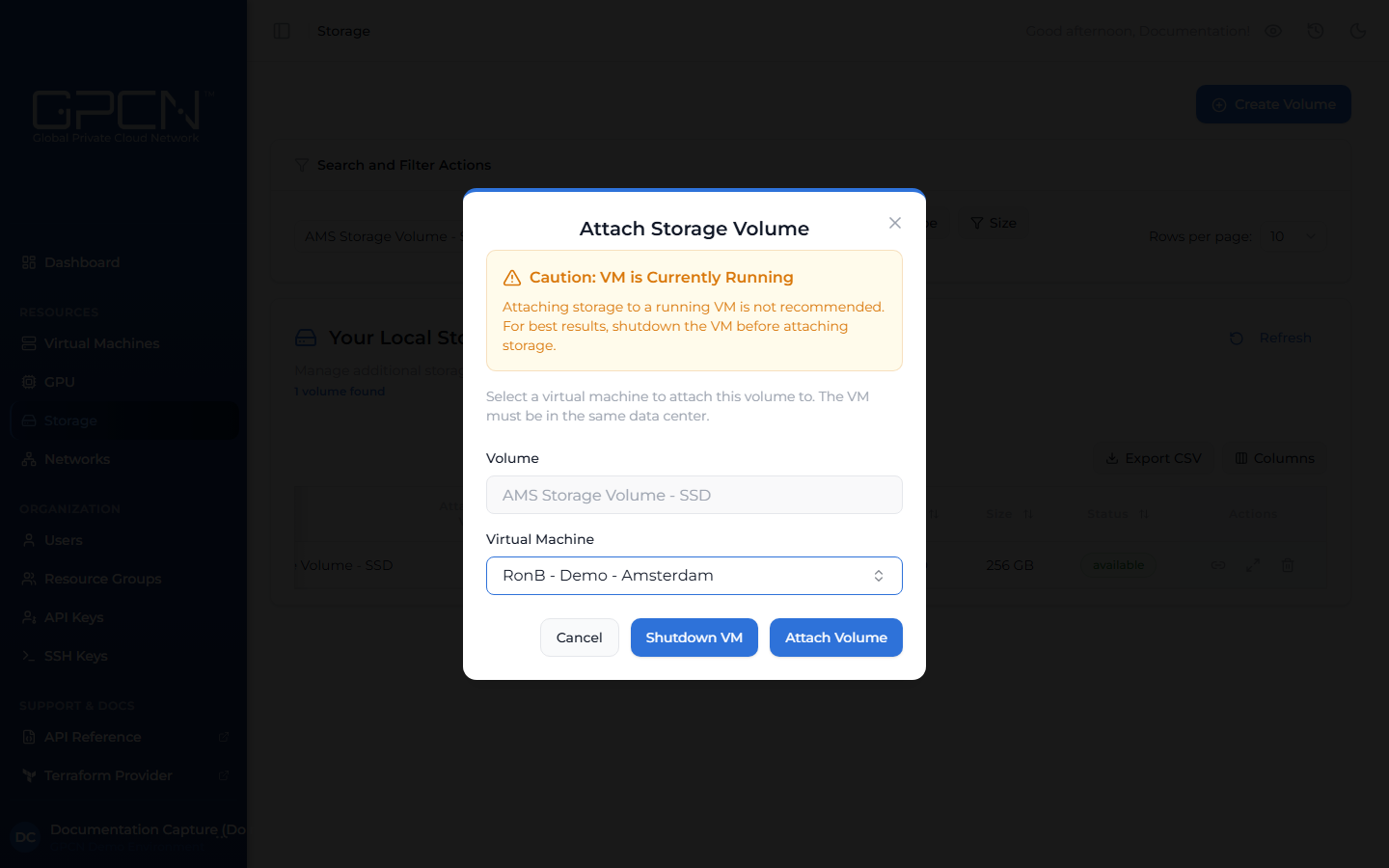
Attaching a volume makes it available as a block device inside the VM. For best results, shut down the VM before attaching storage.
- Navigate to Storage in the sidebar.
- Find the volume you want to attach — it must be in Available state.
- Click the Attach icon on the volume row. A dialog opens.
- Select the target VM from the dropdown — only VMs in the same data center are shown.
- Click Attach Volume.
After the operation completes, the volume transitions from Available to Attached. Inside the VM, it appears as a new block device that you can mount.
If the selected VM is running, the dialog will warn you that attaching storage to a running VM is not recommended. You can shut the VM down from within the dialog before proceeding. After attaching, you may also need to format the volume before you can mount it — volumes that were previously formatted retain their data when reattached.
Detach a Volume
Detaching a volume returns it to Available state so it can be attached to a different VM.
- Navigate to Storage in the sidebar.
- Find the attached volume.
- Click the Detach icon on the volume row. A confirmation dialog opens.
- Confirm the detachment.
After the operation completes, the volume returns to Available state and can be attached to another VM in the same data center.
If the VM is running, the dialog will require you to type detach volume to confirm. Detaching from a running VM is not recommended as it may cause data corruption. Shut the VM down first when possible.
Next Steps
- Create a Volume — provision a new volume
- Resize a Volume — expand an existing volume
- Delete a Volume — permanently remove a volume
.png)