Resize a Volume
You can expand a block storage volume without detaching it from a running VM or losing any data. Volumes can only be expanded to a larger size — you cannot shrink a volume once it has been created.
Prerequisites
- The Tenant Administrator or Tenant Power User role
- The volume must be in Available or Attached state
Expand the Volume
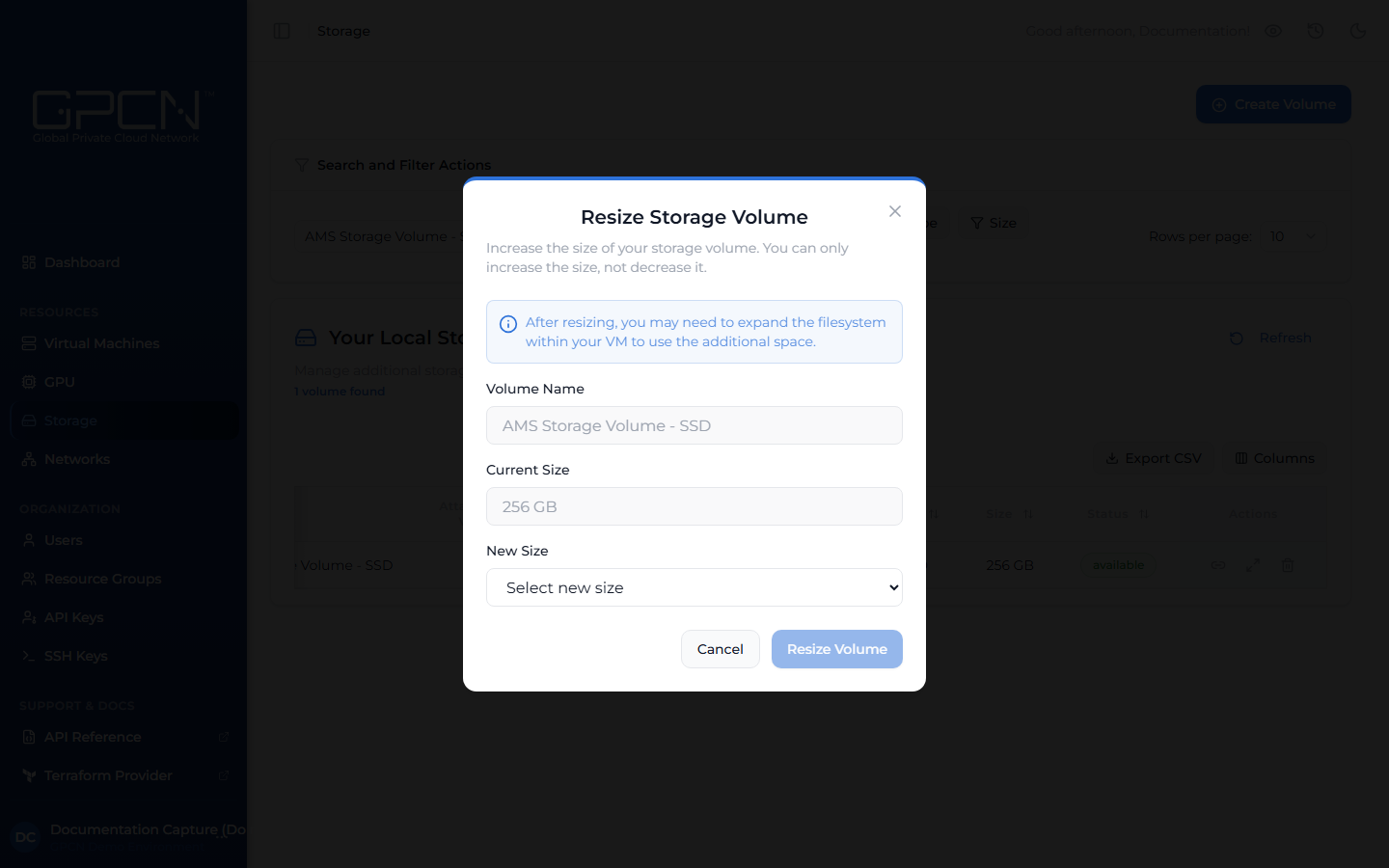
- Navigate to Storage in the sidebar.
- Find the volume you want to expand.
- Click the Resize icon on the volume row. A dialog opens.
- Select a new, larger size from the dropdown — only sizes greater than the current size are shown.
- Click Resize Volume.
The volume transitions to Resizing state while the operation completes, then returns to Available or Attached.
Volumes can be expanded at any time without data loss or downtime. Start with the size you need today — you can always grow it later.
After Resizing
The underlying block device reflects the new size immediately, but the filesystem inside the VM does not expand automatically. After the resize completes, you will need to extend the partition and filesystem from within the operating system. Refer to your operating system's documentation for instructions on how to resize a volume or expand a filesystem.
Next Steps
- Create a Volume — provision a new volume
- Attach & Detach — move volumes between VMs
- Delete a Volume — permanently remove a volume
.png)