Manage Networks
After creating a network, you may need to update its configuration as your infrastructure evolves — renaming it to reflect a new purpose, adjusting the CIDR block or DHCP range to accommodate more VMs or avoid address conflicts, or updating DNS servers to point to a different resolver. The network detail page is also where you monitor which VMs are currently connected, giving you a clear picture of what depends on the network before you make changes or remove it.
Prerequisites
- The Tenant Administrator or Tenant Power User role
View Network Details
Navigate to Networks in the sidebar and click any row to open the network's detail page. What's shown depends on the network type.
Standard Network
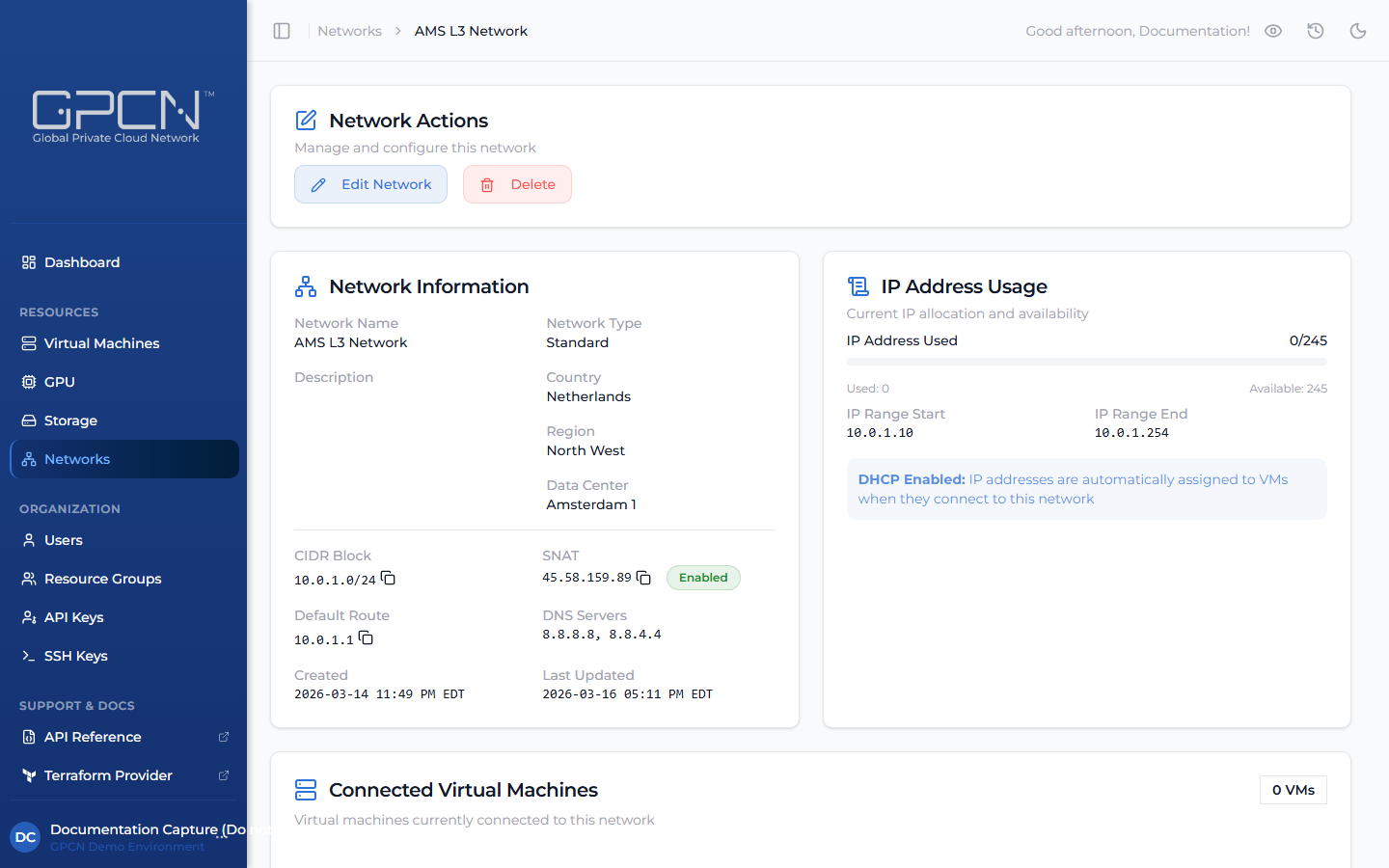
A Standard network detail page shows the full IP configuration:
- Name, Description, Network Type, and Location (Country, Region, Data Center)
- CIDR Block — the IP address range for the network
- SNAT — the shared outbound IP address and whether SNAT is enabled
- Default Route — the gateway IP address
- DNS Servers — configured nameservers
- Connected VMs — VMs currently attached to this network
Custom Network
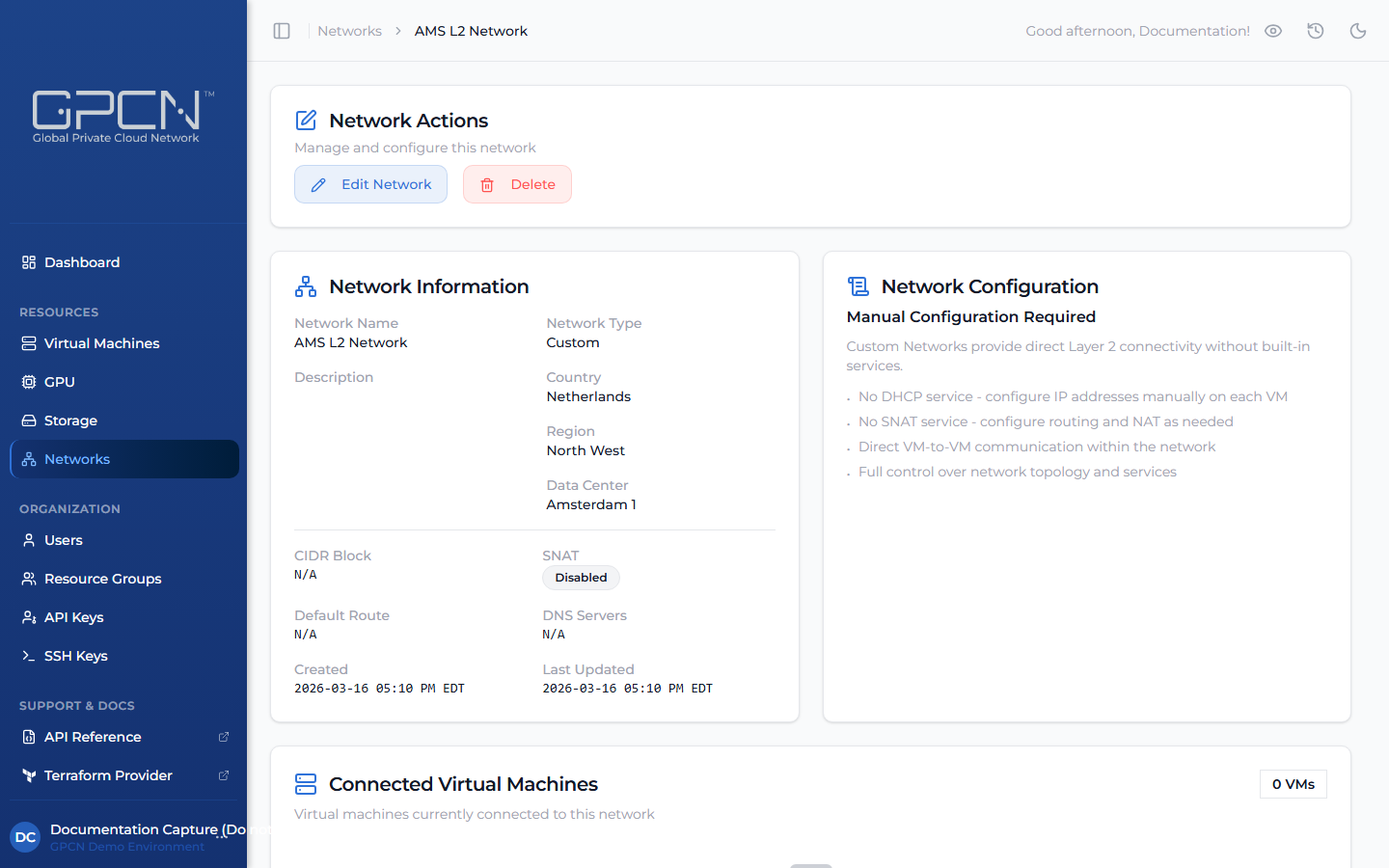
A Custom network detail page shows only the fields that apply to a flat Layer 2 network. CIDR Block, SNAT, Default Route, and DNS Servers are not shown — these services are managed by the customer on their own VMs.
- Name, Description, Network Type, and Location (Country, Region, Data Center)
- Connected VMs — VMs currently attached to this network
Edit a Network
From the network's detail page, click Edit Network to modify the following settings:
- Name and Description
- CIDR Block, DHCP range, Default Route, and DNS Servers (Standard networks only)
Location (Country, Region, Data Center) and Network Type cannot be changed after creation.
Edit Network is disabled while VMs are connected to the network. Detach all VM network interfaces before editing.
Delete a Network
From the network's detail page, click Delete and confirm.
Delete is disabled while VMs are connected to the network. Detach all VM network interfaces first.
Next Steps
- Create a Network — build a new network
- Public IPs — manage public IP addresses
.png)