Create a Network
Networks are isolated connectivity segments scoped to a single data center. When you create a network, you define its IP address range and configure DHCP and DNS. Attach the network to one or more VMs to give them private IP addresses on that segment.
Prerequisites
- The Tenant Administrator or Tenant Power User role
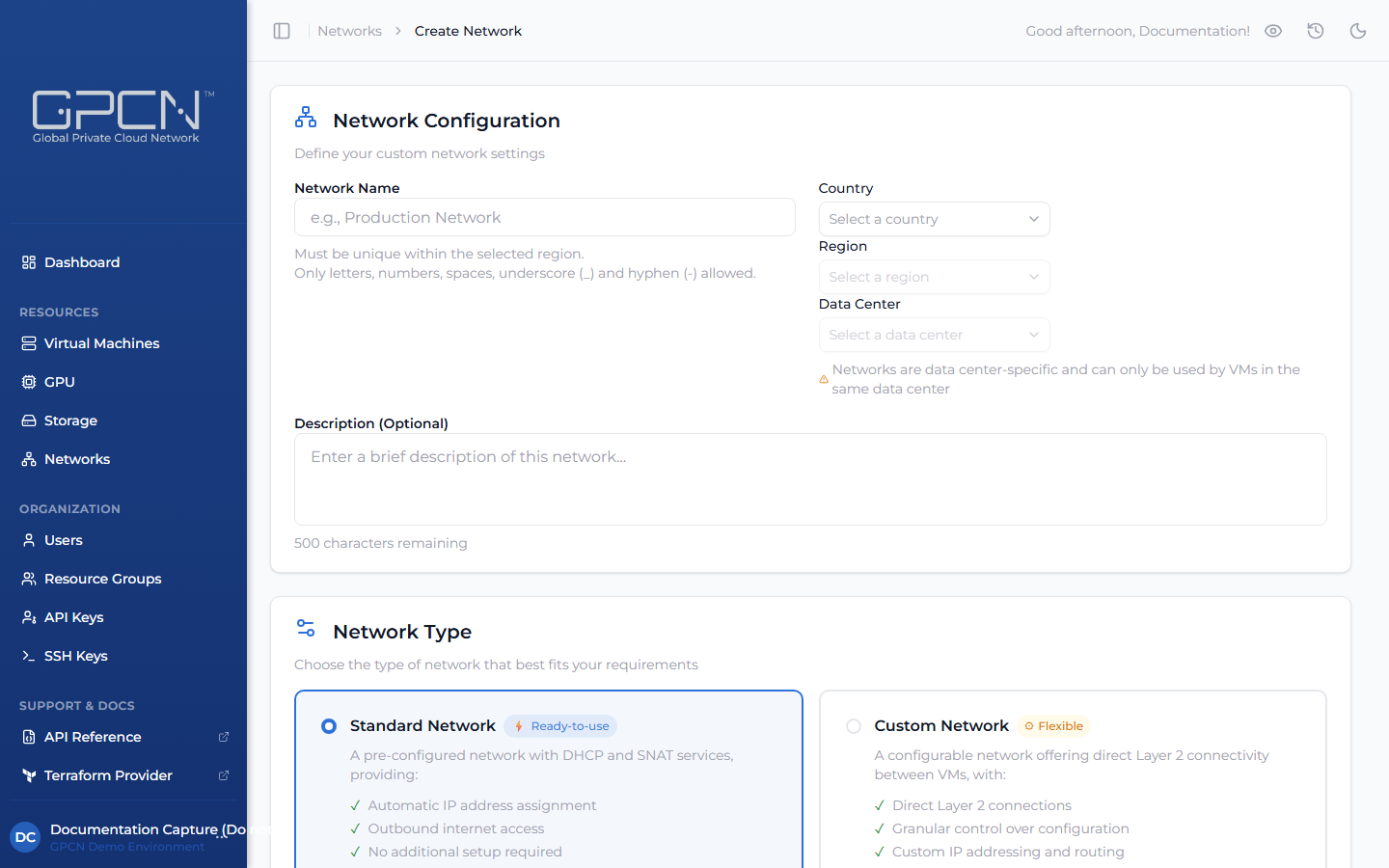
- Navigate to Networks in the sidebar and click Create Network.
- Network Configuration — fill in the top section:
- Network Name — must be unique within the selected region. Letters, numbers, spaces, underscores, and hyphens allowed.
- Country → Region → Data Center — select location. Networks are data-center-specific and can only be used by VMs in the same data center.
- Description (optional) — up to 500 characters.
-
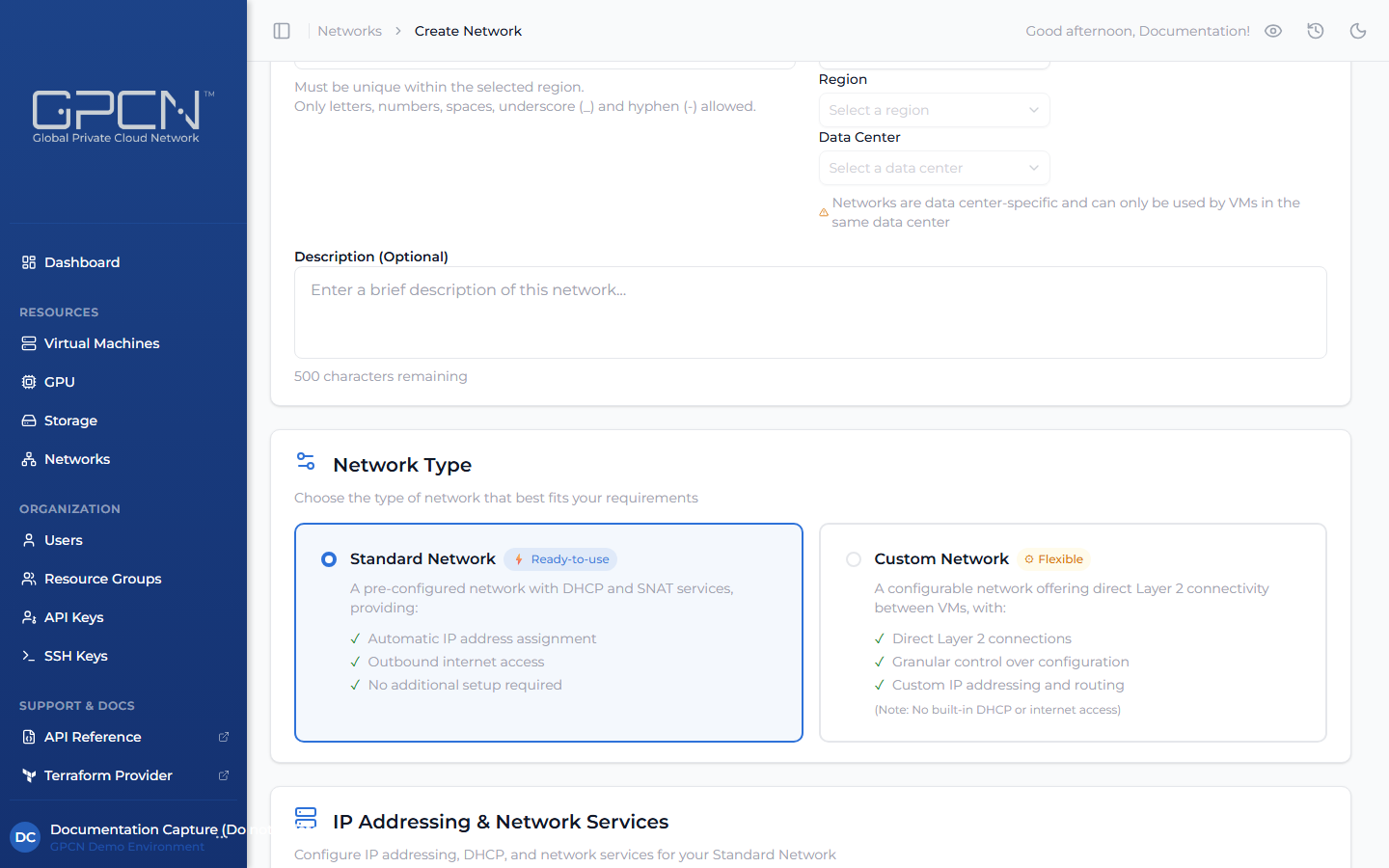
Network Type — choose one:
- Standard Network — provides automatic IP assignment via DHCP, outbound internet access via SNAT, and public IP allocation. Use this for most workloads.
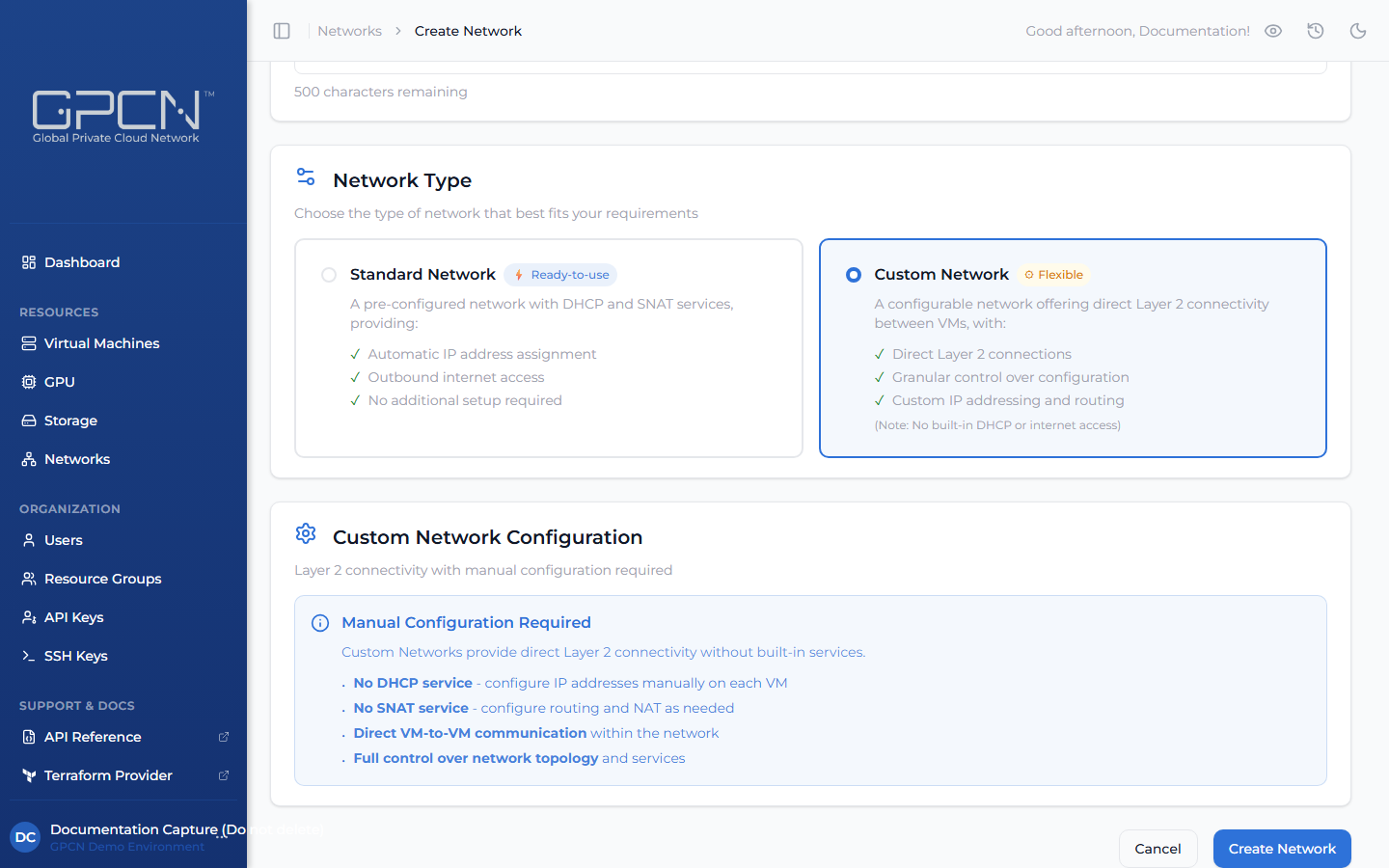
- Custom Network — a flat Layer 2 network with no built-in DHCP or routing. Use this when you need full control over network services — for example, to run your own DHCP server, firewall, or network appliance.
-
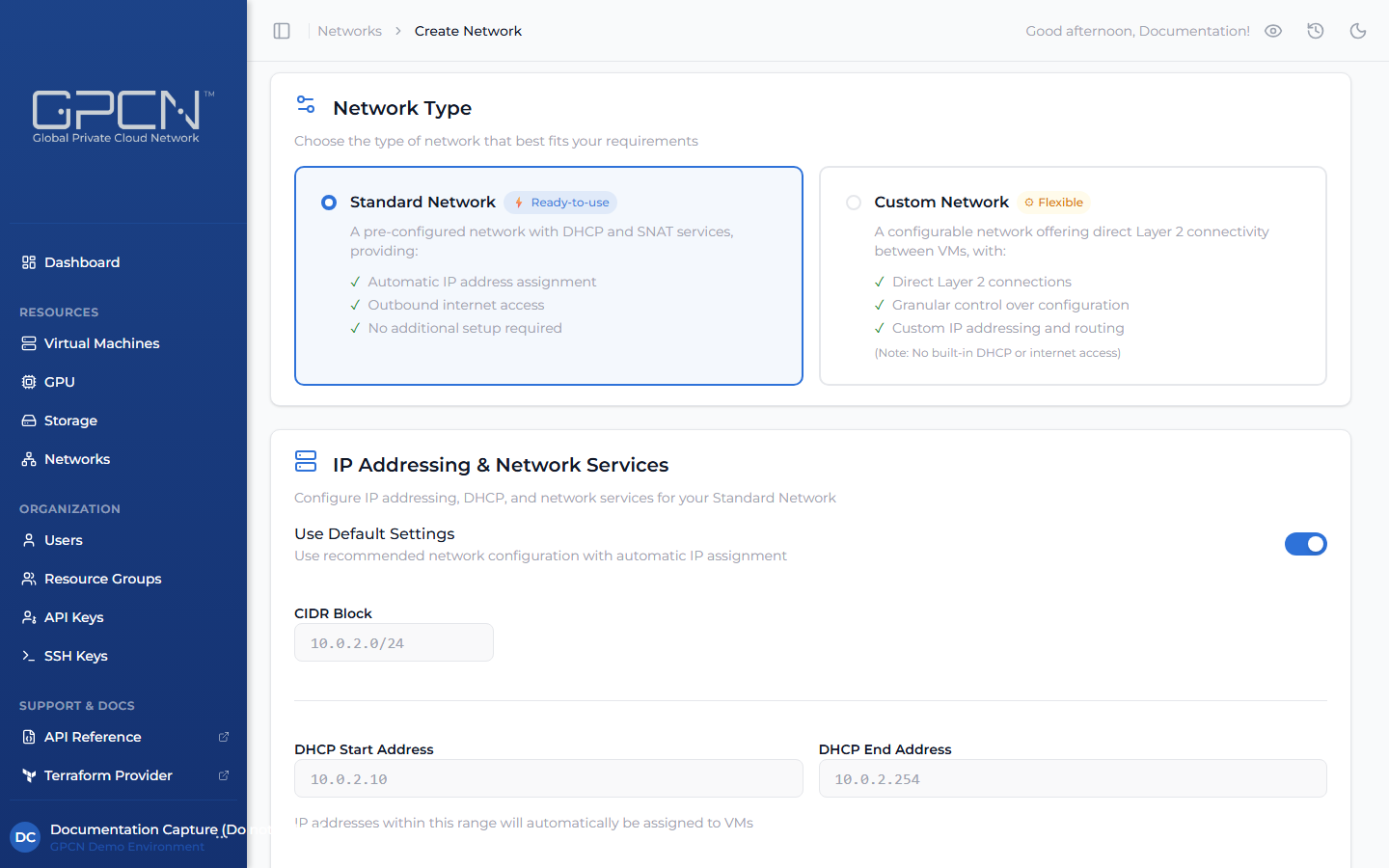
IP Addressing & Network Services — shown for Standard networks only. Configure IP settings or leave Use Default Settings enabled to auto-populate the form:
- Use Default Settings (toggle, on by default) — auto-populates CIDR (
10.0.0.0/24), DHCP range (10.0.0.10–10.0.0.254), default route (10.0.0.1), and DNS servers (8.8.8.8, 8.8.4.4). Turn this off to enter custom values. - CIDR Block — the IP range for the network (e.g.,
10.0.1.0/24). - DHCP Start / End Address — range of IPs automatically assigned to VMs.
- Default Route — gateway IP address for the network.
- DNS Servers — one or two nameserver addresses, comma-separated.
The default settings (
10.0.0.0/24) work for most isolated workloads. If your VMs need to communicate with other networks — such as on-premises infrastructure, VPNs, or other cloud environments — customize the CIDR block to avoid IP address conflicts. Organizations with their own network addressing standards can also set a range that fits their topology. - Use Default Settings (toggle, on by default) — auto-populates CIDR (
With Standard selected, the IP Addressing section is visible:
With Custom selected, the IP Addressing section is not shown:
- Click Create Network.
Next Steps
- Manage Networks — edit settings and view connected VMs
- Public IPs — allocate public IPs on standard networks
.png)