Create a Virtual Machine
Deploy a virtual machine (VM) by choosing where it runs, how it connects, its size and operating system, and how you'll log in. The wizard has nine steps that unlock in order, and you can return to any completed step before you deploy.
The screenshots below follow one machine through the wizard, so each shows the form filled in up to that step.
Prerequisites
- The Tenant Operator, Tenant Manager or Tenant Administrator role, acting in the chosen group, or a custom role that allows creating machines — see Roles & Permissions. An organization-wide role acts in the Default group only; a Tenant Operator scoped to a group acts in that group. Tenant Viewer is read-only.
- At least one data center available to your organization
- A VPC with a subnet in the data center you're deploying to. You can create both from inside the wizard.
Go to Resources → Compute → Virtual Machines and click Create.
Step 1 — Resource Group
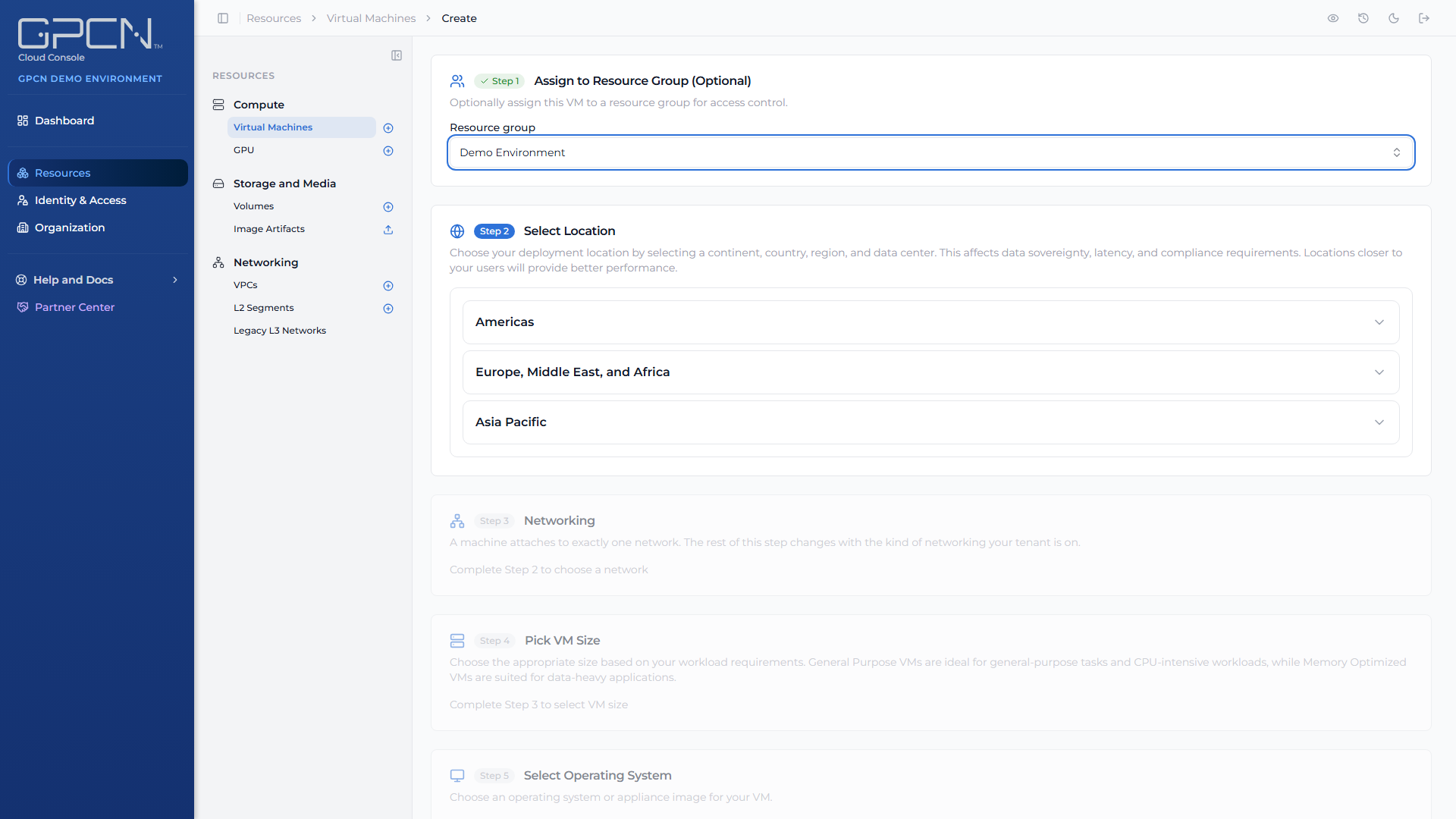
Every machine must belong to a resource group, which controls who can see and manage it. Nothing is preselected, so the step opens with:
Every machine must belong to a resource group. Choose one, or type a new name to create one.
The picker only lists resource groups you have permission to create machines in. Search for an existing one, or type a name that doesn't match anything yet and choose Create "
If your role doesn't let you create resource groups, you won't see the create option — pick from the groups you already have access to.
This step is complete once you've chosen or created a group. Your choice isn't reset if you go back and change a later step.
See Resource Groups.
Step 2 — Select Location
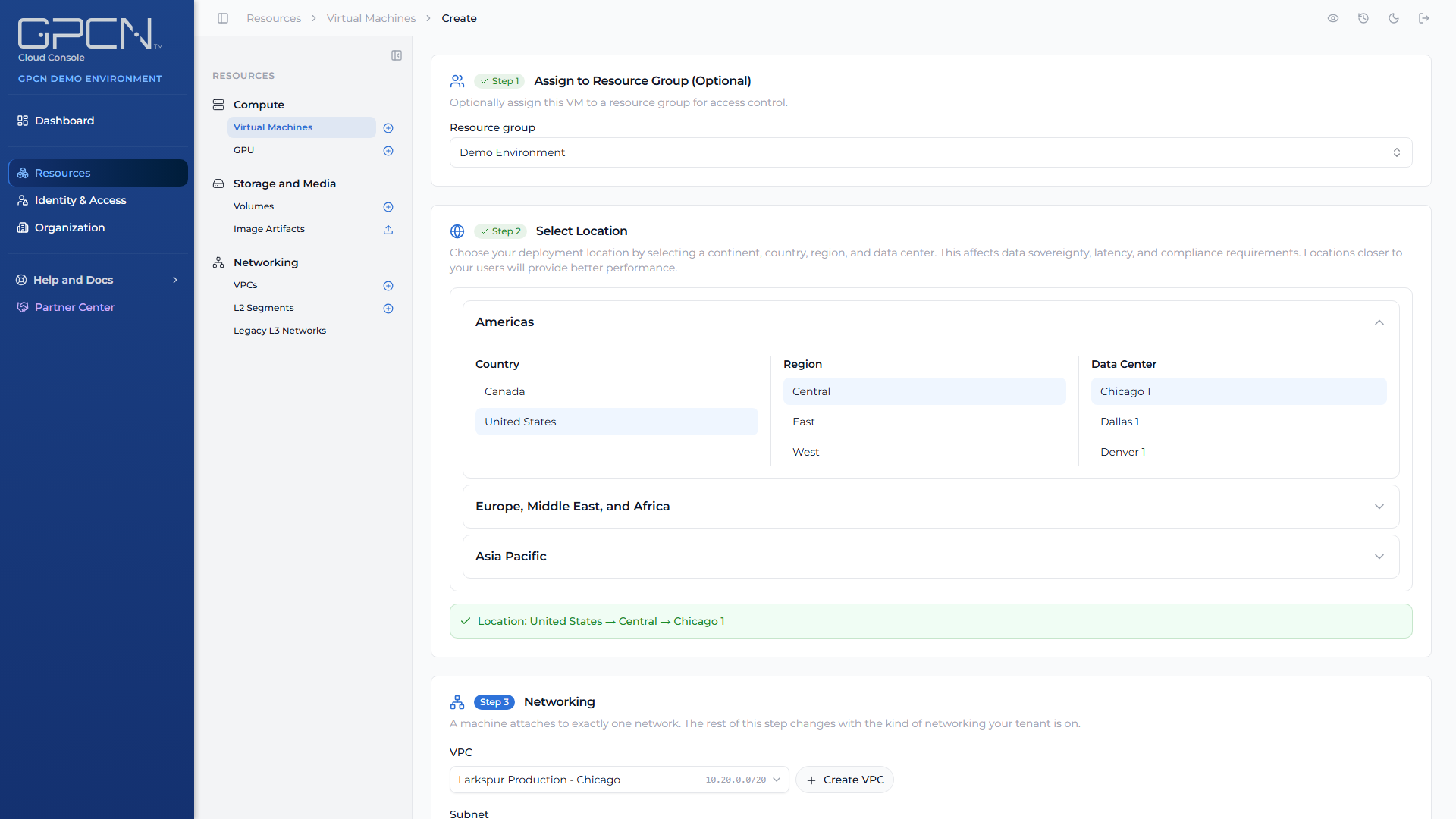
Choose Country → Region → Data Center. A green summary inside the card confirms your selection.
The data center decides more than geography: it determines which operating system images you can pick, which networks or VPCs are available, and whether VPC networking is offered at all.
Step 3 — Networking
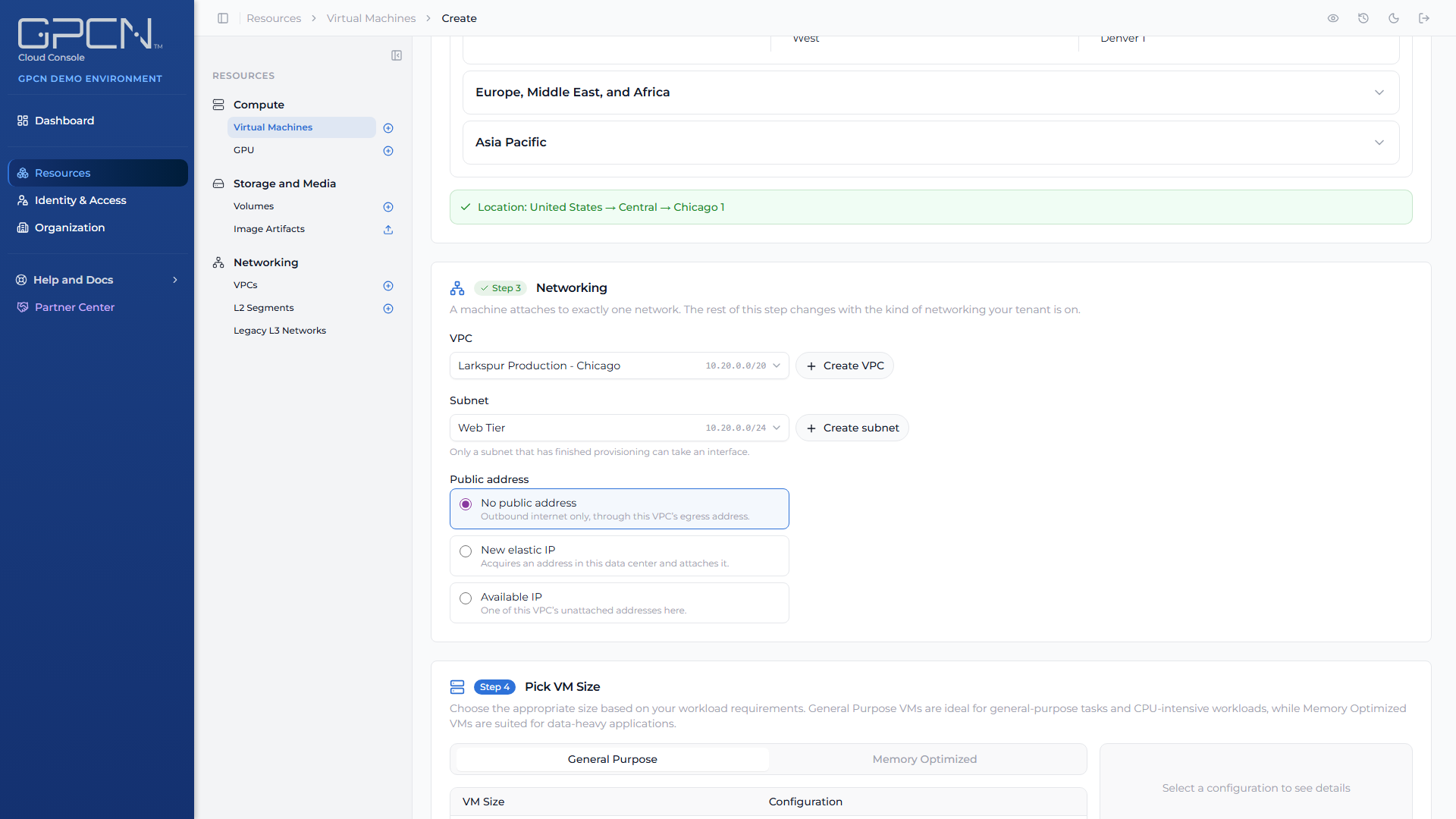
This step is required. A machine attaches to exactly one network when it's created.
A machine takes one network interface at creation. Additional interfaces attach afterwards — see Network Interfaces.
Choose a VPC and then a subnet within it. Both are required, and deployment is blocked until you've picked a subnet.
You can create a VPC or a subnet without leaving the wizard. If you create a subnet here, you can carry on while it's still building — deployment waits until it reports ready.
Then choose what public address the machine gets:
| Choice | What it does |
|---|---|
| No address | A private address only, with outbound internet access |
| New elastic IP | Acquires a fresh address and attaches it |
| Held elastic IP | Attaches one your organization already holds |
An option you don't have permission for isn't offered, rather than failing at deploy. See Elastic IPs.
Step 4 — Pick VM Size
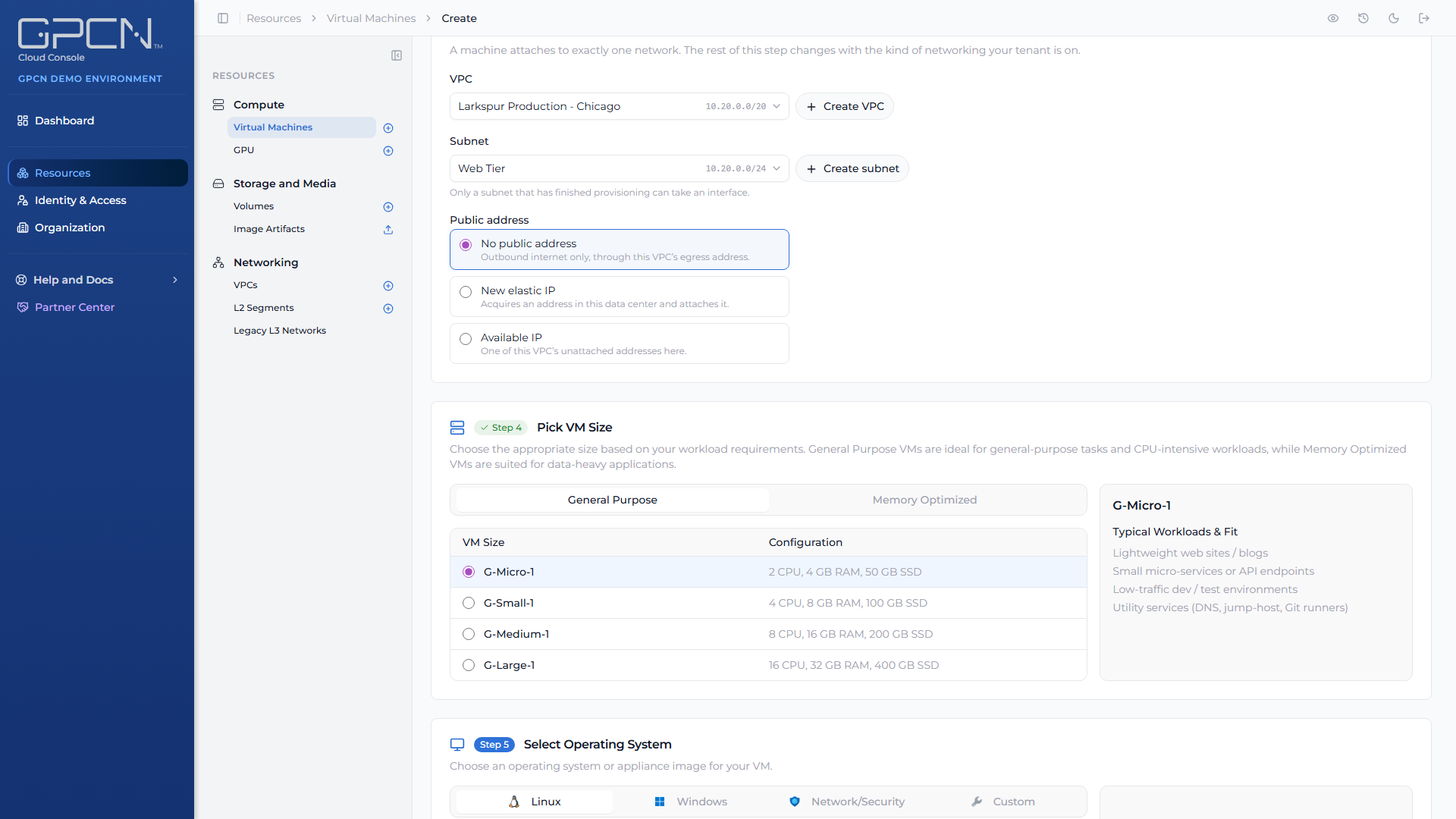
Sizes are grouped into categories, each listing its vCPU, memory and storage. Pick the one that fits your workload.
If a size stops being offered while you're still filling in the wizard, the form tells you and clears the selection so you can pick another.
Step 5 — Select Operating System
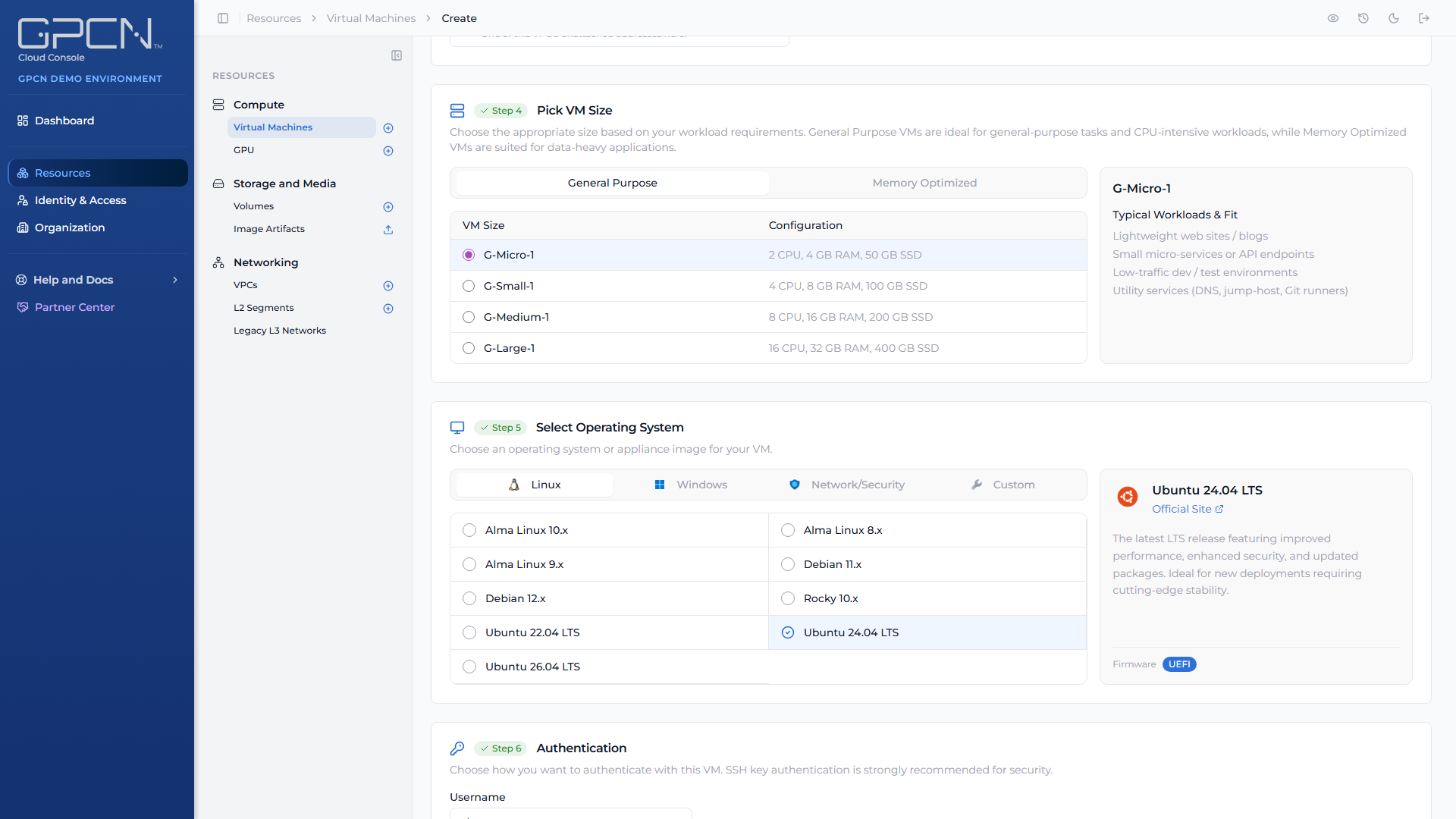
Choose an image. The list is specific to the data center you picked in step 2, so changing the location changes what's available here.
Alongside the standard images, any of your organization's own images deployed to that data center appear too — see Image Artifacts.
Step 6 — Authentication
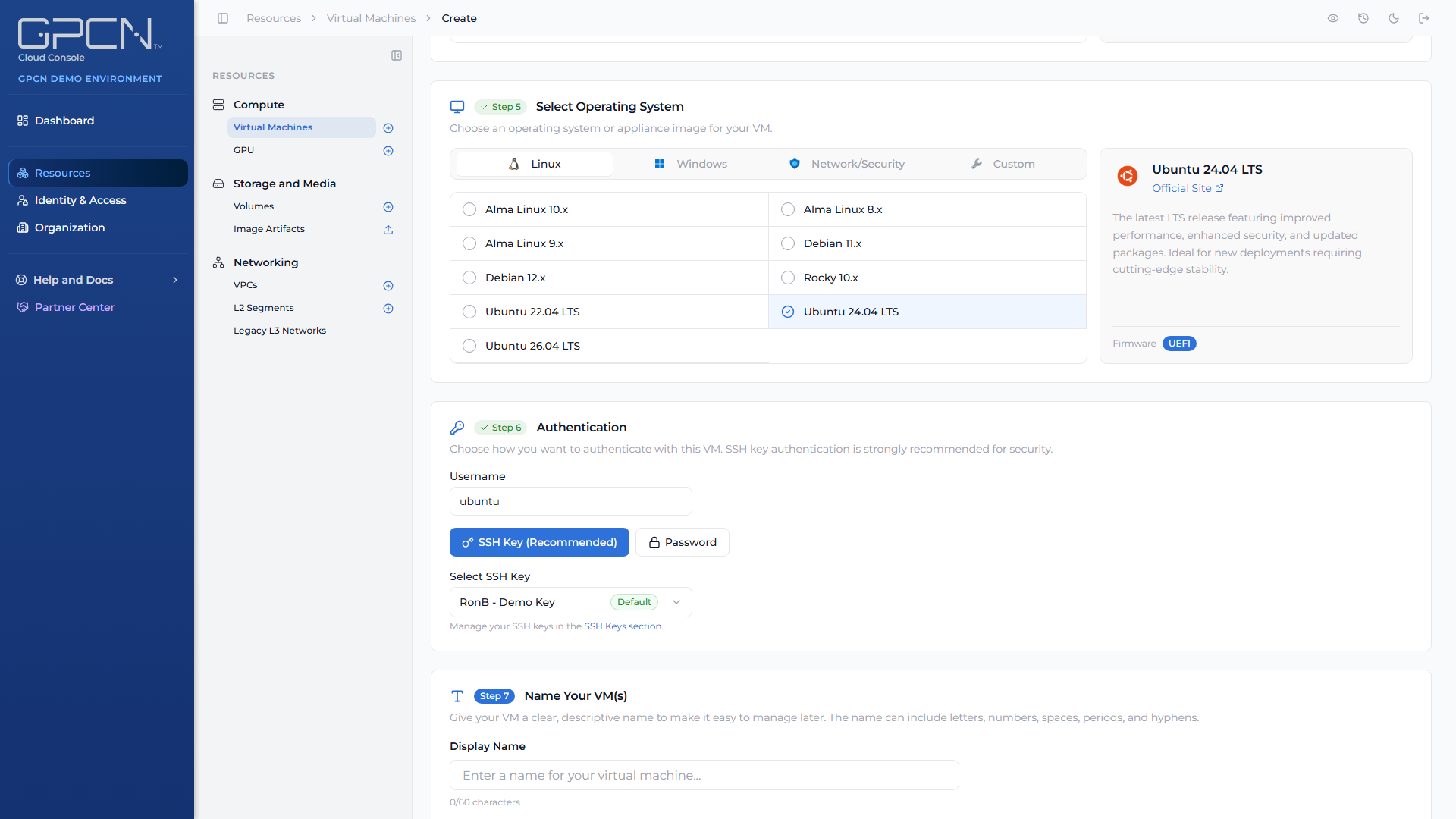
How you'll log in. What's offered depends on the image.
SSH key — available for images that support cloud-init. Pick a key from your organization's library; your default key is pre-selected if you have one.
Password — required for Windows images, and the only option for images without cloud-init support, such as firewall appliances.
You can also set the username created on the machine. It must be 3–20 characters, start with a letter or underscore, and contain only letters, digits, underscores or hyphens. Some usernames are reserved and the form will tell you.
A password must be 12–20 characters and include an uppercase letter, a lowercase letter, a number, and one of ! @ # % - _ . — with no spaces. You'll confirm it in a second field.
Step 7 — Name Your VM(s)
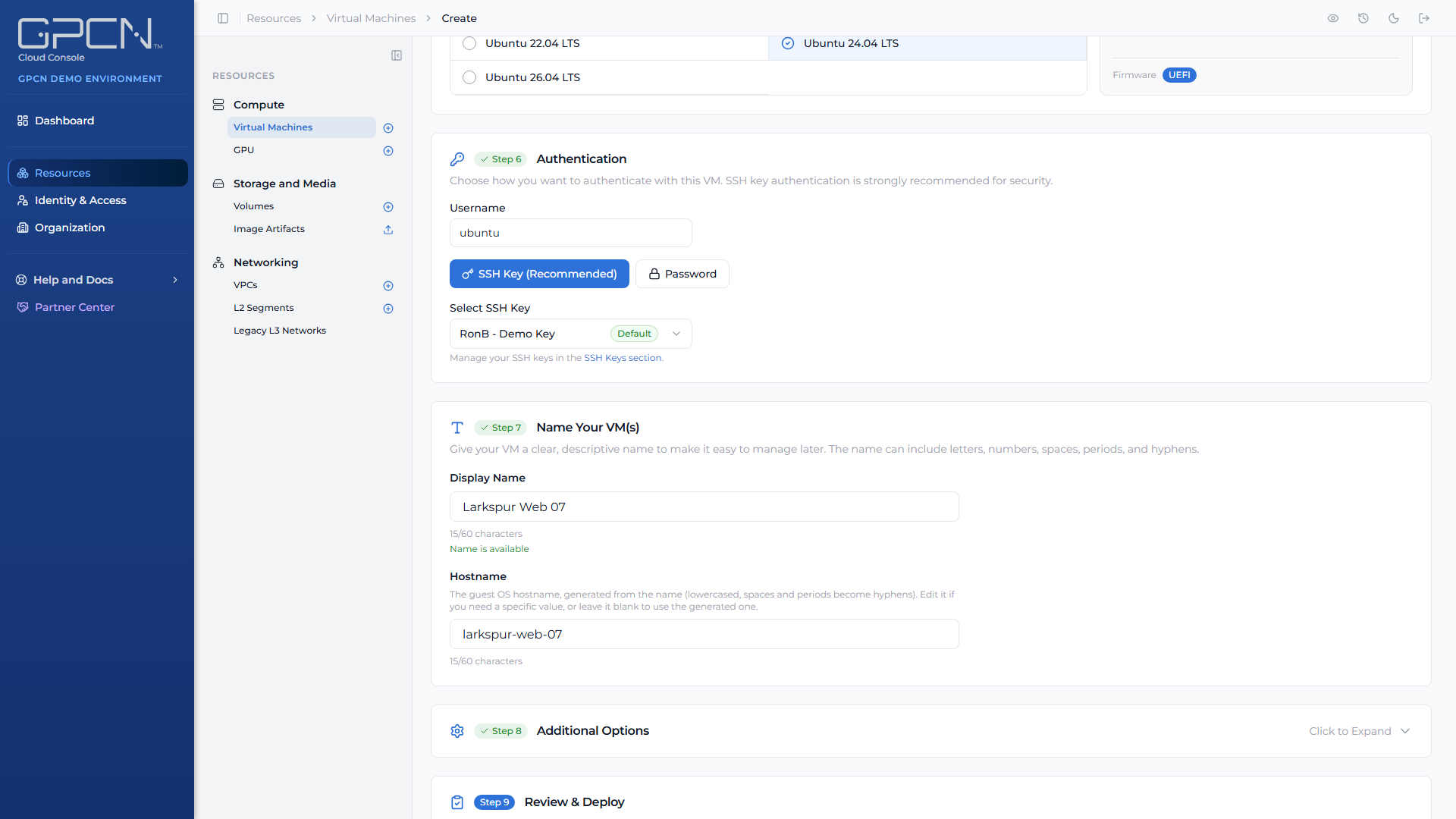
This step has two fields:
| Field | Rules |
|---|---|
| Display name | Up to 60 characters. Letters, numbers, spaces, periods and hyphens, and it can't start or end with a hyphen. |
| Hostname | The name inside the guest operating system. Derived from your display name automatically — lowercased, with spaces and periods becoming hyphens — and you can edit it. Up to 60 characters, must start with a letter, letters/digits/hyphens only, no trailing hyphen. |
Both fields have to be valid before the step completes, so if the step won't advance, check the hostname as well as the name.
The form checks your chosen name against your existing machines as you type and tells you if it's already taken.
When you deploy more than one machine, GPCN™ appends a numeric suffix to both fields — web-server becomes web-server-1, web-server-2, and the hostnames follow.
Step 8 — Additional Options
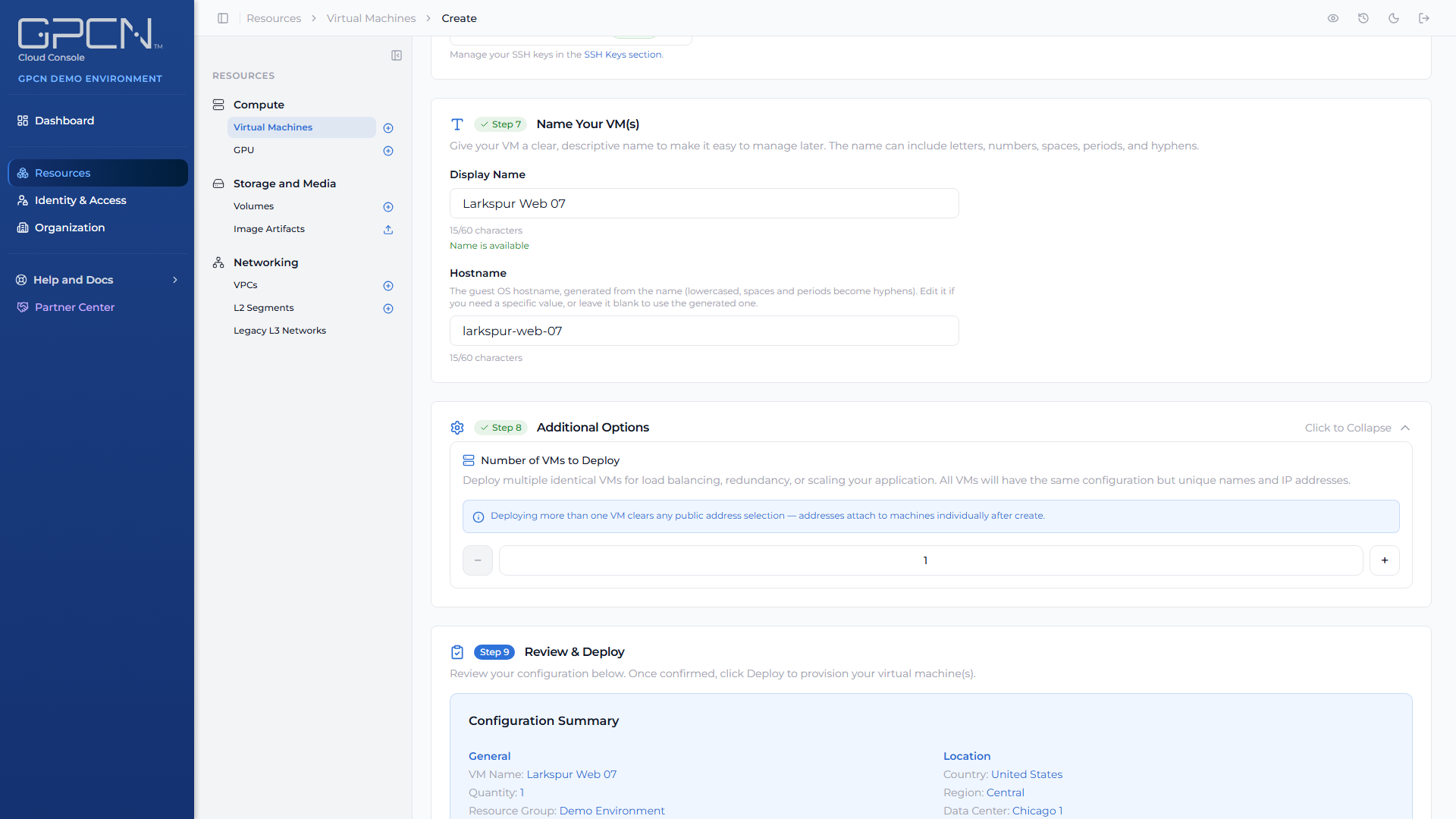
Expand this step to set how many machines to deploy, from 1 to 10. Each one gets its own name, hostname and private address.
On a VPC account, raising the count above one clears your public address choice — an address can't serve more than one machine. Deploy the machines, then attach addresses individually.
Step 9 — Review & Deploy
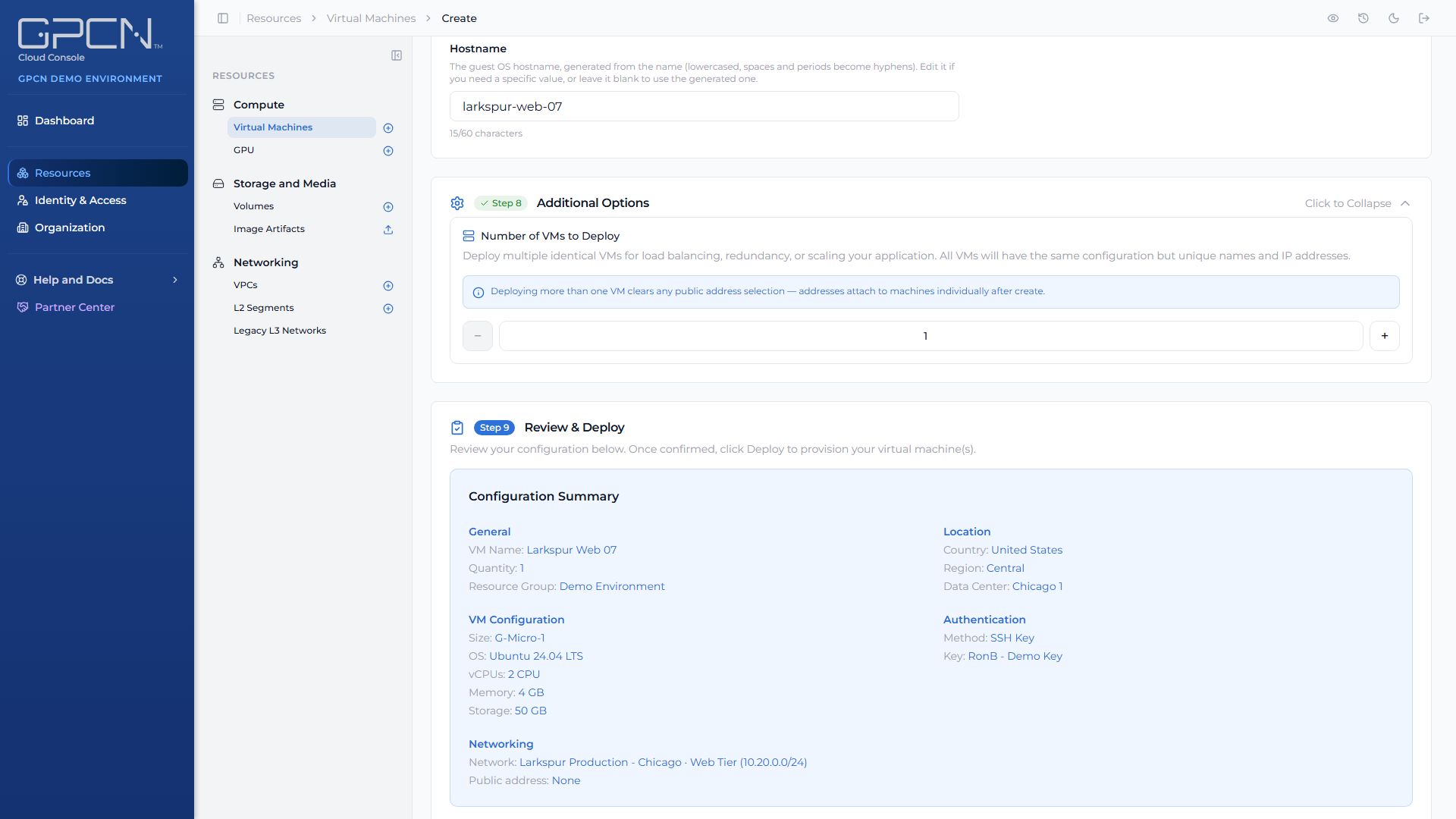
A summary of everything you've chosen, grouped by area. Check it, then click Deploy Virtual Machine.
If you chose password authentication, a confirmation dialog appears first so you can reveal and copy the password.
GPCN™ doesn't store the password. It's shown at this point and never again, so save it into a password manager or secrets vault before you confirm. There's no way to recover it later.
After you deploy
Deployment is an asynchronous job, not an instant result.
- The wizard returns you to the machine list and opens the task drawer so you can follow progress.
- Your machine's first status is Provisioning.
- Once it's running, you can connect. See Console Access or use SSH.
Next Steps
- Manage a VM → — start, stop, upgrade and delete
- Network Interfaces → — add interfaces after creation
- Console Access → — connect through the browser console
- Available Sizes → — the full size catalogue
- Available Images → — the standard image list
- Virtual Machine API Reference → — endpoint details and code examples
.png)