Image Artifacts
Image artifacts are the custom operating system images and ISOs your organization brings to GPCN™ (Global Private Cloud Network™). You upload them yourself, choose which data centers they're available in, and deploy machines from them alongside the standard images.
Find them at Resources → Storage and Media → Image Artifacts.
Prerequisites
- Any role can browse images
- The Tenant Operator, Tenant Manager or Tenant Administrator role to upload one, edit it, or remove it — see Roles & Permissions
Upload an image
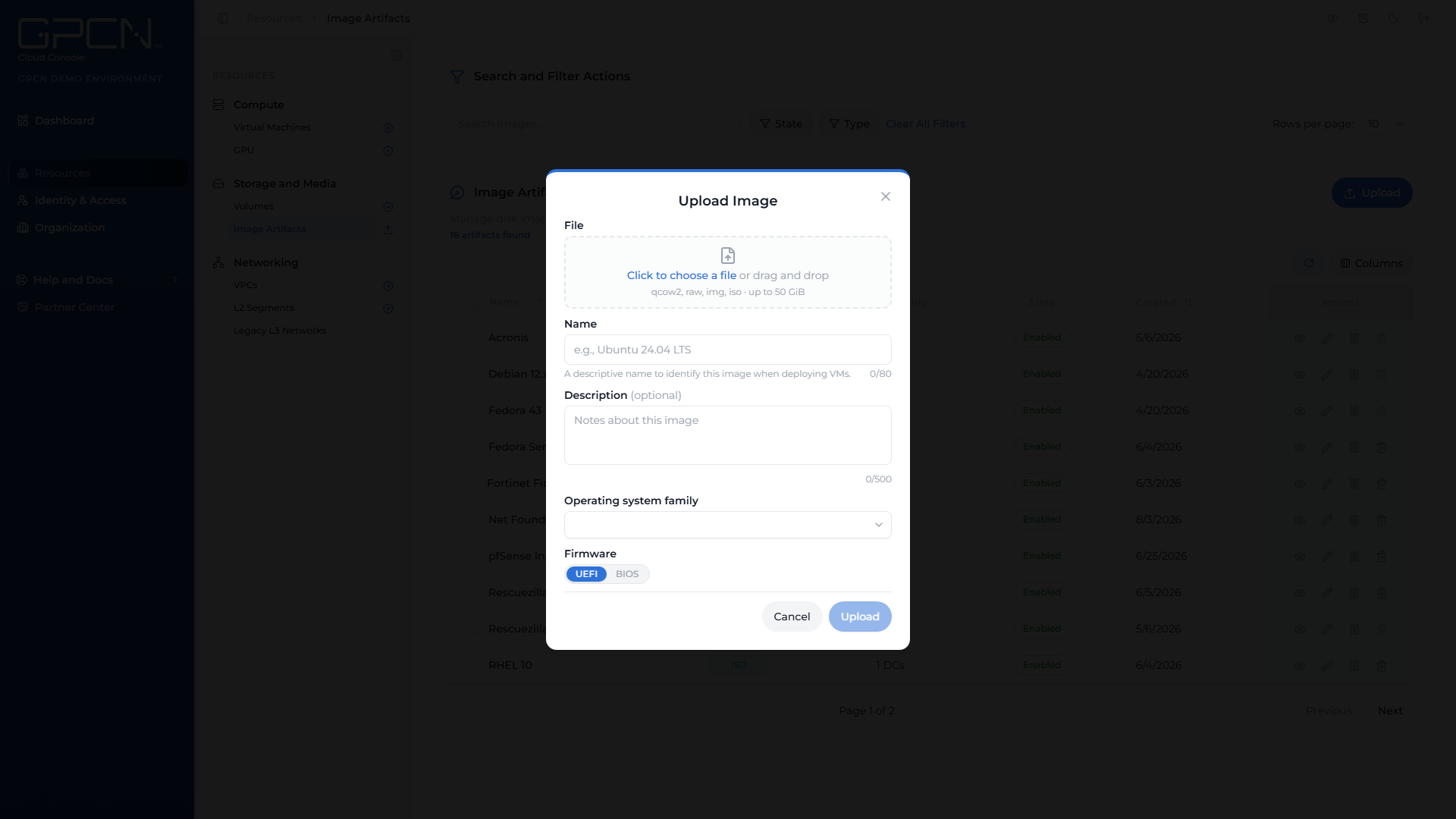
Uploading is self-service. Click Upload on the Image Artifacts page and choose your file.
Uploads run in a drawer that survives navigation, so you can carry on working while a large image transfers. The drawer shows per-upload progress and lets you abort or discard an upload in flight, and the image list refreshes itself as uploads finish.
ISOs are accepted as well as disk images. An ISO you upload here is what makes Rescue Mode → usable — GPCN™ supplies no default rescue disks, so the rescue ISO list is drawn from your own artifacts.
Browsing the list
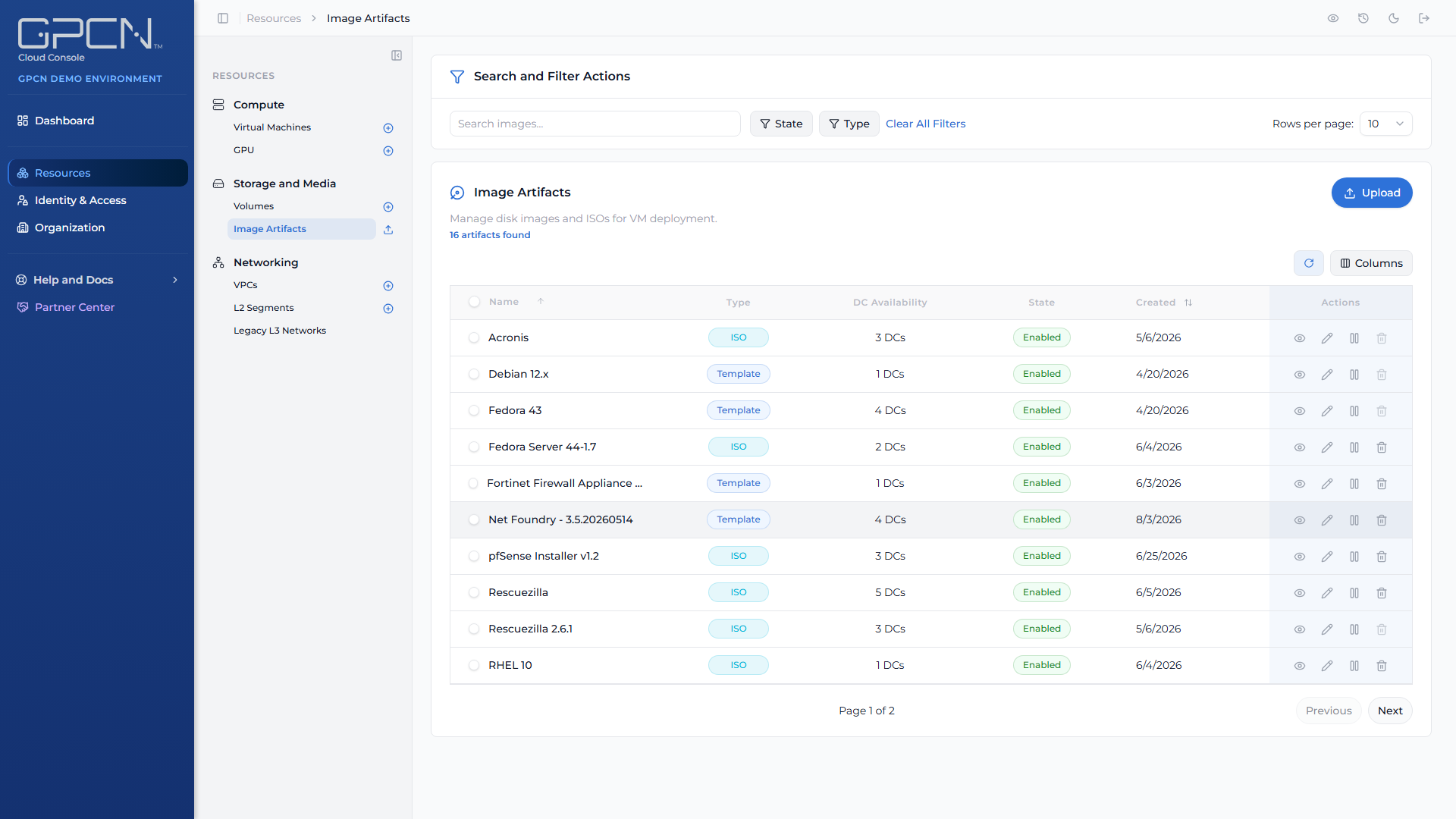
| Column | What it shows |
|---|---|
| Name | The image's name |
| Type | Disk image or ISO |
| DC Availability | How many data centers it's deployed to |
| State | Where the image is in its lifecycle — see below |
| Created | When it was uploaded |
You can search by name or description, filter by state and type, sort by name or creation date, and set how many rows to show.
The state and type filters let you tick more than one value, but the platform filters on a single value. Ticking two values in the same filter is the same as ticking none.
Each row has a Quick View for a summary without leaving the page, and a full detail page for everything else.
Image states
Two different things are called "state", and it's worth keeping them apart.
Lifecycle state — where the image is in being uploaded or removed:
| State | What it means |
|---|---|
| Uploading | The transfer is still in progress |
| Failed | The upload didn't complete |
| Deleting | The image is being removed |
| Staged | The upload finished and the image is usable |
Availability — once an image is staged, whether machines can be built from it. This is the Enabled or Disabled pill, and you control it.
Enable and Disable only apply to a staged image. You can't enable an image that's still uploading or that failed.
Where an image can be used
An image is only selectable in a data center it's been deployed to. The detail page shows every deployment, each with its own state, so a deployment can be mid-flight or failed while the image itself reads as fine.
Deploy to more data centers
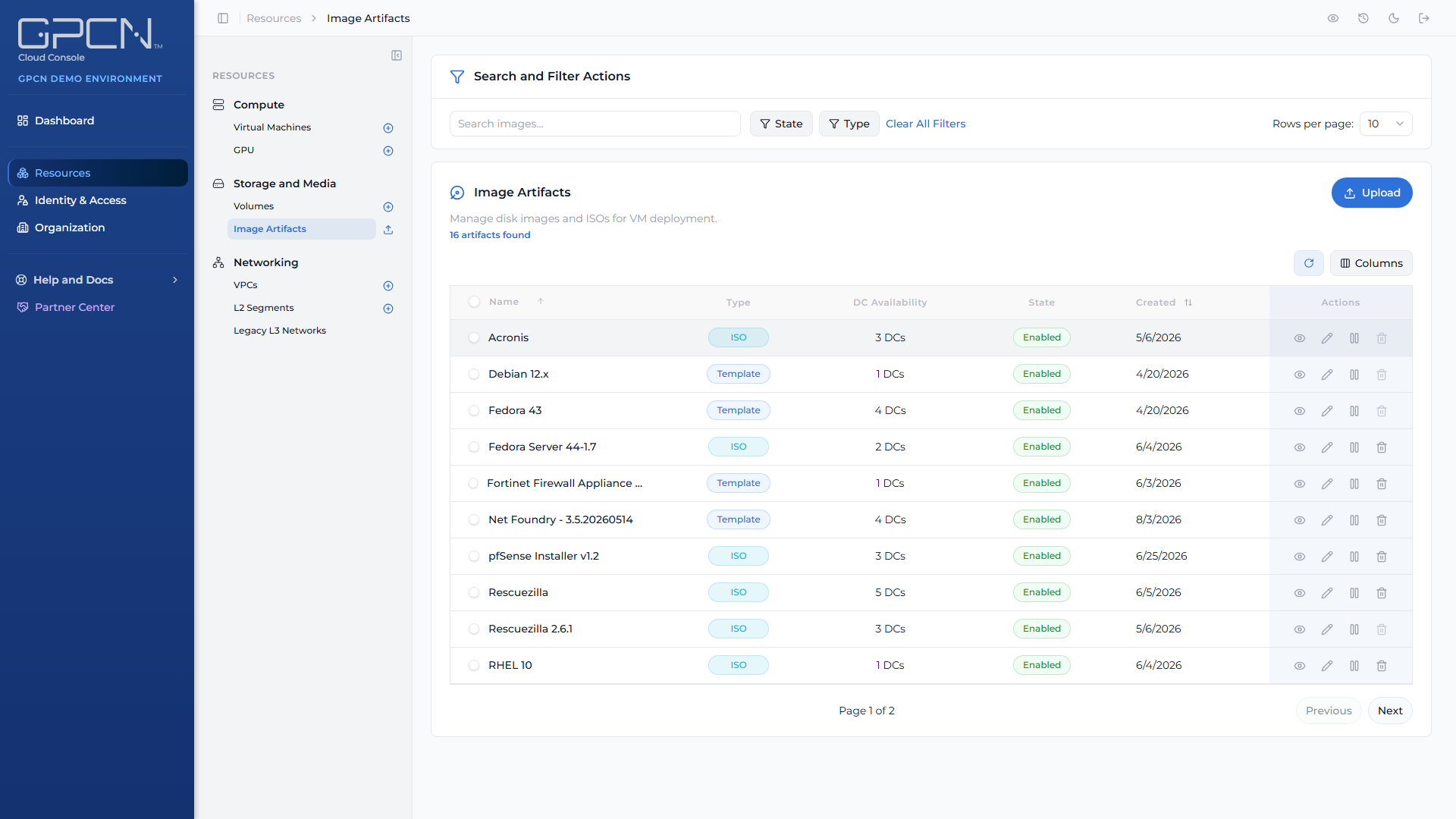
This is self-service too. On the image's detail page, use the Sync Deployments card: pick the data centers you want and deploy.
- You can select up to five data centers at a time. Run it again for more.
- The Current Deployments card lists where the image already is, and lets you remove a deployment or retry one that failed.
- While a deployment is registering, the page polls and updates on its own.
Image details
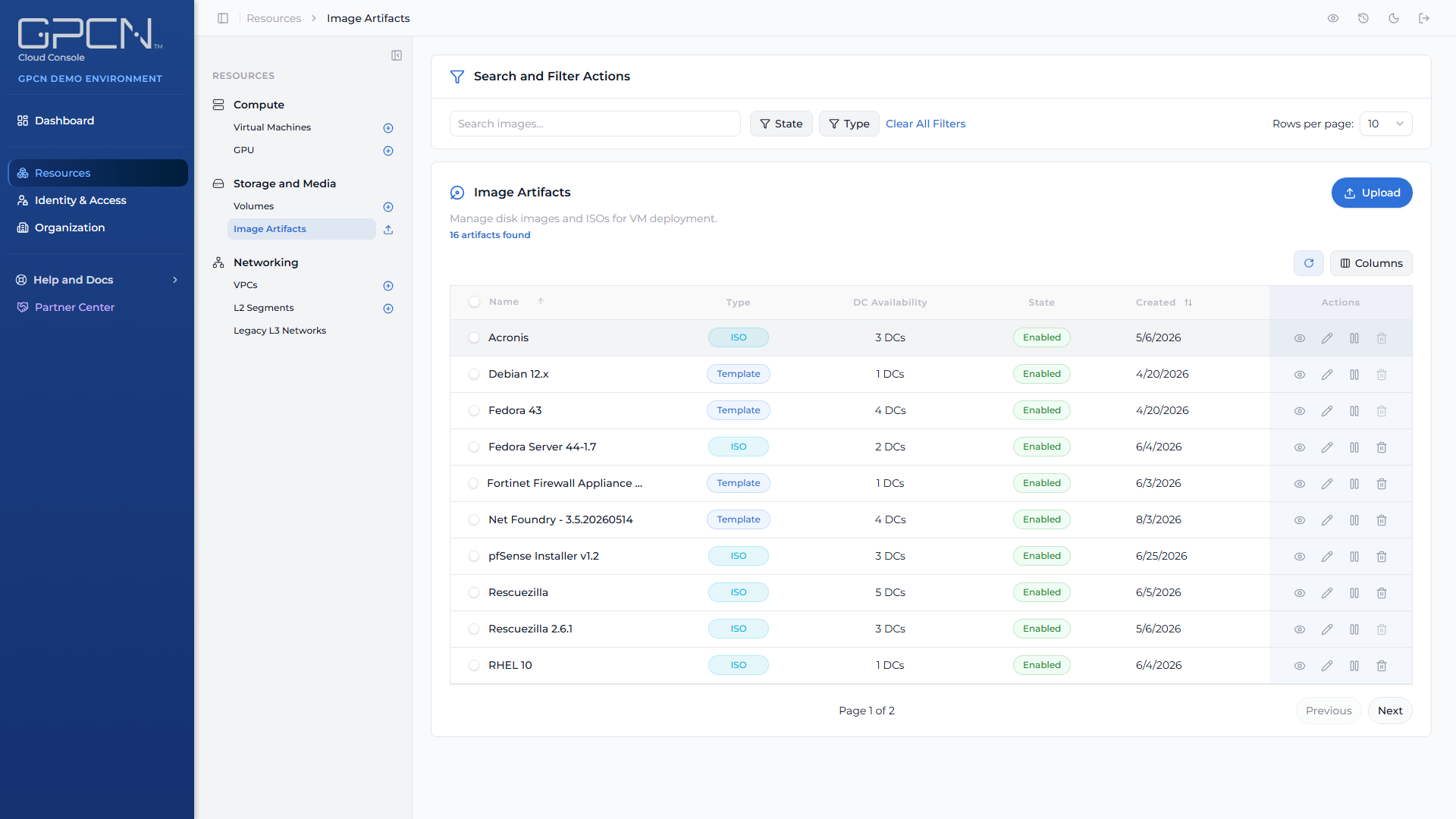
Open an image from the list to see its detail page. It carries the image's type, its firmware mode (UEFI or BIOS), its default username, when it was created, and its image ID with a copy control.
Editing an image
You can change:
- Name and description
- Availability — Enabled or Disabled
- Firmware — UEFI or BIOS
- Hotpluggable — whether network interfaces can be changed while a machine from this image is running
- Cloud-init support and the default username
Delete an image
Delete from the row, from the detail page, or in bulk from the list.
- A bulk delete asks you to type
DELETEto confirm. - Deletion runs as a job — track it in the task drawer.
Next Steps
- Available Images → — the standard images GPCN™ provides
- Create a VM → — deploy from one of your images
- Rescue Mode → — booting a machine from an ISO you uploaded
- Volumes → — the other half of Storage and Media
.png)