API Keys
API keys let you authenticate with the GPCN™ API without signing in through the portal. They're designed for scripts, automation pipelines, CI/CD workflows, and any server-side integration where interactive login isn't practical. Each key authenticates as you and uses the role you assign it at creation — choose your full inherited permissions or a narrower role for least-privilege access.
All GPCN™ API keys start with the gpcn_ prefix.
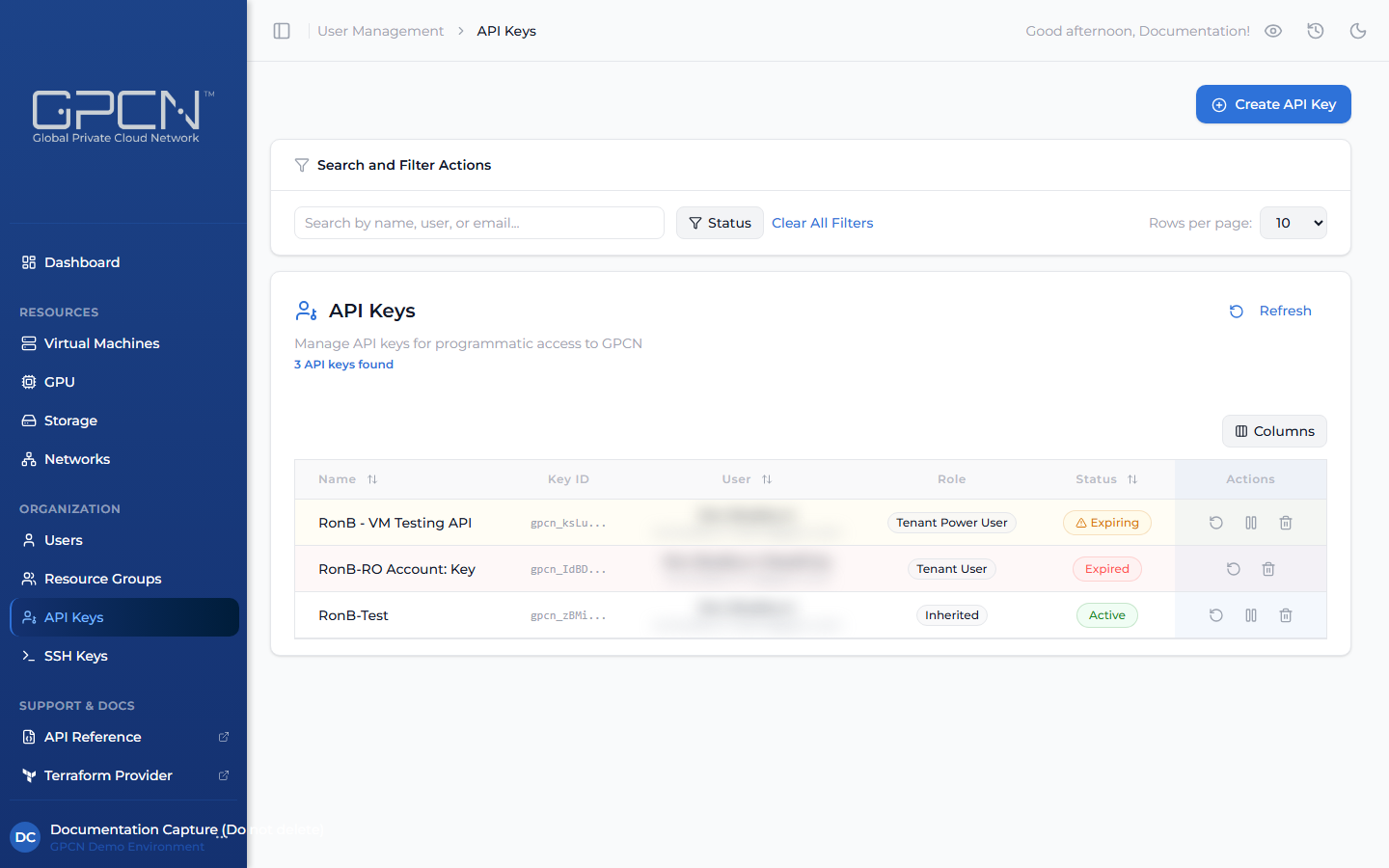
Create an API Key
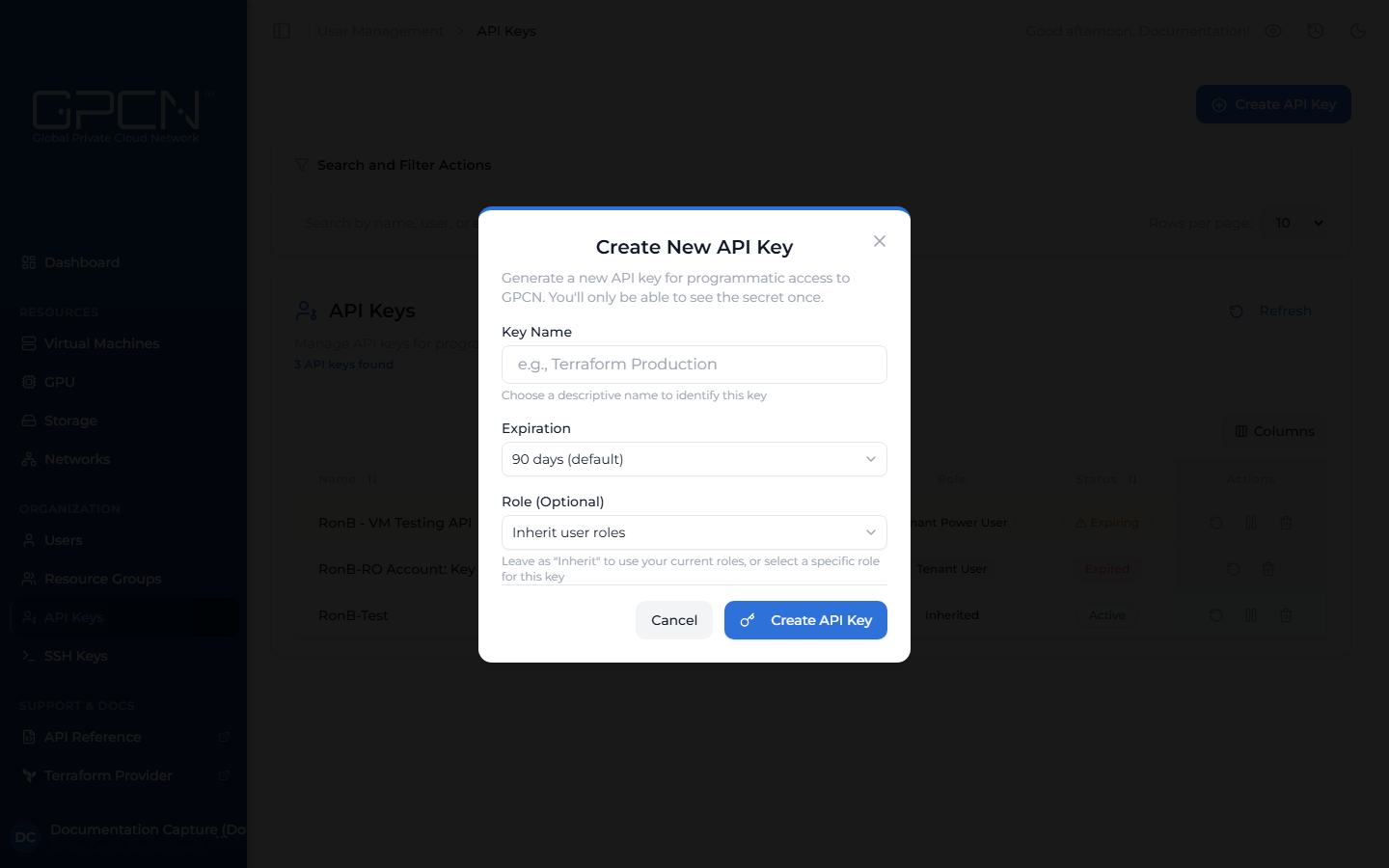
- Navigate to API Keys in the sidebar and click Create API Key.
- Enter a name (e.g., "Terraform Production" or "CI Pipeline").
- Choose an expiration — 7, 30, 90, 180 or 365 days, or Never. 90 days is the default. Select an expiration that aligns with your organization's key rotation and governance policies.
- (Optional) Select a role to limit the key's permissions. Leave as "Inherit user roles" for full access.
- Click Create API Key.
- Copy the key immediately — it's only shown once.
Role Scoping
When creating a key, you choose the role it will use. Select "Inherit user roles" for full access, or pick a specific role to limit what the key can do. A key can't have permissions beyond your own.
Manage Keys
List Keys
Navigate to API Keys to see your keys with status, last-used timestamp, and expiration.
What this list covers depends on your role. Every role manages its own keys, so by default you see only yours. Tenant Administrators see every API key in the organization, with a User column naming each key's owner and email address, and can rotate, suspend or revoke any key in the list.
Rotate a Key
Use rotation when a key may have been exposed, or as part of a regular security schedule. Rotation issues a new key value while keeping the same name and role, and the old value stops working immediately.
The replacement inherits whatever time was left on the original rather than restarting the clock. A key created for 365 days and rotated on day 300 comes back with 65 days remaining. A key with less than a day left can't be rotated at all — create a new one instead.
- Click the rotate icon (↺) on the key's row.
- Copy the new value immediately — it's only shown once.
- Update any services or scripts using the old key value.
Suspend / Reactivate
Use suspension to temporarily disable a key without losing it — for example, while debugging an integration, inspecting unexpected API usage, or taking a service offline for maintenance.
- Click the pause icon (⏸) on the key's row to suspend it. The key stops authenticating immediately.
- Click the same icon again to reactivate it when ready.
Revoke (Delete)
Use revocation when a key is no longer needed or has been compromised and should never be used again. This is permanent and cannot be undone.
- Click the delete icon (🗑) on the key's row.
- Confirm the deletion.
Key Statuses
| Status | Description |
|---|---|
| Active | Key is working normally |
| Suspended | Temporarily disabled — can be reactivated |
| Expiring | Within 30 days of expiration |
| Expired | Past expiration date — no longer authenticates |
Security Best Practices
- Use environment variables or a secret manager — storing keys outside your codebase keeps them out of version control and makes them easy to update across environments without touching code.
- Create separate keys for each environment — distinct keys for production, staging, and CI/CD give you precise control, so you can rotate or revoke a single environment's key without affecting anything else.
- Scope keys to the minimum required role — a CI pipeline that only reads resource state works best with a read-only role. Matching the role to the task keeps each key's purpose clear and its access predictable.
- Set expiration dates and rotate on a schedule — regularly refreshing keys is good hygiene and aligns with most governance policies. Shorter-lived keys also give you natural checkpoints to review whether a key is still needed.
- Review the API Keys page regularly — the last-used timestamp makes it easy to spot keys that have gone idle. Cleaning up unused keys keeps your key inventory tidy and your access model accurate.
For integration-specific guidance (GitHub Actions, Ansible, CI/CD), see API Key Security Best Practices →.
Next Steps
- Sign In — session-based authentication
- API Key Reference → — manage keys programmatically, integration examples, and 5-language code samples
- Authentication Reference → — full auth system overview
- API Conventions → — pagination, sorting, error format
.png)