Overview
GPU VMs are virtual machines with NVIDIA GPUs attached, designed for workloads that require parallel processing at a scale that standard CPU-based VMs aren't suited for. Common use cases include AI/ML model training and inference, large language model hosting, computer vision, video and image processing, and scientific simulation.
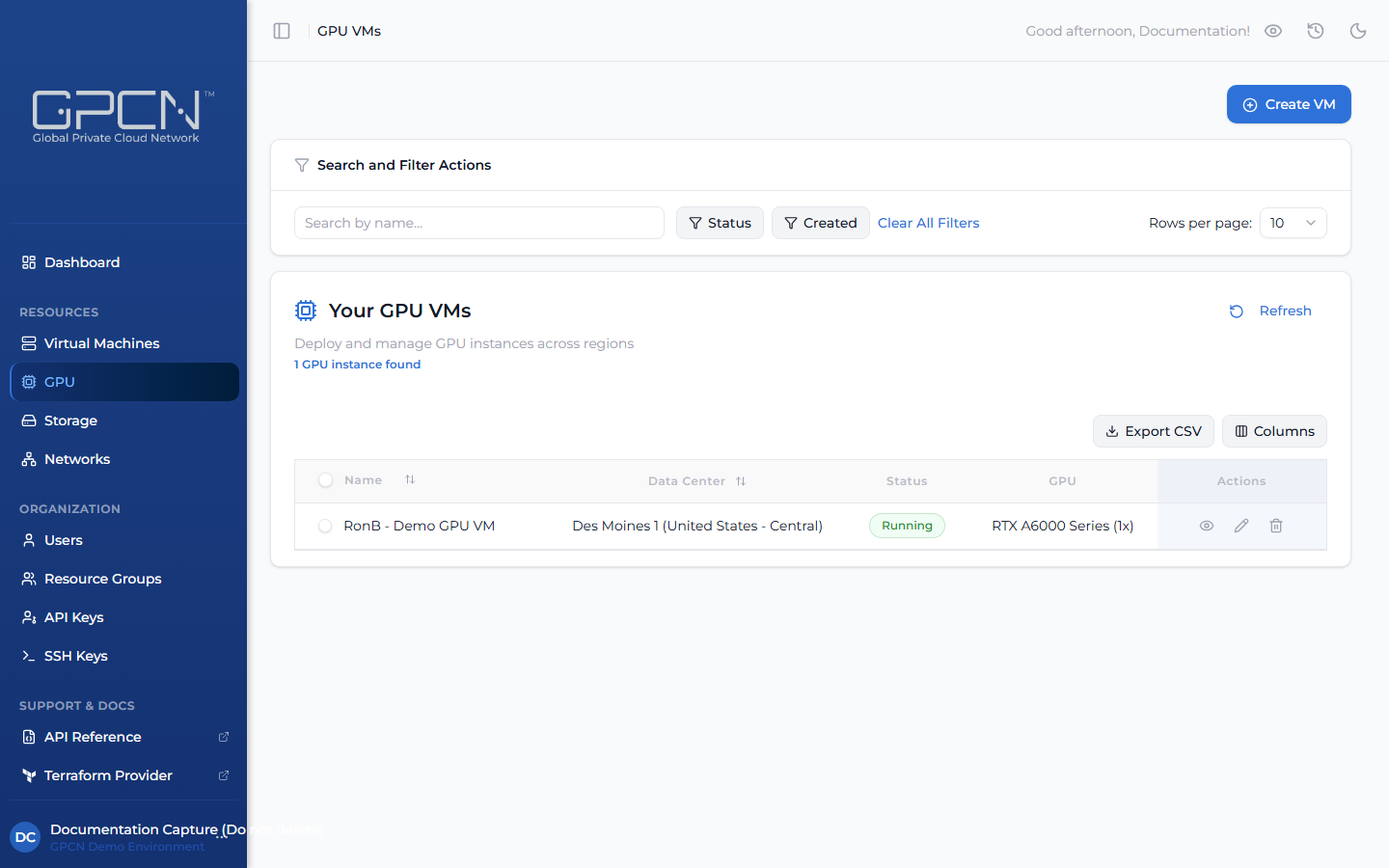
GPU VMs are managed separately from standard VMs and are accessible via the GPU section in the sidebar.
Prerequisites
- Any role can view GPU machines, including Tenant Viewer. Creating and operating them needs the Tenant Operator, Tenant Manager or Tenant Administrator role, acting in the chosen group. An organization-wide role acts in the Default group only; a Tenant Operator scoped to a group acts in that group.
- The GPU feature enabled for your organization. Check Organization → Account → Features, and contact support if you need it turned on.
GPU machines live at Resources → Compute → GPU, alongside Virtual Machines.
How GPU VMs Differ from Standard VMs
| Feature | Standard VMs | GPU VMs |
|---|---|---|
| Configuration | Choose a size (CPU, RAM, disk) | Choose a GPU series and how many GPUs (1, 2, 4, or 8) |
| Networking | Private networks, optional public IP | Auto-assigned public IP; custom networks not supported |
| Console | Browser-based console | SSH only |
| Authentication | SSH key from your library or password, chosen at creation | SSH key from your library, required at creation |
| Inventory | Generally available | Real-time availability that changes frequently |
| Access | Available to all accounts | Requires GPU access enabled on your account |
Resource Group
Every GPU VM belongs to a resource group, which controls who can see and manage it. The list carries a Resource Group column showing each GPU VM's group, and the GPU VM's detail page shows the same field. See Resource Groups.
GPU Series
GPU instances are organized by series, where each series represents a specific NVIDIA GPU model. When creating a GPU VM, you select a series and the number of GPUs you need.
Availability
GPU inventory changes frequently. When creating a GPU VM, the portal shows current availability for each series and data center in real time. If a GPU is claimed by another customer between when you view availability and when you place your order, you'll be prompted to check availability again and retry.
Export
Click Export CSV from the GPU list to download the current view as a CSV file. The export includes only the rows currently visible after filtering — and only the columns you have enabled via the Columns selector. The file is saved as gpu-instances-{date}.csv.
Next Steps
- Create a GPU VM — deploy a GPU instance
- Manage GPU VMs — lifecycle operations and SSH access
.png)