Two-Factor Authentication
All GPCN™ accounts require two-factor authentication (2FA). Email OTP (one-time passcode) is enabled by default — a code is sent to your inbox each time you sign in. For a faster and more secure experience, you can optionally set up an authenticator app (TOTP — Time-based One-Time Password) and generate backup codes for emergency access.
2FA Methods
| Method | How it works | Best for |
|---|---|---|
| Email OTP (one-time passcode) | 6-digit code sent to your email | Default — no setup required |
| TOTP (authenticator app) | 6-digit code from an app, rotates every 30 seconds | Optional — faster and works offline |
| Backup codes | One-time 10-character recovery codes, shown as xxxxx-xxxxx |
Emergency access if you lose your device. Available once you've set up an authenticator app. |
Check 2FA Status
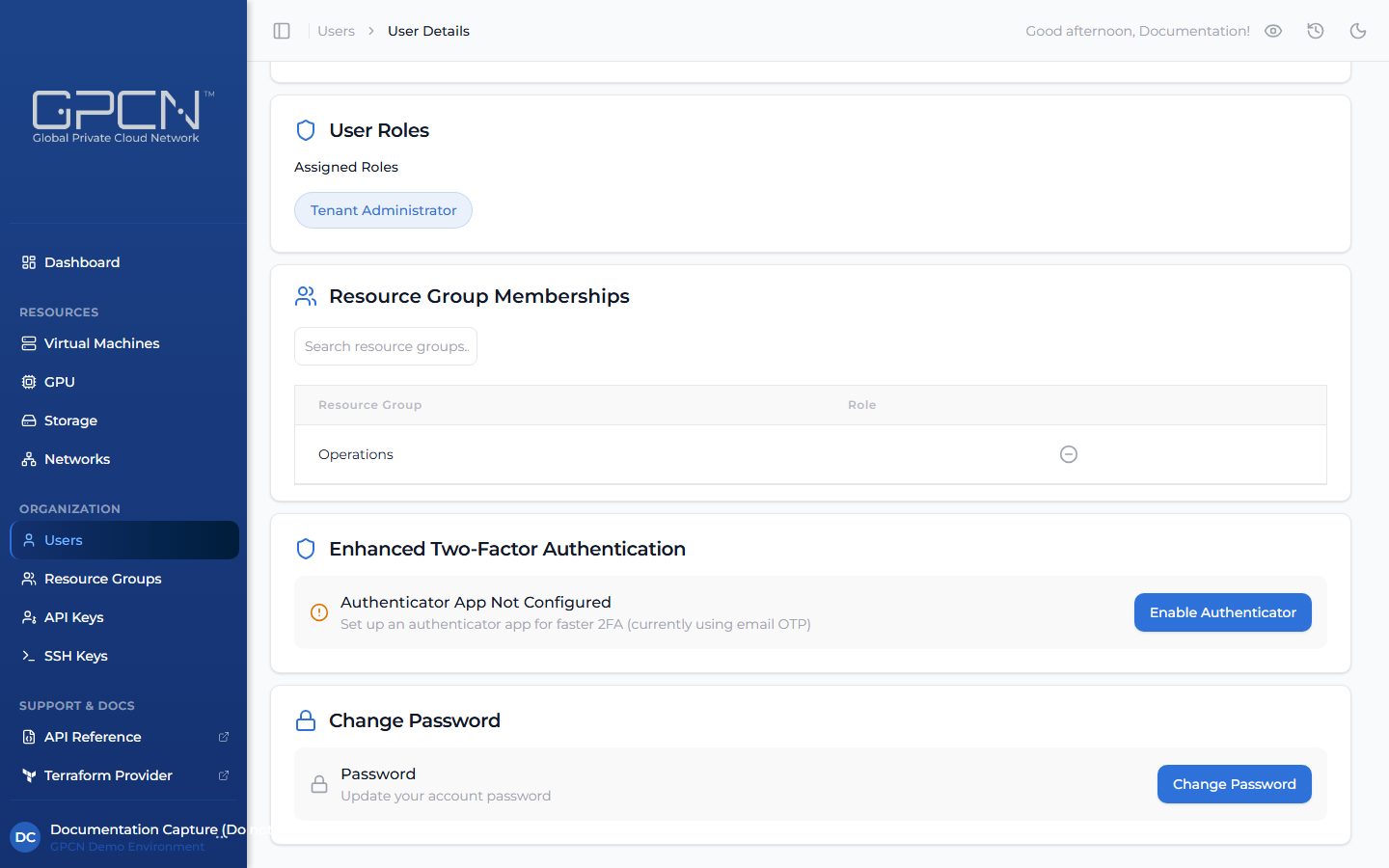
Navigate to your own Profile page, under Identity & Access → People → Profile. The Enhanced Two-Factor Authentication card shows your current status — either Authenticator App Not Configured or the TOTP-enabled state with options to disable or regenerate backup codes.
Set Up TOTP (Authenticator App)
- Install an authenticator app if you don't have one: Google Authenticator, Authy, Microsoft Authenticator, or 1Password.
- On your Profile page, find the Enhanced Two-Factor Authentication card and click Enable Authenticator.
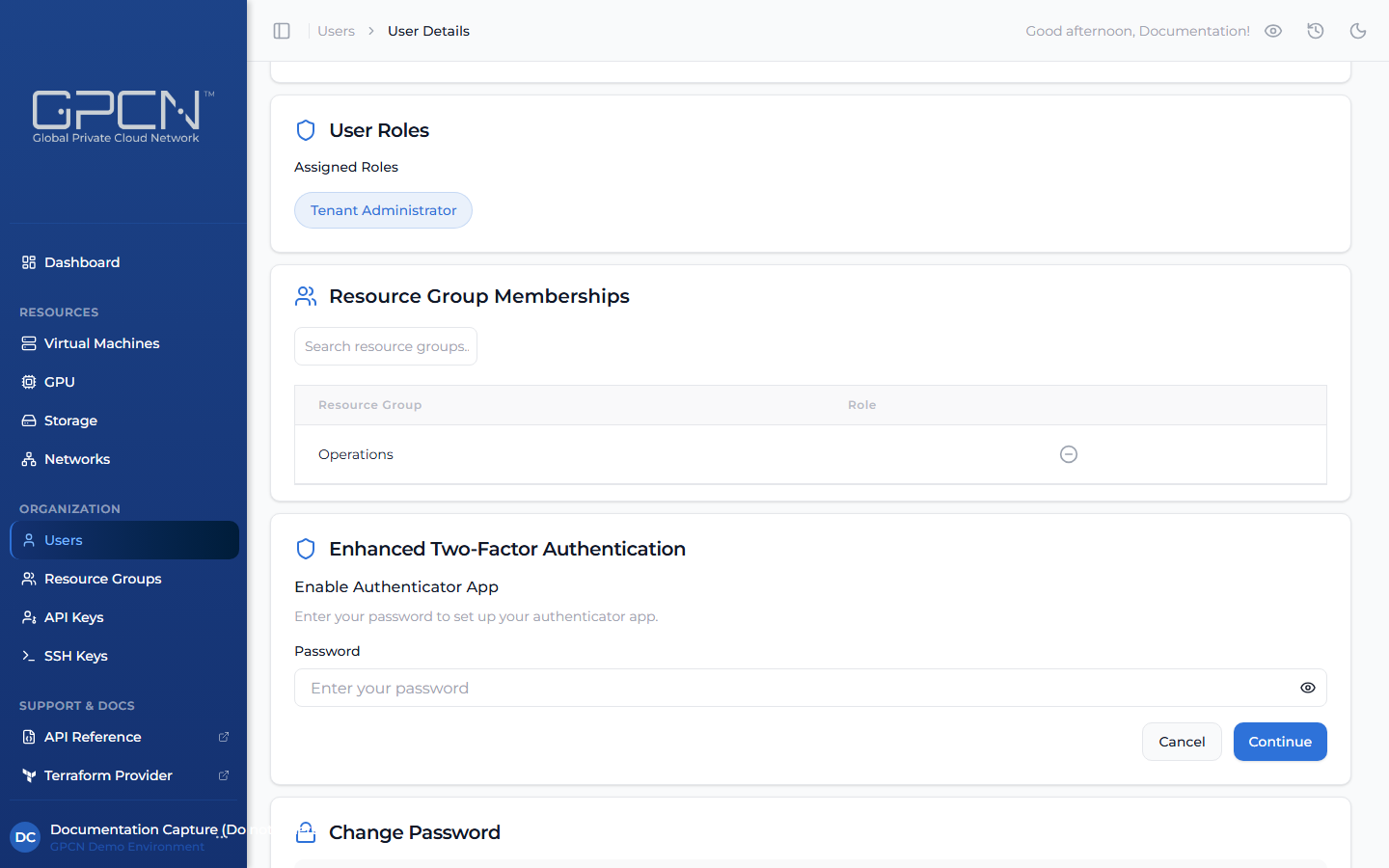
- Enter your password to confirm your identity and click Continue.
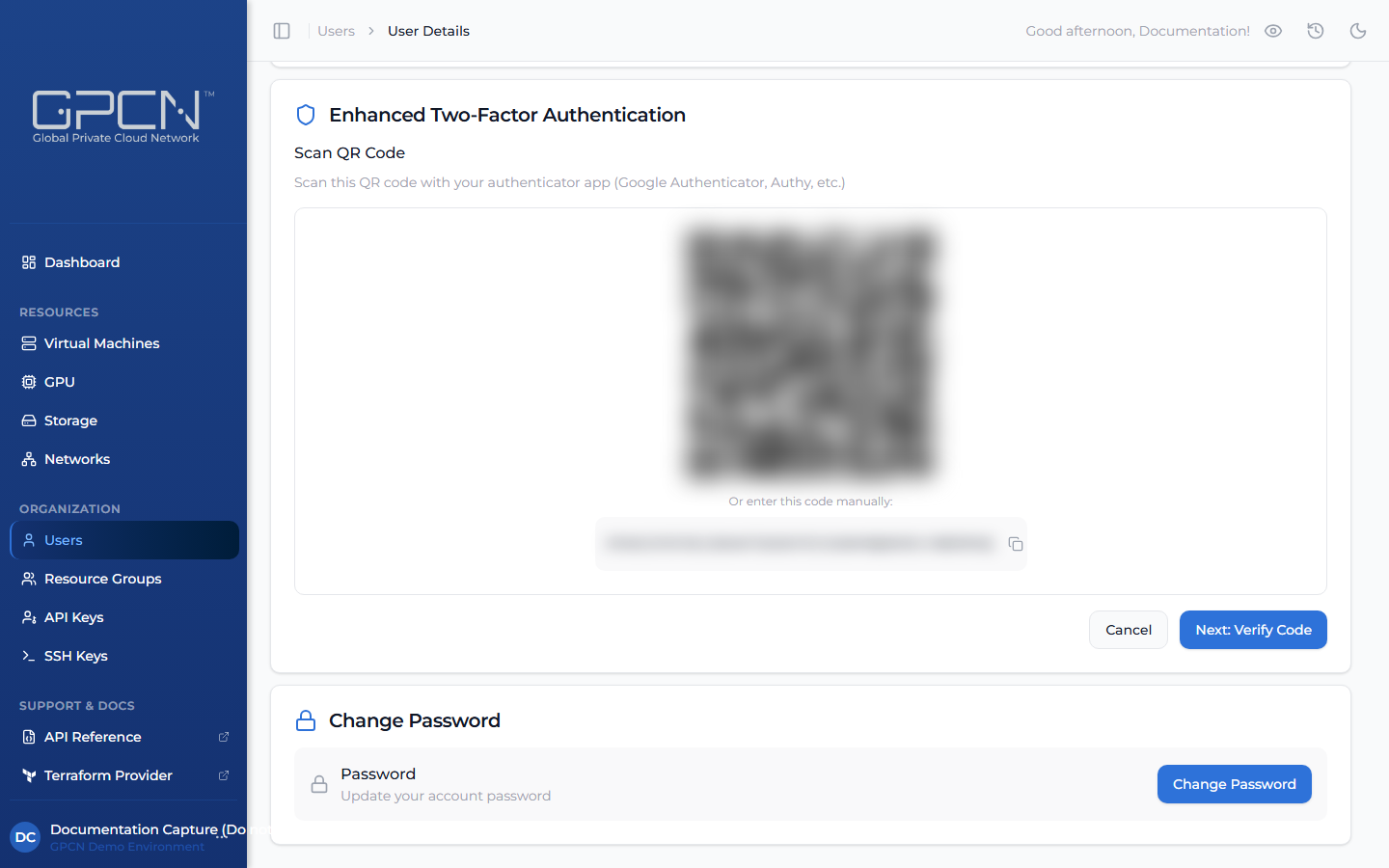
- Scan the QR code with your authenticator app. If you can't scan it, click the manual entry option to copy the secret key.
- Enter the 6-digit code from your app to verify the setup.
- Save your backup codes — they're displayed in a modal after verification. Click Copy All and store them securely.
Disable TOTP
Disabling falls back to email OTP. Use this when switching authenticator apps or devices.
- On your Profile page, find the Enhanced Two-Factor Authentication card and click Disable Authenticator.
- Confirm your password and click Continue.
Disabling TOTP permanently destroys your backup codes. Any codes you saved before disabling stop working — discard them, and store the new set that's generated when you re-enable.
Disabling doesn't sign you out. You stay signed in on every device, including this one.
To use a new authenticator app, disable TOTP and then re-enable it, scanning the new QR code with the new app.
Regenerate Backup Codes
Generate a new set of backup codes whenever you need to — after using several, or as a periodic security refresh. This immediately invalidates all previously issued codes.
Backup codes belong to the authenticator app. The Regenerate Backup Codes control only appears once you've set one up, so if you're using email codes you won't see it and have no backup codes to manage.
- On your Profile page, find the Enhanced Two-Factor Authentication card and click Regenerate Backup Codes.
- Confirm your password and click Continue.
- Copy and store the new codes securely — in a password manager or encrypted file — before closing the page.
Troubleshooting
| Issue | Solution |
|---|---|
| "Invalid TOTP code" | Check your device's clock sync (enable automatic time). Make sure you're reading the GPCN™ entry. |
| "Lost authenticator app" | Sign in with a backup code, then disable and re-enable TOTP with your new app. |
| "All backup codes used" | Contact your administrator. Once you're using an authenticator app, GPCN™ doesn't fall back to emailing you a code. |
| "Lost both app and codes" | Contact your administrator for account recovery. |
Best Practices
- Set up TOTP for a faster sign-in experience — authenticator app codes work offline and rotate automatically, so you're not waiting on an email each time you log in
- Store backup codes in a password manager or print them and keep them somewhere safe
- Regenerate backup codes if you've used several or suspect they've been exposed — old codes are invalidated immediately when you regenerate
- Don't screenshot your QR code — if exposed, an attacker can generate valid codes
Next Steps
- Sign In — the full authentication flow
- API Keys — authenticate without sessions or 2FA
- Sessions — understand session lifecycle
- 2FA API Reference → — manage 2FA programmatically
.png)