Manage Users
Users are individuals who have access to your organization's GPCN™ account. From this page, you can invite new users, assign roles and resource groups, update user information, and remove users.
Prerequisites
- Any role can view users and the roles they hold
- The Tenant Administrator role to invite a user, edit one, remove one, or assign an organization-wide role
- The Tenant Administrator or Tenant Manager role to assign a resource-group-scoped Tenant Operator or Tenant Viewer role
Inviting, editing, and deleting users are Tenant Administrator capabilities. A Tenant Manager, Tenant Operator, or Tenant Viewer can view the user list and every user's detail page, and edit their own record, but can't perform the procedures below.
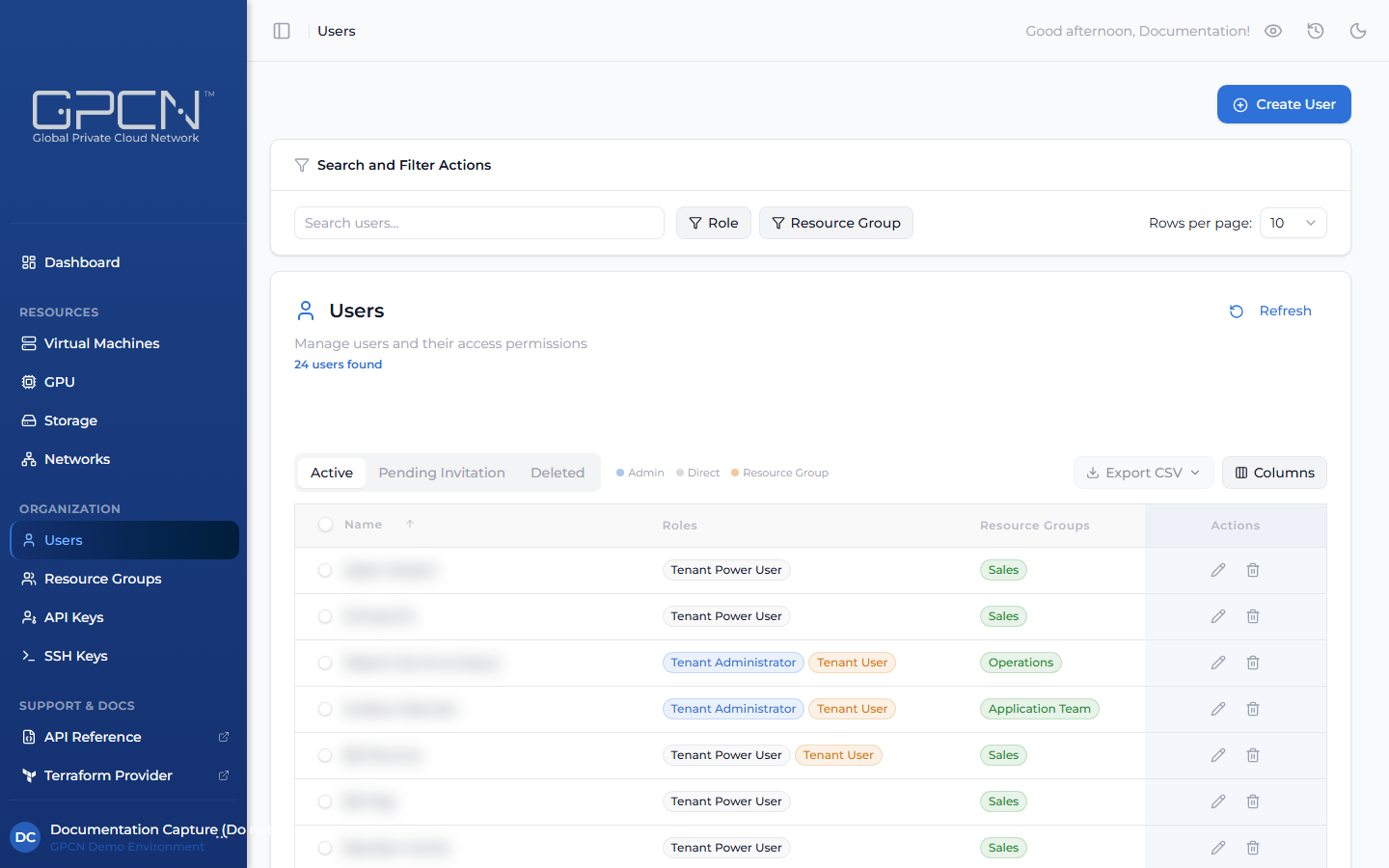
The Users page is organized into three tabs:
| Tab | What it shows |
|---|---|
| Active | Users with fully activated accounts who can sign in to the portal |
| Pending Invitation | Users who have been sent an invitation but haven't completed account activation yet |
| Deleted | Users who have been removed from your organization |
You can narrow the list with the Role and Resource Group filters above the table. The Role filter includes a No Role option; the Resource Group filter lists every named group but leaves out Default, since every user belongs to it and filtering by it wouldn't narrow anything.
Invite a User
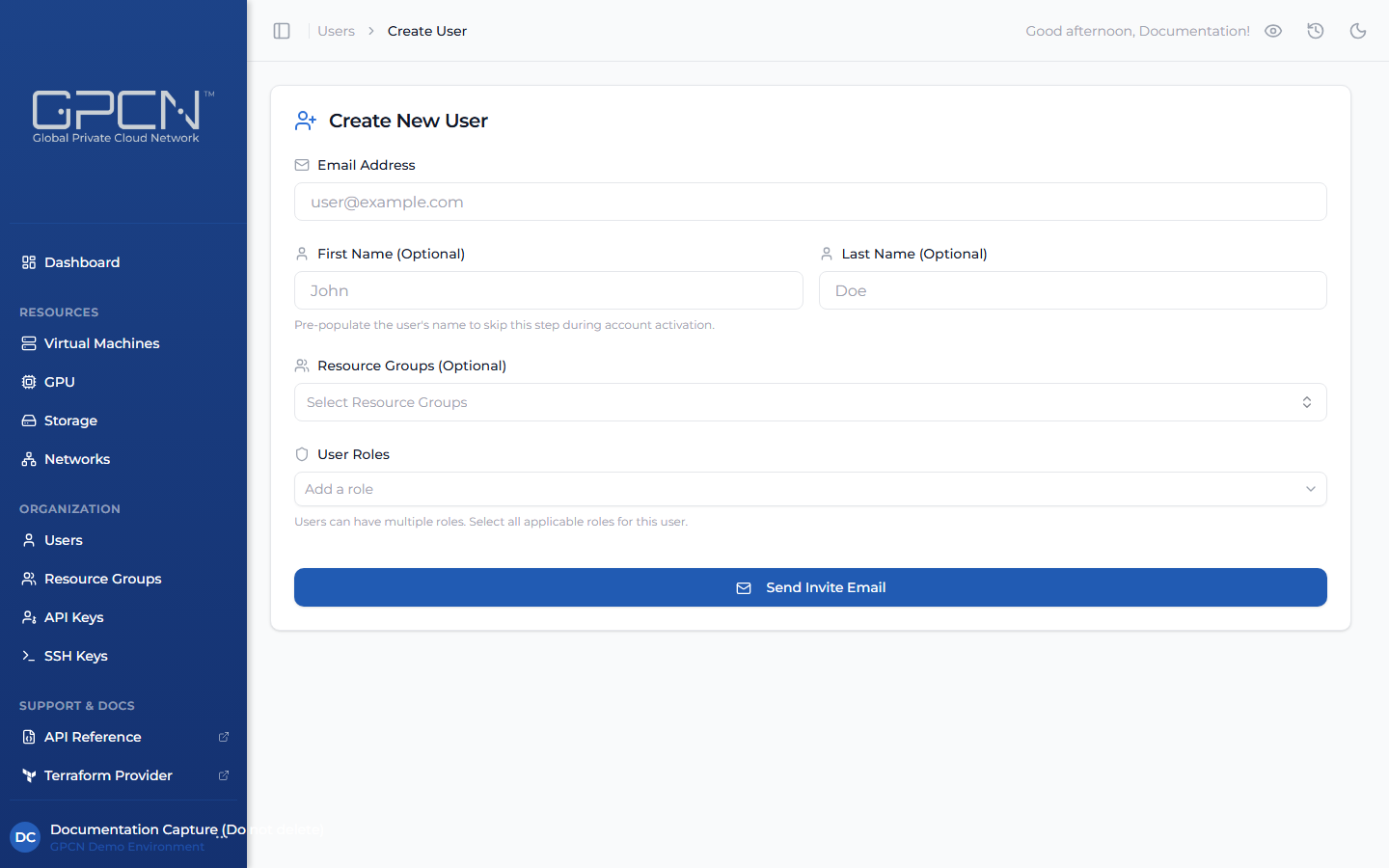
New users join through an email invitation. When you send an invite, the user receives an email with an activation link to set their password and access the portal.
- Go to Identity & Access → People → Users and click Create.
- Enter the person's email address.
- Enter their first and last name. Both are required.
- (Optional) Under Resource Groups (Optional), select any resource groups to add them to, beyond Default, which every user belongs to automatically.
- Under User Roles, select one or more roles. At least one is required, and you can only assign roles at or below your own level.
- Click Send Invite Email.
The names you enter here pre-fill the activation form, but they don't let the person skip it — they'll confirm both fields when they activate their account.
Invite Status
| Status | Description |
|---|---|
| Pending | Invitation sent, user hasn't activated yet |
| Activated | User has set their password and can sign in |
| Expired | Invitation link has lapsed — resend to generate a new one |
Resend an Invitation
If an invitation expires or a user didn't receive it, find the user in the Pending Invitation tab and click the resend icon on their row, or open their detail page and click Resend Invite.
Assign and Revoke Roles
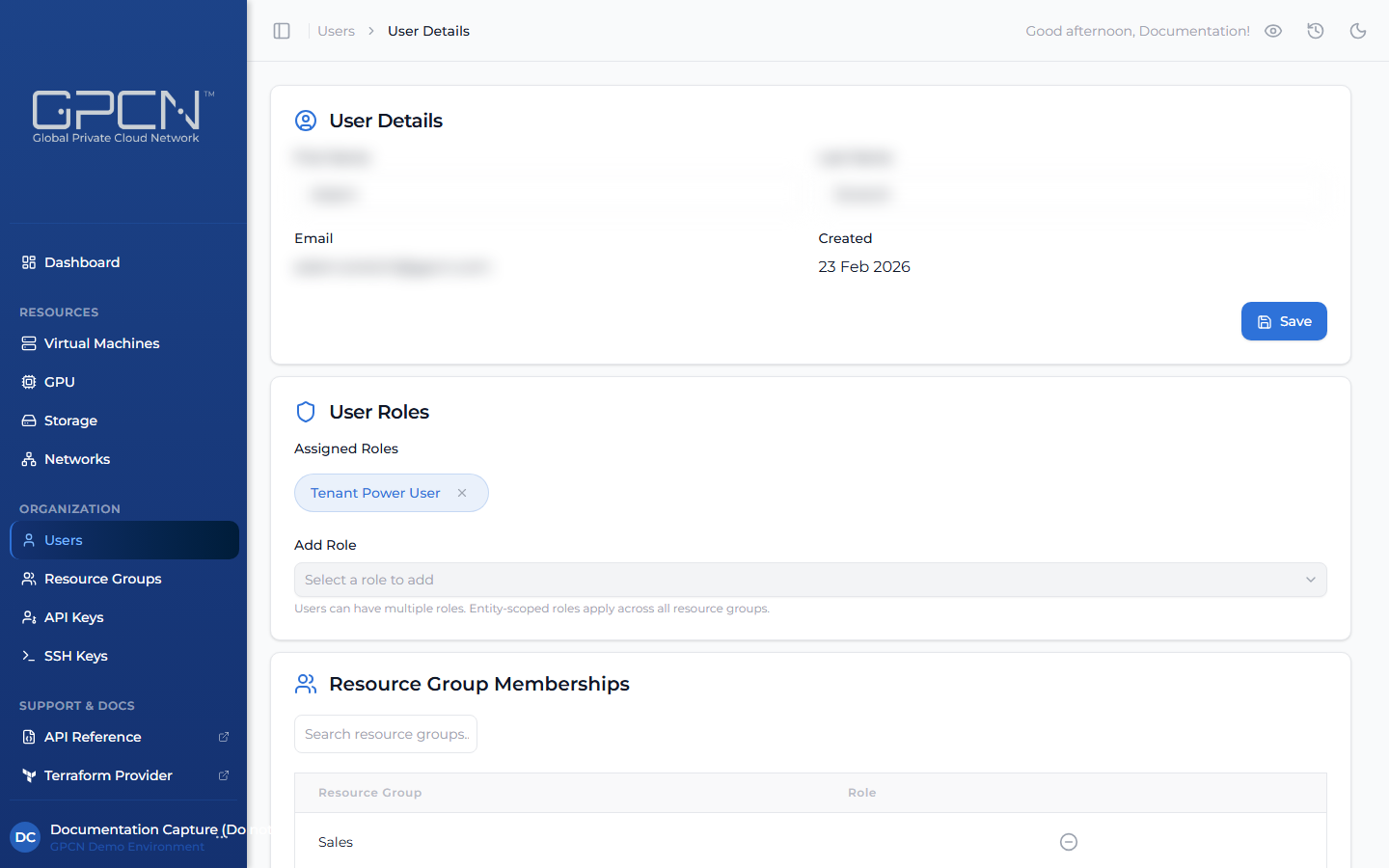
A user's detail page has two separate places to manage their roles: the User Roles card for organization-wide roles, and a Resource Group Memberships section below it for roles scoped to a single group.
To assign an organization-wide role: Open the user's detail page, find the User Roles card, and select a role from the Add Role dropdown. This requires the Tenant Administrator role.
To assign a resource-group-scoped role: In the user's Resource Group Memberships section, pick a role from the Select Role dropdown next to the group. Only Tenant Operator, Tenant Viewer, and custom roles within that ceiling can be scoped this way — Tenant Administrator and Tenant Manager never appear in this picker, because they're always organization-wide. This requires the Tenant Administrator or Tenant Manager role.
To revoke a role: Click the × on the role badge in the User Roles card, or remove it from the Resource Group Memberships section the same way you assigned it. Users must always have at least one role — the last one cannot be removed. You can't change your own roles from your own profile; ask another administrator.
Role Origin
The Users list shows each user's roles as badges in the Roles column. Roles are displayed in two styles:
- Direct roles — assigned organization-wide. These appear as standard role badges and apply across your entire organization, but only reach resources in your organization's Default resource group.
- Resource group roles — assigned through a resource group. These appear with an amber highlight to distinguish them from direct roles. Hovering over the badge shows the resource group the role is scoped to.
A user may have a mix of both. If a user has more roles than fit in the column, a +N overflow count appears — hover over it to see the remaining roles grouped by type and resource group. See Roles & Permissions for how organization-wide and group-scoped roles interact.
Edit User Details
To update a user's name, open their detail page, update the First Name or Last Name fields, and click Save. Email addresses are not editable after an account is created. If a user's email address needs to change, delete the existing account and invite them again with their new email address.
Delete a User
Deleting a user revokes their access immediately, and there's no way to restore them from the portal. Their record isn't erased, though — it moves to the Deleted tab of the Users list, where it stays visible and exportable.
To delete a user, click the delete icon (trash) on their row in the Users list, or open their detail page and click Delete User in the Danger Zone section. You will be asked to confirm before the deletion is processed.
There's no undo in the portal, so check before you confirm. If you only need to reduce someone's access rather than remove it, assign them a read-only role instead — you can't simply strip their roles, because every user must keep at least one.
Export Users
Click Export CSV from the Users list to download user data. The button opens a dropdown with two options:
- Current Tab — exports only the users on the active tab (Active, Pending Invitation, or Deleted), with columns tailored to that tab. Pending users include invite status and expiry date; deleted users include the deletion date.
- All Users — exports active, pending, and deleted users together in a single file with all columns.
Both options fetch every matching user, not just the current page, so the export is always complete regardless of how many users you have.
Tips for Administrators
- Assign roles carefully at invite time — it's easier to start with least-privilege and expand access than to clean up overly broad permissions later
- Review role assignments periodically — confirm that each user's access still reflects their current responsibilities
- Remove users promptly when they leave — delete their account as soon as they no longer need access to your organization
Next Steps
- Manage Resource Groups — organize users into resource groups
- Roles & Permissions — understand the full role and permissions model
- User Endpoints → — manage users programmatically
.png)