Create a Volume
Storage volumes give your virtual machines additional persistent disk space that exists independently of the VM itself. When you create a volume, you choose the data center, storage type, and size — then attach it to any compatible VM in that location. The volume retains its data across attach and detach operations, making it easy to move storage between VMs or keep data available even after a VM is deleted.
Prerequisites
- The Tenant Operator, Tenant Manager or Tenant Administrator role, acting in the chosen group. An organization-wide role acts in the Default group only; a Tenant Operator scoped to a group acts in that group. Tenant Viewer is read-only.
Create the Volume
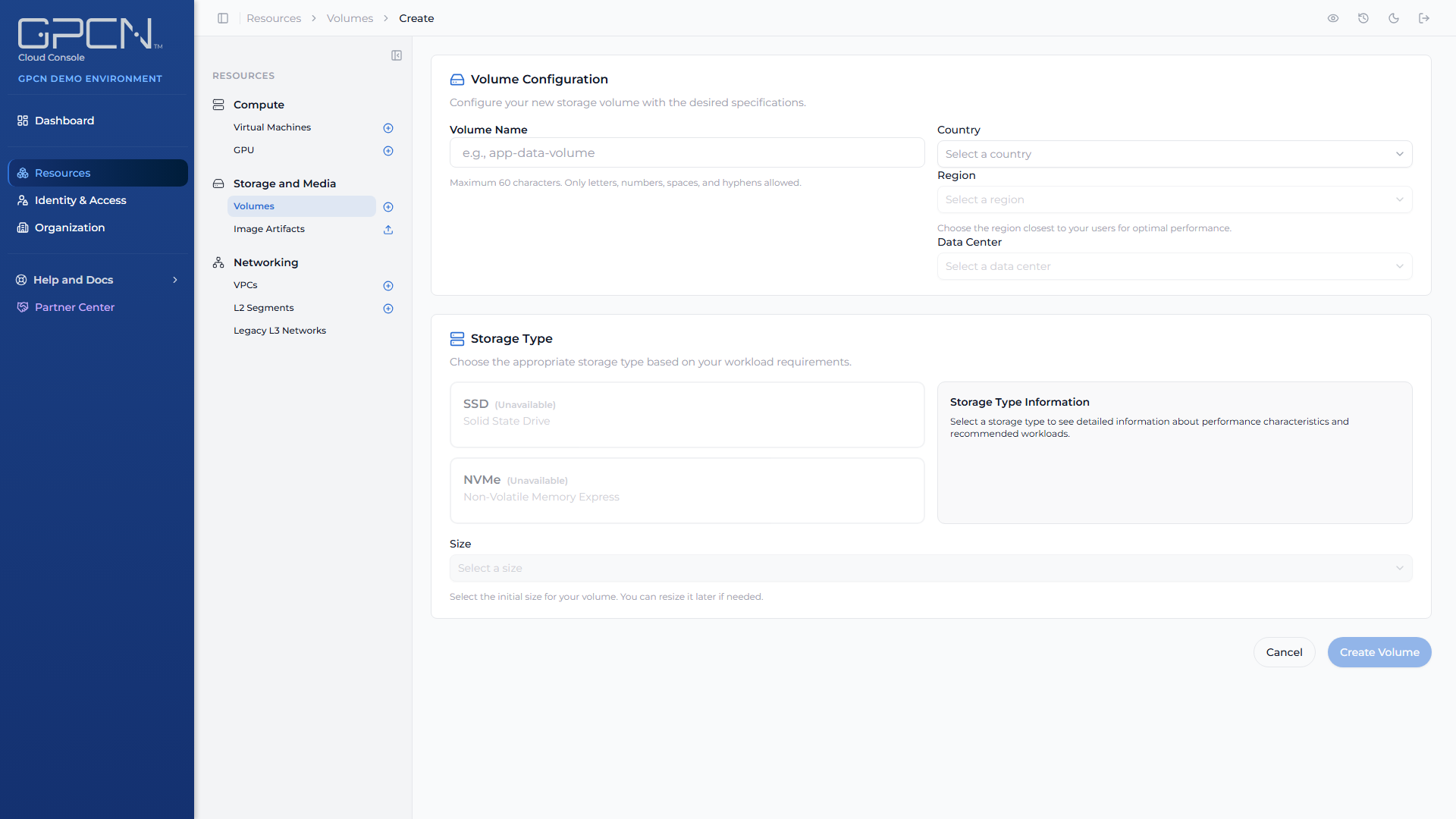
- Go to Resources → Storage and Media → Volumes and click Create. This opens the create page — it isn't a dialog.
- Resource Group — every volume must belong to a resource group, which controls who can see and manage it. Nothing is preselected, so the field opens with: "Every volume must belong to a resource group. Choose one, or type a new name to create one." The picker only lists resource groups you have permission to create volumes in. Search for an existing one, or type a name that doesn't match anything yet and choose Create "
" to make a new group on the spot, without leaving the page. If your role doesn't let you create resource groups, you won't see the create option — pick from the groups you already have access to. - Volume Name — enter a descriptive name that identifies the volume's purpose, such as
db-backupsorapp-data. Maximum 60 characters; letters, numbers, spaces, and hyphens only. - Country → Region → Data center — select the same location as the VM you plan to attach the volume to. Volumes can only be attached to VMs in the same data center.
- Storage Type — select SSD for general-purpose workloads such as databases and web applications, or NVMe for high-performance workloads that require intensive I/O. A description of the selected type appears on the right. Available types vary by data center.
- Size — select a size from the dropdown. Pick the storage type first; the size list depends on it. Options are labelled with their full catalogue name, such as "Additional 1024GB NVMe Volume", rather than as "1 TB". Choose a size that accommodates your current needs with some room to grow — you can expand a volume later, but you cannot shrink it. Available sizes vary by data center.
- Click Create Volume.
The volume appears in Creating state and transitions to Available once it is ready to use.
Next Steps
- Attach & Detach — connect the volume to a VM
- Resize a Volume — expand the volume later
- Delete a Volume — permanently remove a volume
.png)