Sign In
Signing in to the GPCN™ (Global Private Cloud Network™) portal takes three screens, and you'll finish on the dashboard. The steps below cover both kinds of account, so follow whichever screen you see.
Prerequisites
- A GPCN™ account. If you haven't activated it yet, start from the invitation email.
- Access to your email inbox or authenticator app for two-factor verification — email codes are enabled by default, so there's nothing to set up first.
Sign in
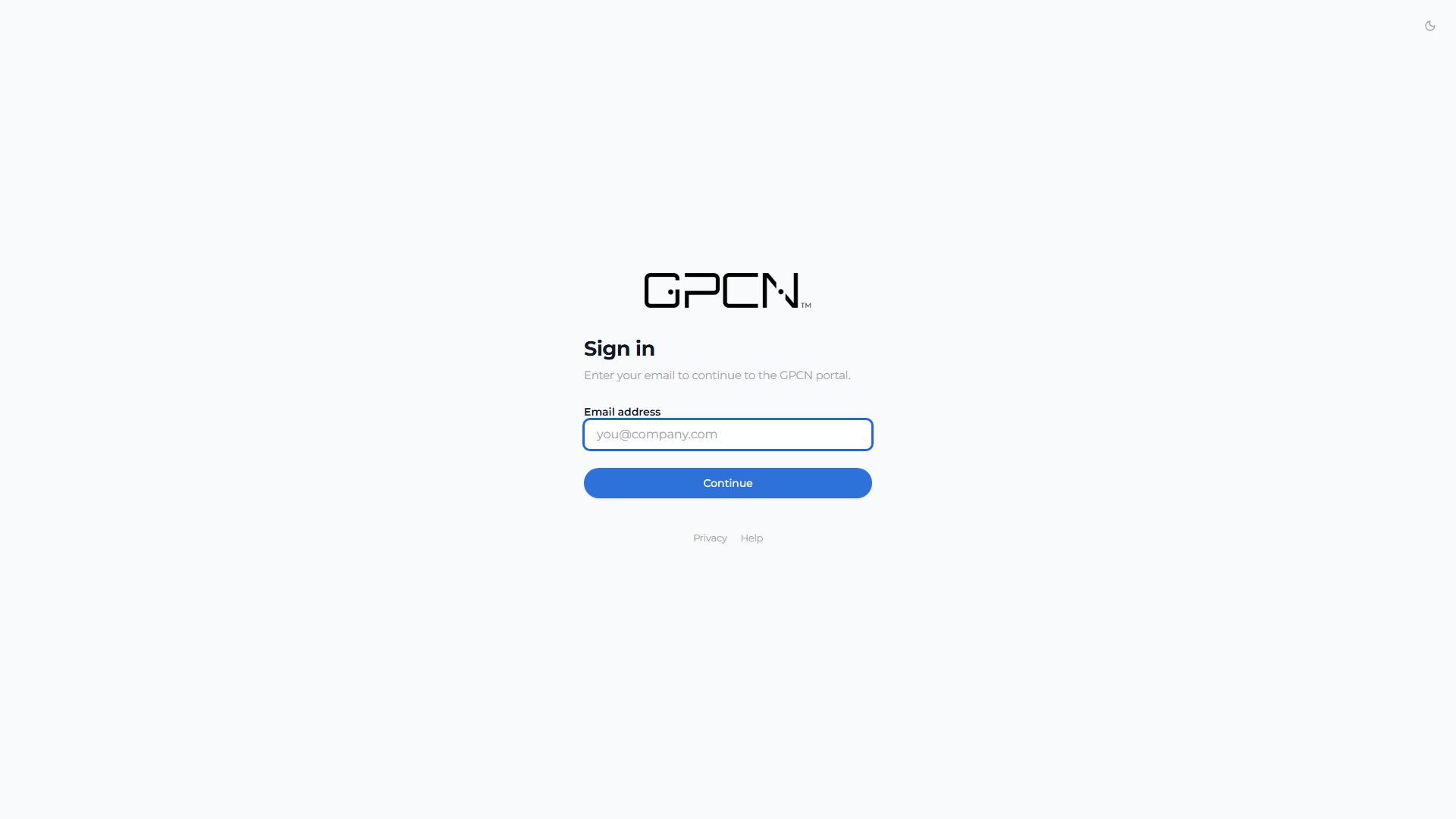
- Go to the GPCN™ portal.
- Enter your email address and click Continue.
- What happens next depends on your organization:
- If your organization uses single sign-on, you're redirected to its identity provider and log in there. You won't be asked for a GPCN™ password at all.
- Otherwise, you move to a password screen that shows the email you entered, with a Change link if you mistyped it. Enter your password and continue.
- Complete two-factor verification.
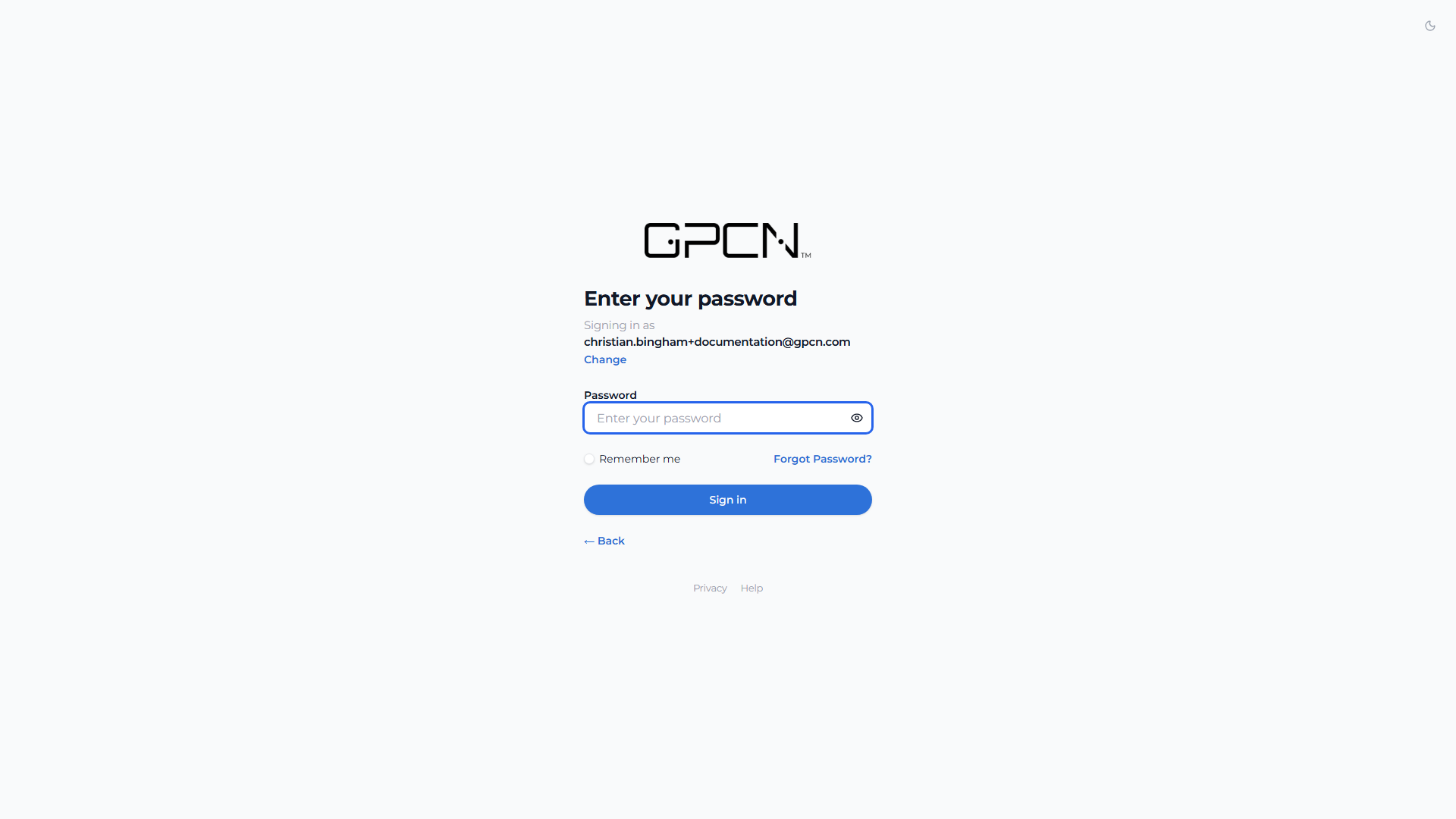
Remember me and Forgot Password? both live on the password step, not the first screen. If you're looking for the password reset link, enter your email and continue first.
Most accounts are asked for a second factor every time. If your organization signs you in through its own identity provider and GPCN™ has been configured to trust that provider's own multi-factor check, you may not be asked again here.
Complete Two-Factor Verification
Once your email and password are accepted, you'll be prompted to verify your identity. The screen is headed Verify it's you, and the field is labelled with the factor it's asking for — so it tells you which of these applies to you.
Option A: Authenticator app code
Enter the 6-digit code from your authenticator app. Codes rotate every 30 seconds — if yours is about to expire, wait for the next one.
Option B: Email code
If you don't have an authenticator app set up, a 6-digit code is sent to your email automatically.
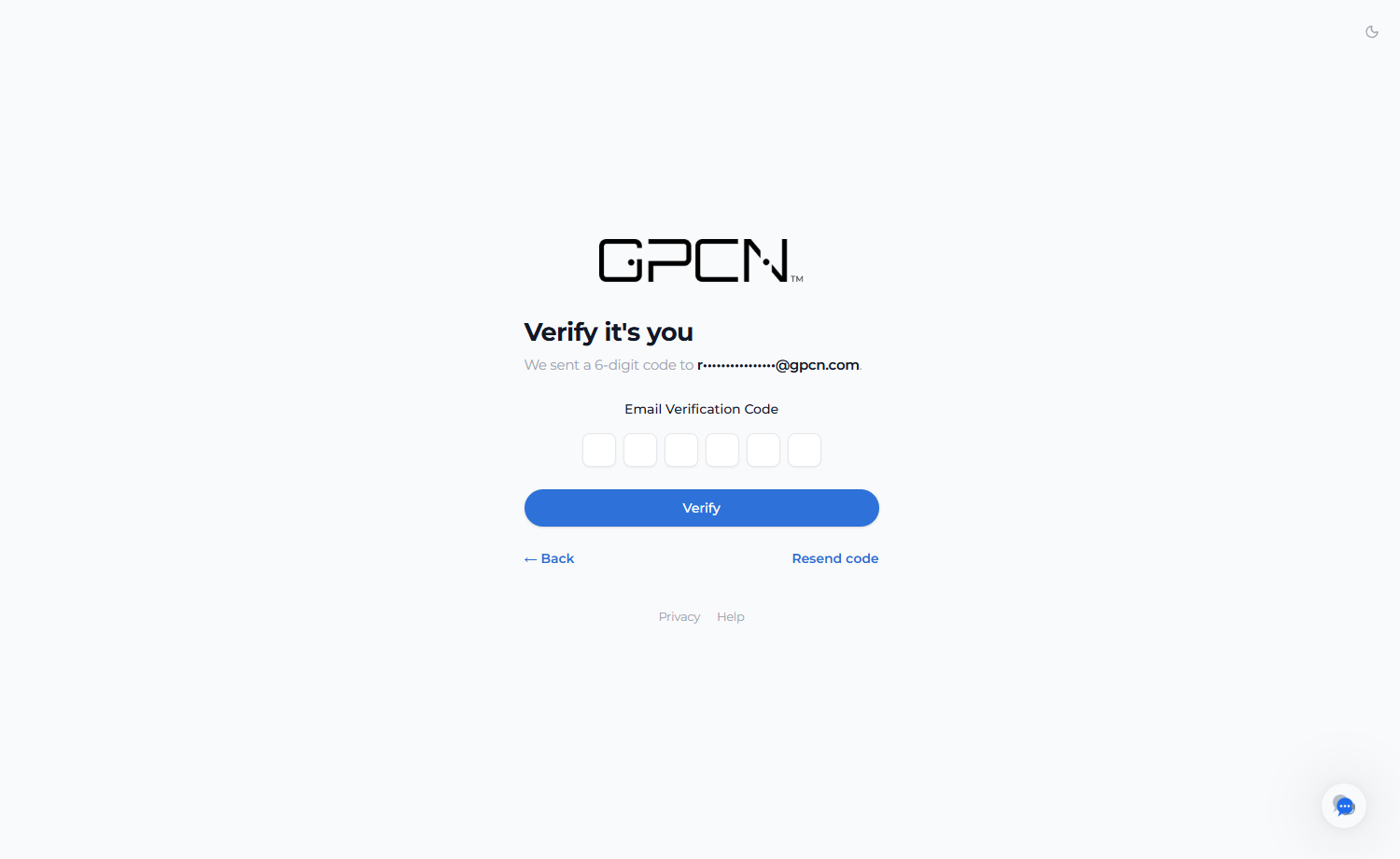
Only part of the address is shown, so the screen doesn't spell out the full email. Enter the six digits and choose Verify.
Resend code sends another if the first doesn't arrive, and Back returns you to the password step if you need to start again.
Option C: Backup code
If you can't access your authenticator or email, use a one-time backup code from the verification screen. Backup codes are single-use — once used, that code is consumed.
Account Activation (New Users)
New users receive an invitation email with an activation link:
- Click the activation link in the email. The link carries a one-time token, so use the link itself.
- Welcome — confirm your first and last name. Both are required, and they may be pre-filled from your invitation.
- Create your password — at least 12 characters with an uppercase letter, a lowercase letter, a number and a symbol. A live checklist shows what's still missing.
- Review & accept — accept the Acceptable Use Policy. Activation can't be completed without it. There's also an optional product-updates opt-in.
Activating doesn't sign you in. You'll be sent to the sign-in page to log in with your new password.
Email codes are enabled automatically, so there's nothing else to set up. You can add an authenticator app from your profile for stronger security.
Sign Out
Click the sign-out icon in the top-right of the header and confirm. If you have jobs still running, the confirmation says so before you go.
Troubleshooting
| Issue | Solution |
|---|---|
| "Invalid email or password" | Check for typos and caps lock. Use Forgot Password if needed. |
| "2FA code invalid" | Double-check the code you entered. If correct, verify your device's clock is synced and try the next code. |
| "Didn't receive email OTP" | Check spam folder. Click Resend Code. |
| "Too many attempts" | Sign-in attempts are rate limited. Wait 15 minutes and try again — the limit counts by network address, so others on your connection share it. |
| "Lost authenticator app" | Use a backup code, then reconfigure TOTP from your profile. |
Next Steps
- Two-Factor Auth — set up and manage 2FA
- API Keys — authenticate without sessions
- Sessions — session management
.png)