Legacy L3 Networks
L3 networks are the routed private networks GPCN™ (Global Private Cloud Network™) offered before VPCs: each one has a CIDR range, hands out addresses over DHCP, and gives its machines outbound internet access through a shared address.
This functionality will be deprecated in an upcoming release. New private networking should be built on VPCs →, which replace L3 networks with subnets, security groups and elastic IPs. If your account is already on VPC networking, most of the actions on this page are closed to you — see What's still available below.
Prerequisites
- Any role can view networks. Adding, editing or removing one needs the Tenant Operator, Tenant Manager or Tenant Administrator role, acting in the chosen group. An organization-wide role acts in the Default group only; a Tenant Operator scoped to a group acts in that group.
- For accounts on VPC networking, creating and editing are closed regardless of permission
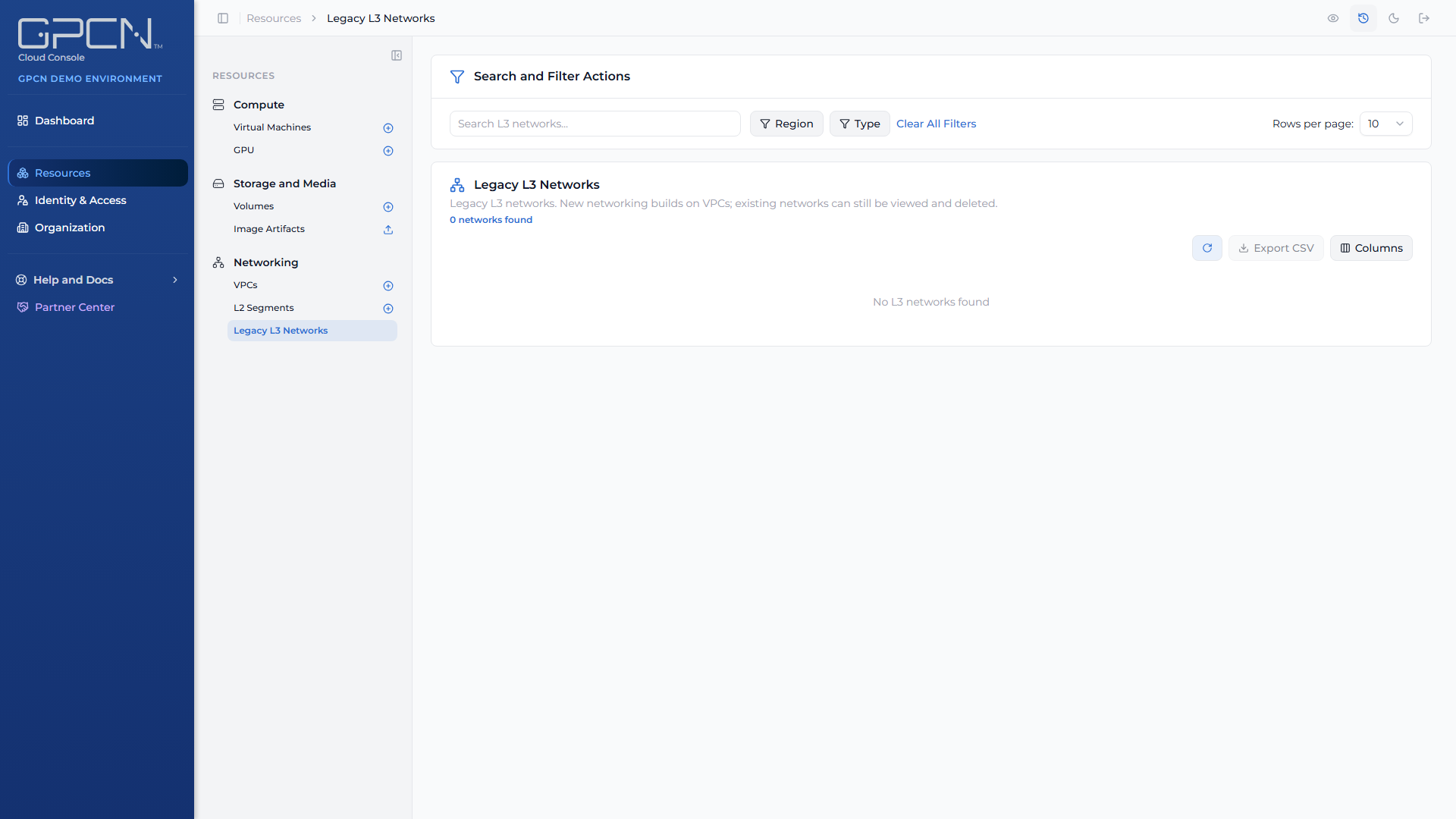
Find them at Resources → Networking → L3 Networks. On an account that has moved to VPC networking the row reads Legacy L3 Networks instead — that label is how you tell which model your account is on.
What's still available
| Action | Account not yet on VPCs | Account on VPC networking |
|---|---|---|
| View a network and its details | Yes | Yes |
| Detach a machine's interface | Yes | Yes |
| Delete a network | Yes | Yes |
| Create a network | Yes | Closed |
| Edit a network | Yes | Closed |
| Attach a machine or interface | Yes | Closed |
On a VPC account the Create and Edit Network controls aren't greyed out — they're absent, and the create page redirects if you reach it by URL. Calling the API directly returns a refusal that points you at VPC subnets and L2 segments instead.
Network types
| Type | What it is |
|---|---|
| Standard (L3) | Routed. Has a CIDR range, DHCP, DNS servers and outbound internet through a shared address. |
| Custom (L2) | Flat layer-2 switching only. No DHCP, no routing, no public addresses. |
Custom networks can no longer be created, on any account. L2 Segments → replace them, and the platform refuses a custom network create by pointing you there. Custom networks you already have keep working, and you can still rename and delete them.
A custom network's detail page shows the same fields as a standard one, with CIDR Block, Default Route and DNS Servers reading N/A, plus a card explaining that addressing is yours to configure.
Create a network
Available only on accounts that haven't moved to VPC networking.
- Go to Resources → Networking → L3 Networks and click Create.
- Resource Group — every network must belong to a resource group, which controls who can see and manage it. Nothing is preselected, so the field opens with: "Every network must belong to a resource group. Choose one, or type a new name to create one." The picker only lists resource groups you have permission to create networks in. Search for an existing one, or type a name that doesn't match anything yet and choose Create "
" to make a new group on the spot, without leaving the page. If your role doesn't let you create resource groups, you won't see the create option — pick from the groups you already have access to. - Enter a name — up to 64 characters, using letters, numbers, spaces, underscores and hyphens.
- Choose the location: Country → Region → Data Center. A network belongs to one data center, not to a region.
- Optionally add a description, up to 500 characters.
- Leave the auto-filled IP settings, or turn them off to enter your own.
- Submit.
The form says the name must be unique. Nothing enforces that — two networks in the same account can share a name, and the name is passed through to the provider as you typed it. Pick something distinctive to save yourself confusion later.
IP settings
The form pre-fills a workable set, then lets you override it.
| Field | Notes |
|---|---|
| CIDR Block | Pre-filled with the first range that doesn't overlap anything you already have — the platform starts at 10.0.0.0/24 and walks forward, so an account with existing networks sees something later in the sequence. The prefix is clamped to /22–/27: type anything outside that and the field silently rewrites it. |
| DHCP start / end | Required for a standard network. Provide both or neither. |
| Default Route | Required for a standard network. |
| DNS Servers | Required for a standard network — there's no "leave it unset" option. The form pre-fills two public resolvers and hints at one or two; the platform accepts up to three. |
Outbound internet for a standard network is always on and can't be changed after creation.
After you submit
Creating a network is an asynchronous job. The portal opens the task drawer to track it and returns you to the list — the network isn't usable the moment the button click finishes.
Manage a network
Open any row from the list. The detail page shows the network's name, description, type, location, CIDR block, outbound address, default route, DNS servers, when it was created and last updated, and the machines connected to it — each with its private address. The list and the detail page both carry a Resource Group field showing each network's group.
You'll also find an IP Address Usage card showing how much of the range is in use, and, if you can see your organization's activity, an Activity card with the network's own history.
Editing
Name and description can be changed at any time. The technical settings — CIDR block, DHCP range, default route and DNS servers — can only be changed while no machines are connected; with a machine attached the platform refuses the change.
On an account that hasn't moved to VPC networking, editing also lets you move the network to a different resource group. Moving a network changes who can see it:
Moving this network to another resource group changes who can see it: only that group's members and your organization's administrators.
The picker always offers the network's current group, so you can pick back if you change your mind, plus any other group where you hold the network:update permission. Completing the move also needs network:update in the network's current group.
Changing a network's CIDR block deletes and recreates the network at the provider. It is not an in-place edit. Treat it as a rebuild, not an adjustment.
Location and network type are fixed at creation. Outbound address translation can never be changed.
Deleting
Delete from the row or the detail page. Deletion is an asynchronous job tracked in the task drawer.
A network with machines still connected can't be deleted. If you try, the refusal arrives as a failed job rather than an immediate error, so check the task drawer.
The list also supports selecting several networks and deleting them together, which asks you to type DELETE to confirm.
Public IPs on a legacy network
A public IP on an L3 network is allocated per network interface, and it's a different thing from a VPC elastic IP.
| Property | Public IP (here) | Elastic IP (VPC) |
|---|---|---|
| Allocated to | One network interface | Your organization |
| Limit | One per interface | One per machine |
| When the machine is deleted | Released | Kept, and still billable |
To allocate one, open the machine, click Edit VM, find the interface in the Network Configuration card, and use the Allocate link in its Public IP row. Releasing uses the trash button in the same row. Both are asynchronous jobs.
Two limits to know:
- Custom (L2) networks can't carry a public IP. There's no router to direct traffic through, so the control isn't offered.
- The legacy allocate and release actions only work on legacy interfaces. Pointing them at a VPC or L2 interface is refused — VPC addresses are managed from the VPC's own Public IPs tab.
Creating a machine on a legacy network
On an account that hasn't moved to VPC networking, the create-VM wizard's networking step asks for an L3 network rather than a VPC and subnet.
Choose a network from the list. If you have exactly one, or one marked as the default, it's pre-selected — otherwise you pick. If you have none, the wizard tells you a default network will be created for the machine.
Use the Allocate Public IP toggle if the machine needs to be reachable from the internet. With it off, the machine still has outbound internet access through the network's shared address.
A custom (L2) network can't carry a public address. Selecting one disables the toggle.
Attaching machines
A machine attaches to a network through a network interface, and interfaces are managed on the machine's Edit VM page rather than its detail page, which shows them read-only.
A machine takes at most five interfaces, and each must name a different network, subnet or segment.
A machine belongs to one routed world. A machine carrying a legacy L3 interface isn't offered a VPC subnet, and a machine on a VPC subnet isn't offered a legacy network. L2 segments sit outside the rule and attach either way.
So moving a machine from a legacy network onto a VPC subnet means removing its legacy interface first — it can't hold both. The primary interface can't be removed, so make another interface primary before you retire it. An L2 segment can stay attached throughout, which keeps the machine reachable from its peers while its routed leg changes.
On the machine's detail page a legacy interface carries a Legacy or L3 badge.
Finding things in the list
The list supports searching by name or CIDR, filtering by region and type, sorting by name, data center, type or connected machines, and exporting the current view to CSV.
Next Steps
- VPCs → — where new private networking belongs
- L2 Segments → — the replacement for custom networks
- Networking → — how the three surfaces compare
- Network Interfaces → — attaching and detaching on a machine
.png)