Manage Resource Groups
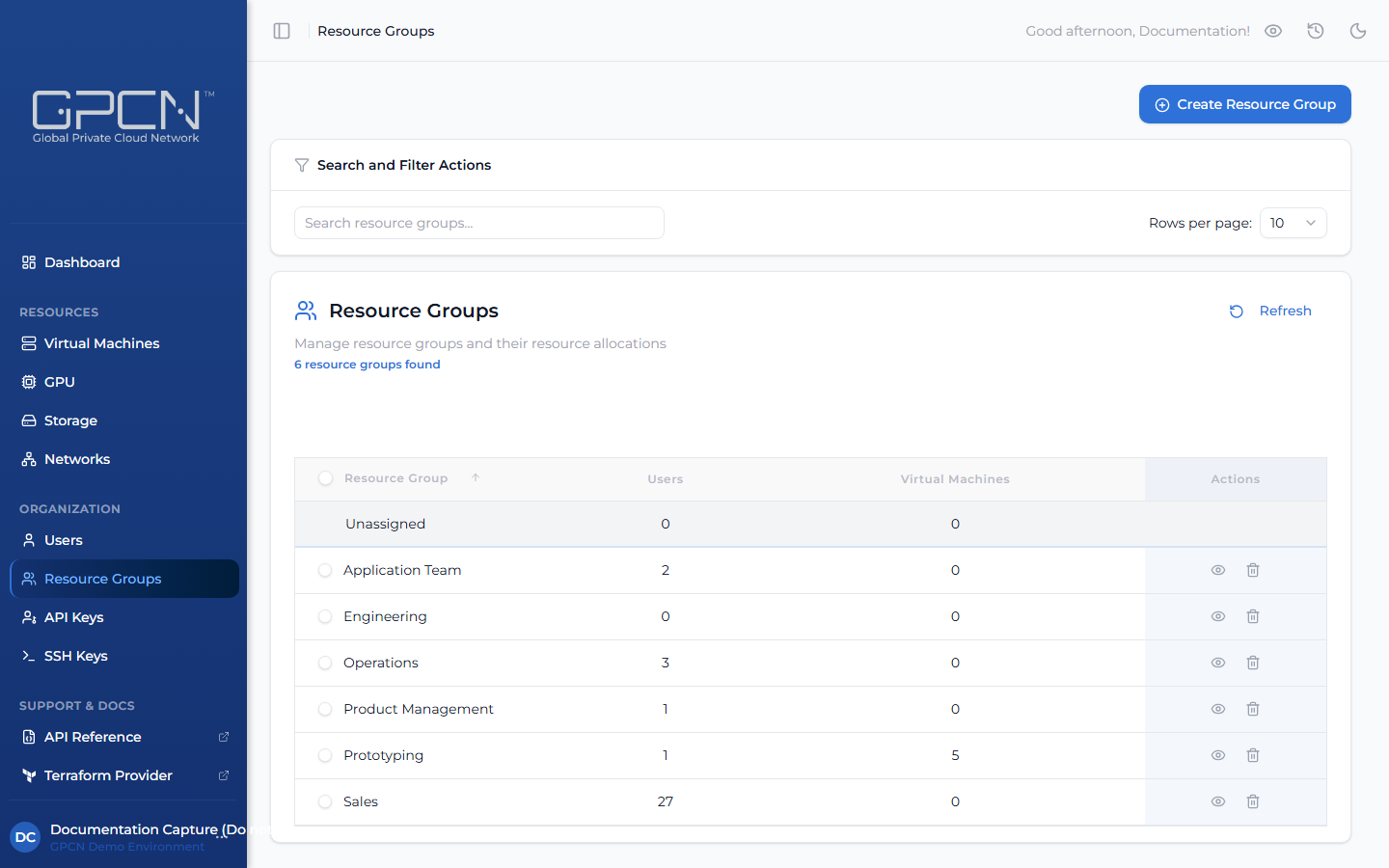
Resource groups are how GPCN™ organizes who can see and act on your VMs, GPU machines, volumes, VPCs, and L2 segments. This page covers what a resource group is, how to create one, and how to manage its members.
Every Resource Belongs to a Group
Every VM, GPU machine, volume, VPC, and L2 segment in your organization belongs to exactly one resource group — there's no "unassigned" state. In the portal you must choose a group; nothing is preselected. Through the API, an omitted resourceGroupId places the resource in your organization's Default group automatically.
Every user in your organization is also an implicit member of Default. You don't need to add anyone to it, and you can't remove anyone from it either — it's just how every account starts out.
Legacy L3 networks aren't counted or shown in any resource group's totals, even though they still exist on your account.
Prerequisites
- Any role can view resource groups
- The Tenant Administrator or Tenant Manager role to create a group, rename it, delete it, or change who belongs to it
Create a Resource Group
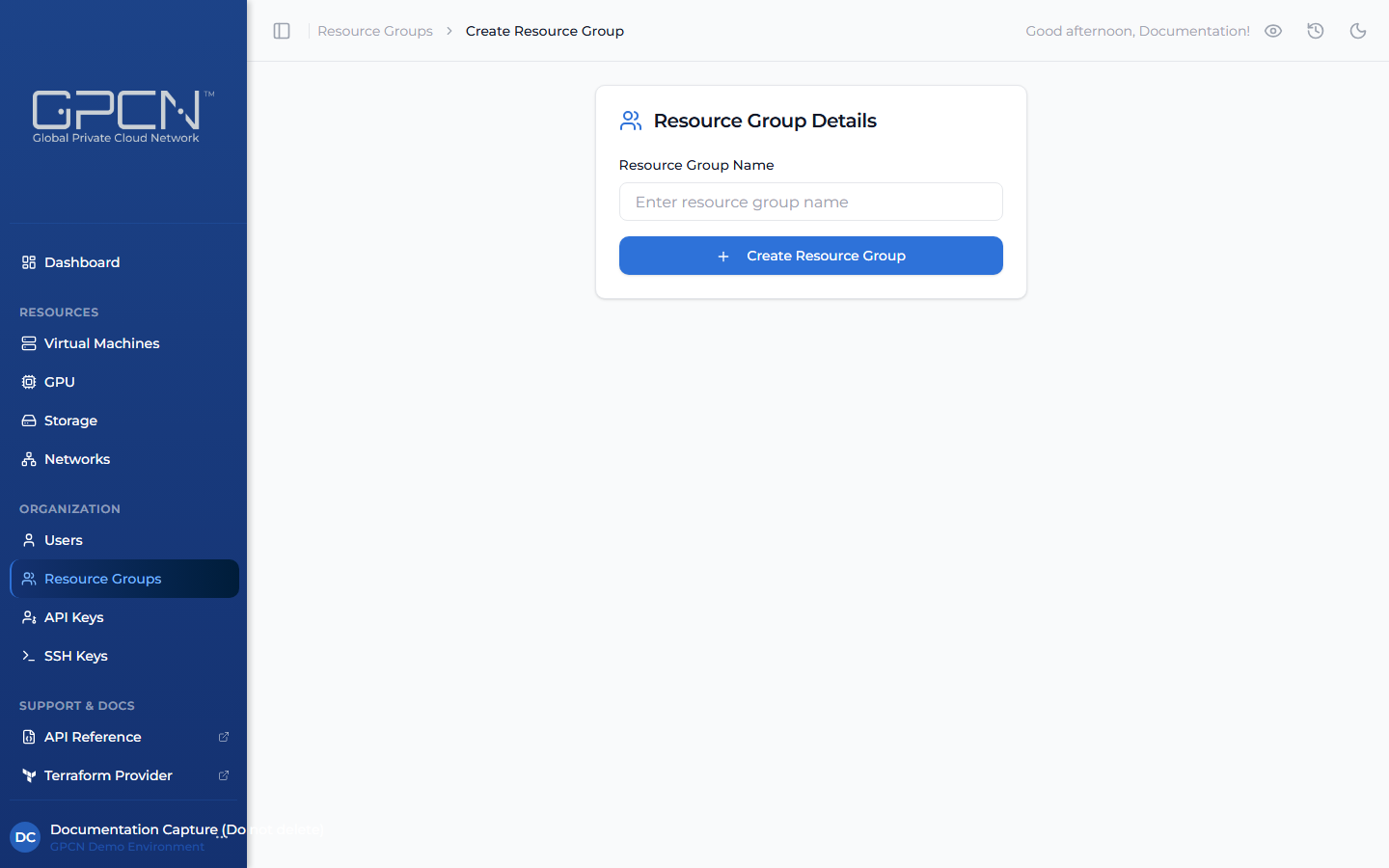
- Go to Identity & Access → People → Resource Groups and click Create.
- In the Create resource group dialog, enter a name (up to 64 characters) and, optionally, a description (up to 255 characters).
- Click Create.
You're taken straight to the new group's page. If your own role could have granted a Tenant Operator role scoped to the group, GPCN™ adds you as a member with that role automatically, so you can start deploying into it right away. Anyone else is added from the group's Members tab.
You can also create a resource group from most of the forms that ask you to pick one — type a name that doesn't match an existing group into the picker, and it offers Create "
Add Members to a Resource Group
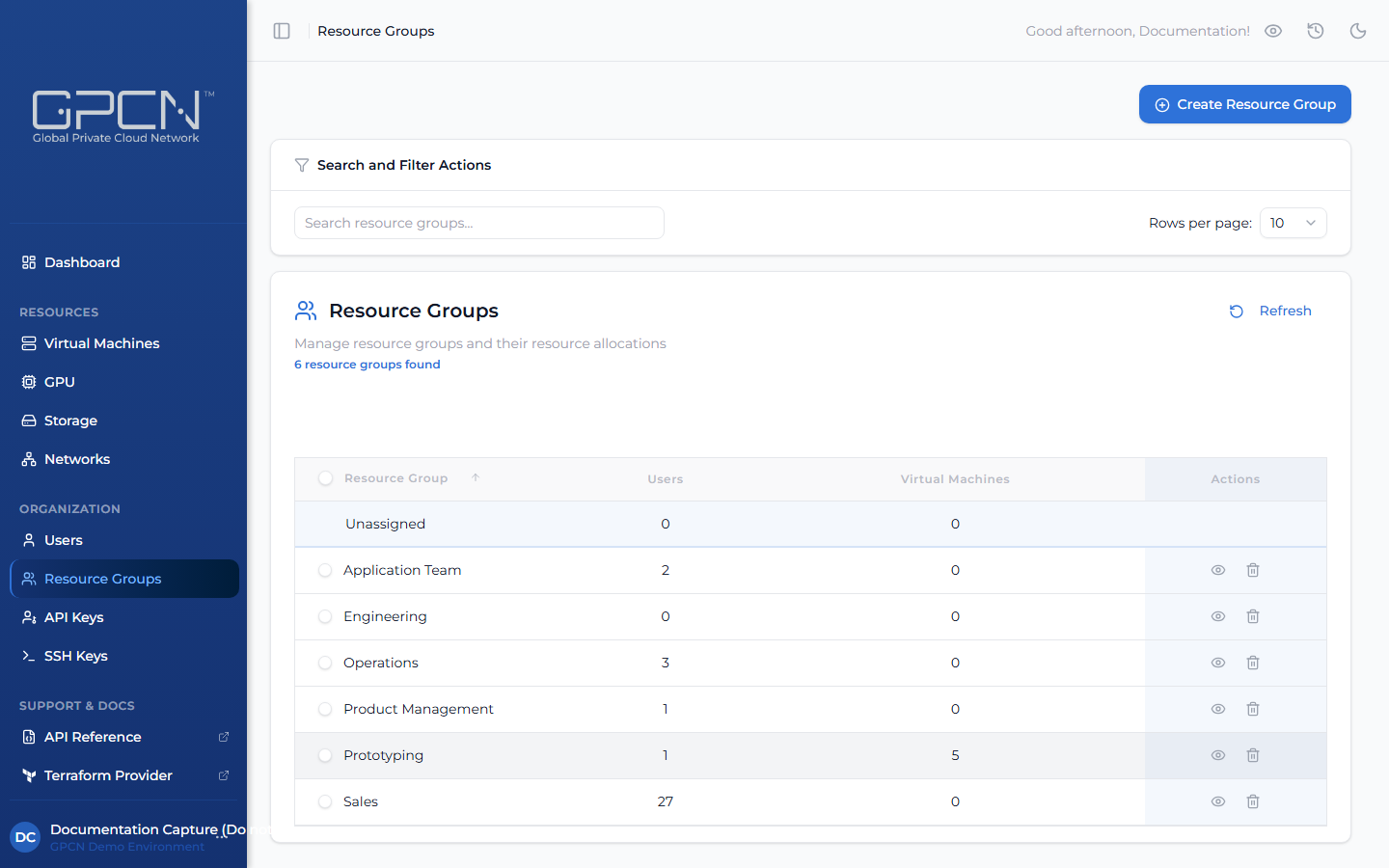
- Open the resource group's detail page by clicking its name in the list.
- Switch to the Members tab and click Add member.
- Pick a user and the role you want them to hold in this group, then click Add.
The role you choose is what gives them access to the group's resources — it isn't assigned separately. A member can hold more than one role in a group; add it from the + Role menu on the member's row, or remove one with the × on its badge. The Add member dialog only offers users who aren't already in the group, so a second role for an existing member always comes from their row, not from Add member again.
The Add member dialog only offers roles your own role can grant. Tenant Administrator and Tenant Manager can never be scoped to a group — they're always organization-wide.
Remove a Member
- Open the resource group's detail page and switch to the Members tab.
- Click the trash icon on the member's row. The member is removed immediately — there's no confirmation step.
Removing someone's last role in the group also removes their membership, since a membership with no role left attached to it does nothing. Removing someone from a group doesn't touch their account — it only takes away what that group's membership gave them.
Rename or Describe a Group
Open the group's page, update the Resource Group Name or Description field on the Overview tab, and click Save.
Delete a Resource Group
Click the delete icon on the group's row in the Resource Groups list, or open the group's Overview tab and use the delete card, then confirm.
The Default group can never be deleted — every organization keeps one. The delete control is disabled on a group that still holds any VMs, GPU machines, volumes, VPCs, or L2 segments, with "This resource group still has resources assigned to it." Move them to another group first. If resources arrive between the page's read and your click, the confirmation stays open and shows a checklist of exactly what's still there instead. Deleting an empty group removes its memberships and any roles assigned in it — this can't be undone.
Next Steps
- Manage Users — invite users and assign them to groups
- Roles & Permissions — understand what each role can do, and the difference between an organization-wide role and a group-scoped one
- Resource Group Endpoints → — manage resource groups programmatically
.png)