Attach & Detach Volumes
Storage volumes can be created, attached to a VM, and shifted to a different VM as your needs change. Attaching a volume gives a VM access to additional persistent disk space that survives reboots and exists independently of the VM itself. When you no longer need a volume on a particular VM, simply detach it and reattach it elsewhere in the same data center — making it easy to migrate data, repurpose storage, or recover files after a VM is decommissioned.
Prerequisites
- The Tenant Operator, Tenant Manager or Tenant Administrator role, acting in the chosen group. An organization-wide role acts in the Default group only; a Tenant Operator scoped to a group acts in that group. Tenant Viewer is read-only.
- The volume must be in Available state before attaching
- The volume and VM must be in the same data center
Attach a Volume
Attaching a volume makes it available as a block device inside the VM. For best results, shut down the VM before attaching storage.
- Go to Resources → Storage and Media → Volumes.
- Find the volume you want to attach — it must be in Available state.
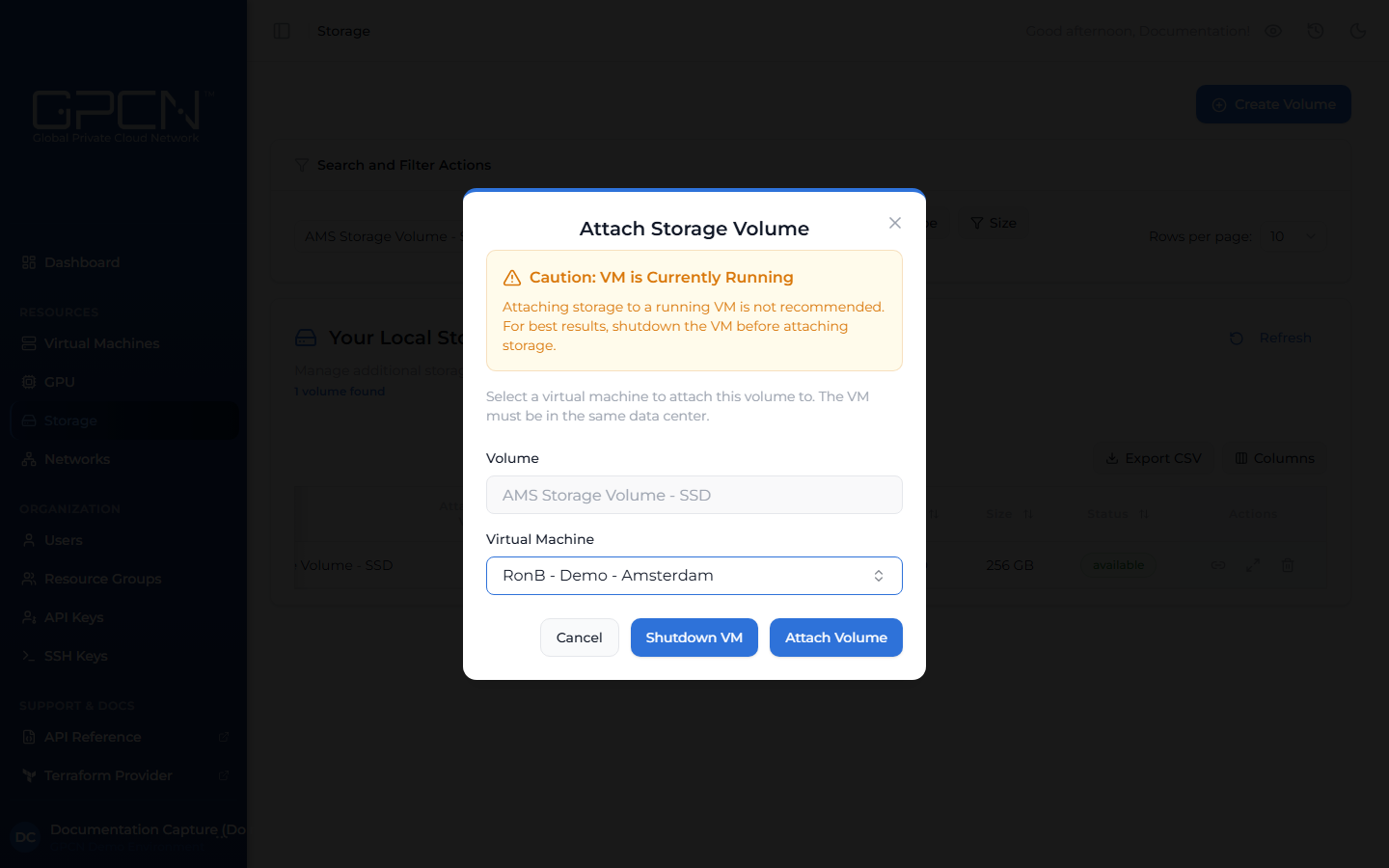
- Click the Attach icon on the volume row. A dialog opens.
- Select the target VM from the dropdown — only VMs in the same data center are shown.
- Click Attach Volume.
After the operation completes, the volume transitions from Available to Attached. Inside the VM, it appears as a new block device that you can mount.
If the selected VM is running, the dialog will warn you that attaching storage to a running VM is not recommended. You can shut the VM down from within the dialog before proceeding. After attaching, you may also need to format the volume before you can mount it — volumes that were previously formatted retain their data when reattached.
Detach a Volume
Detaching a volume returns it to Available state so it can be attached to a different VM.
- Go to Resources → Storage and Media → Volumes.
- Find the attached volume.
- Click the Detach icon on the volume row. A confirmation dialog opens.
- Confirm the detachment.
After the operation completes, the volume returns to Available state and can be attached to another VM in the same data center.
If the VM is running, the dialog will require you to type detach volume to confirm. Detaching from a running VM is not recommended as it may cause data corruption. Shut the VM down first when possible.
Attach or detach several volumes at once
Select volumes with the checkboxes in the list and use the bulk actions bar.
Bulk attach walks through the selected volumes one at a time, showing which one it's on, and reports any that didn't succeed rather than failing the whole batch silently.
Bulk detach asks you to type DETACH to confirm, and warns you why:
Detaching a volume that is mounted or being written to can corrupt its data or crash the application using it.
Unmount the volume inside the guest operating system before detaching it. That applies to a single detach just as much as a bulk one — the typed confirmation is there because a bulk detach multiplies the risk, not because one is safe.
Next Steps
- Create a Volume — provision a new volume
- Resize a Volume — expand an existing volume
- Delete a Volume — permanently remove a volume
.png)