Images and Media
The Images and Media page is where you manage the custom images and ISOs available to your organization. Custom images are how you bring your own systems onto the GPCN™ (Global Private Cloud Network™) platform — you can deploy virtual machines from disk images you supply, and move existing workloads and data in from your own or remote infrastructure. Use this page to review your images, check where they can be used, and manage their settings.
About Custom Images
The GPCN™ platform offers a set of standard operating system images for new VMs. Your organization can also have custom images — disk images and ISOs added specifically for your account.
Each item is one of two types:
- Template — a disk image that can be used as the basis for a new virtual machine, similar to a standard OS image but specific to your organization.
- ISO — installer or boot media. ISOs are commonly used as rescue media for Rescue Mode, but can also serve other boot and installation purposes.
Custom images are added to your organization by request — open a support request to have one added. See Available Images for the formats we support.
Prerequisites
- The Tenant Administrator or Tenant Power User role
Browsing Images
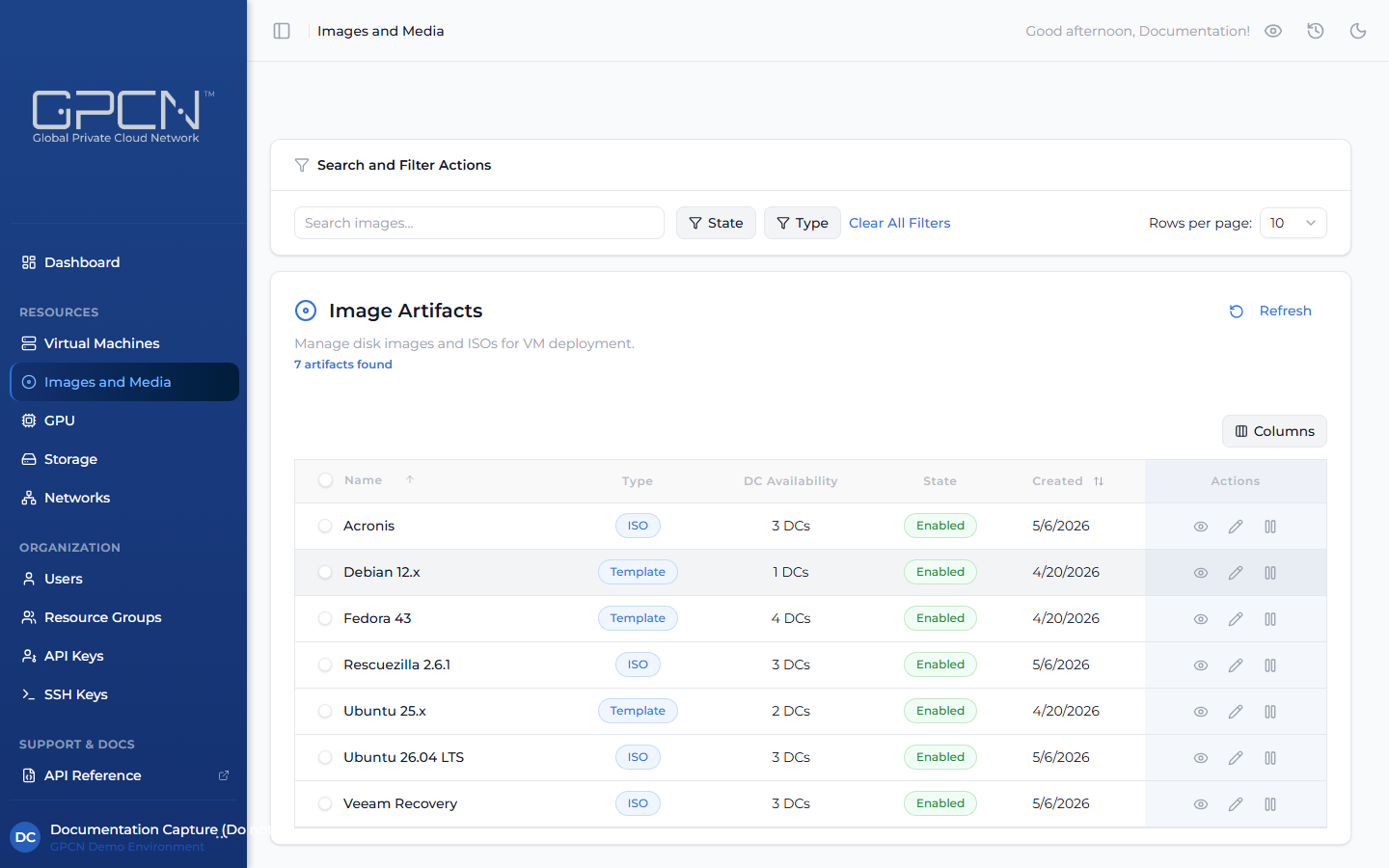
Open Images and Media from the portal to see every custom image available to your organization. The list summarizes each one:
| Column | What it tells you |
|---|---|
| Name | The image's display name |
| Type | Whether the item is a Template or an ISO |
| DC Availability | The data centers where the image is available for use — shown here as a count, with the full list in the image's details |
| State | Whether the image is Enabled or Disabled |
| Created | When the image was added to your organization |
To find a specific image:
- Search — match by name or description.
- State filter — show only Enabled or Disabled images.
- Type filter — show only Templates or ISOs.
You can sort the list by name or creation date, and adjust how many rows appear per page.
Viewing Image Details
Two views give you more information about an image:
- Quick View — opens a summary in a dialog without leaving the list. Use it for a fast look at an image's settings and where it's available.
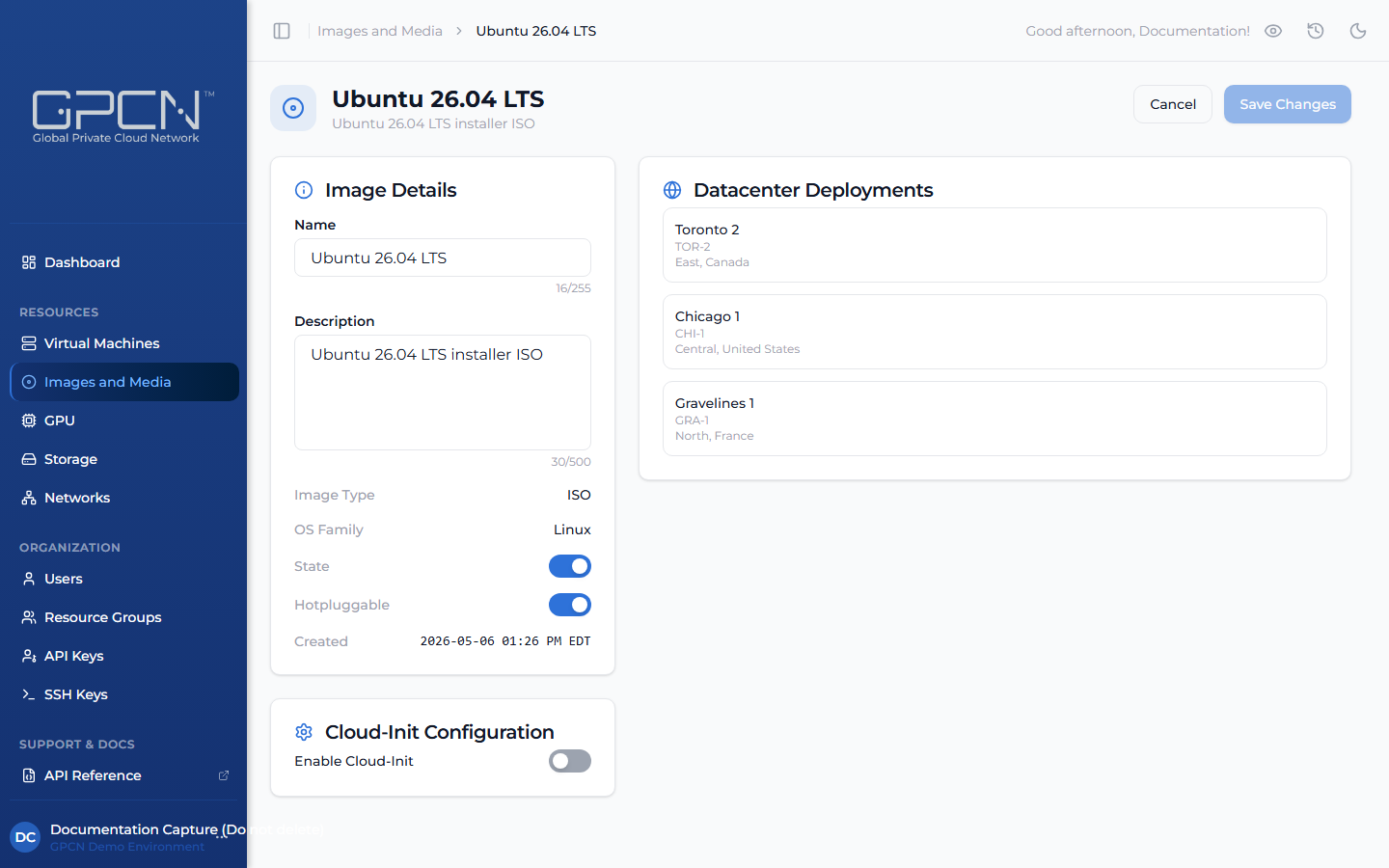
- Details page — opens the full page for an image, where you can review everything and make changes.
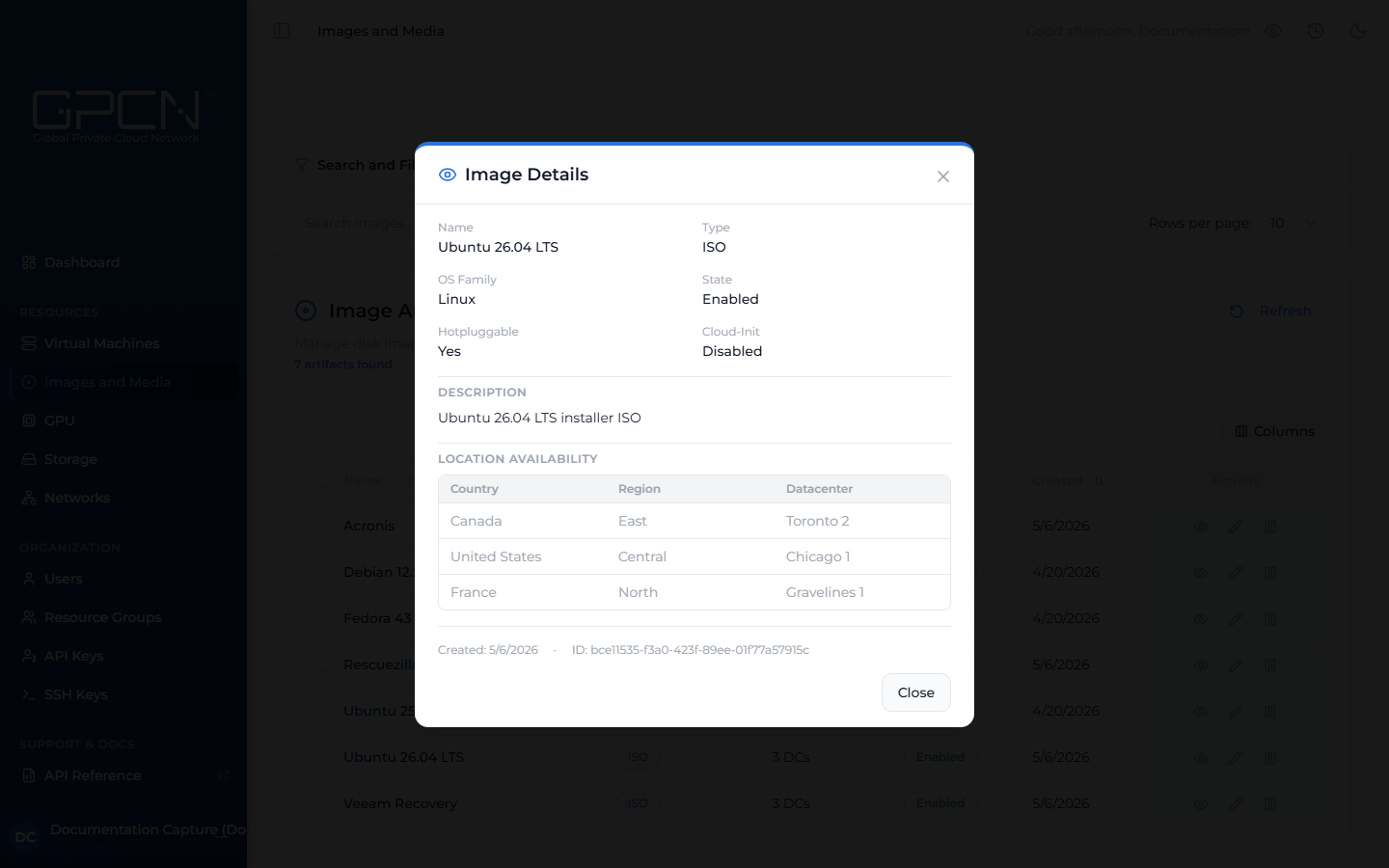
Both show the same core information:
| Detail | Description |
|---|---|
| OS Family | The operating system family the image is based on |
| State | Whether the image is currently Enabled or Disabled |
| Cloud-Init | Whether the image supports cloud-init provisioning |
| Hotpluggable | Whether network interfaces can be added or removed while a VM created from the image is running |
| Description | Notes about the image, set by your organization |
| Location availability | The full list of data centers the image is deployed to, each shown with its region and country |
Where an Image Can Be Used
A custom image is deployed to specific data centers, and it can only be used in those locations.
The list's DC Availability column shows how many data centers an image reaches. To see exactly which ones, open the image — both Quick View and the Details page list every data center the image is deployed to, along with its region and country.
If you need an image in a data center it isn't deployed to yet, open a support request.
Image States
An image's state controls whether it can be selected elsewhere in the portal — for example, in the ISO picker for Rescue Mode.
- Enabled — the image appears in selection lists and can be used.
- Disabled — the image is hidden from selection lists but remains in your organization. Disable an image to take it out of use without losing it.
To change an image's state, use the enable or disable action on its row, or toggle State while editing the image. The change takes effect right away.
Editing an Image
Open an image's details page and select Edit Image to make changes. Depending on your permissions, you can update:
- Name and description — keep these meaningful so your team can identify the image and what it's for.
- State — enable or disable the image.
- Hotpluggable — whether network interfaces can be changed on a running VM created from the image.
- Cloud-Init — turn cloud-init support on or off. When it's on, you can set a default username for VMs provisioned from the image.
Select Save Changes to apply your edits, or Cancel to discard them.
Bulk Actions
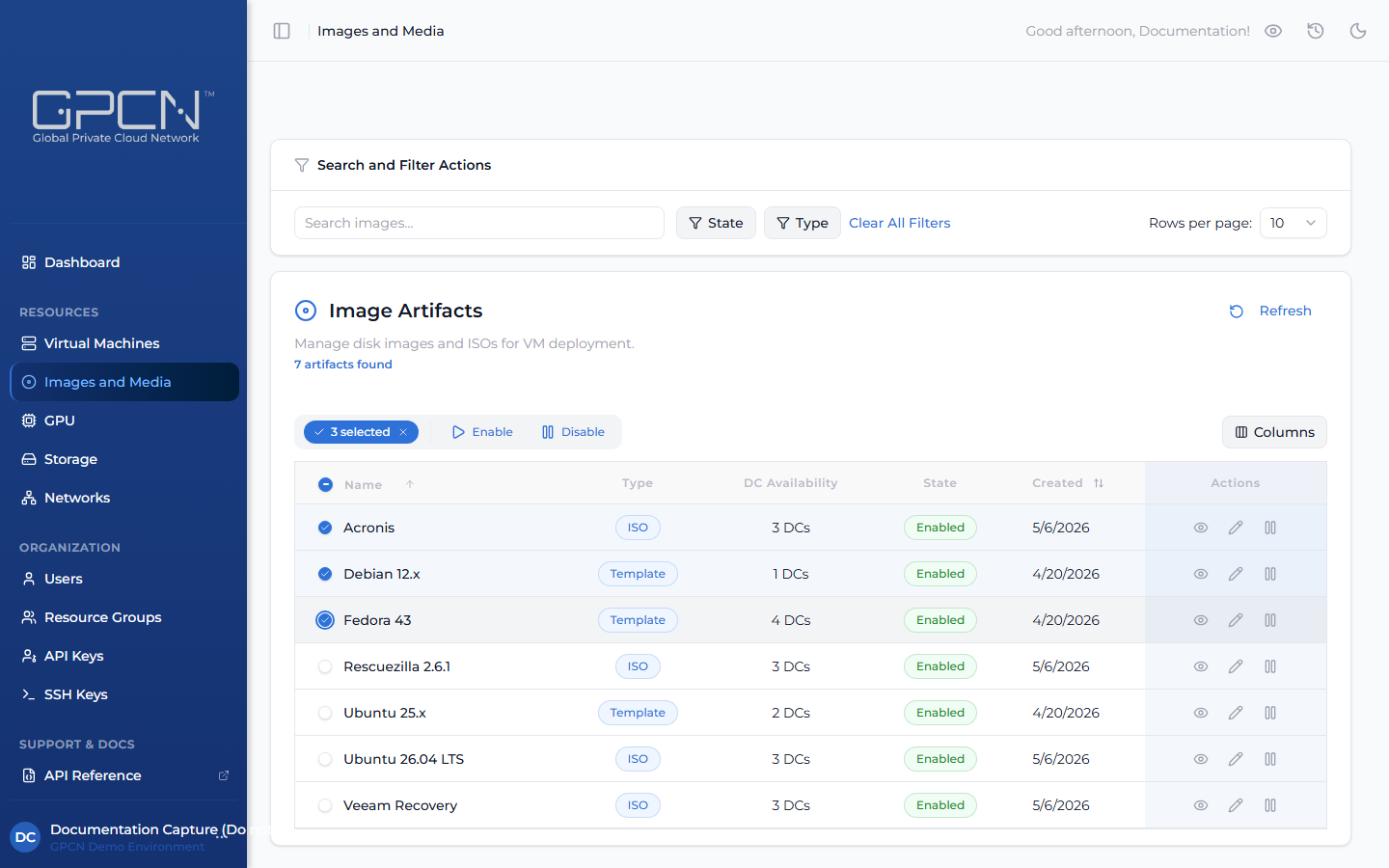
To work with several images at once, select them using the row checkboxes. The bulk action bar can Enable or Disable every selected image in a single step — useful when bringing a set of images in or out of use together.
Next Steps
- Rescue Mode — boot a VM from a rescue ISO
- Available Images — the standard operating system images
- Create a VM — deploy a virtual machine
.png)